

Amazon product targeting places your Sponsored Products, Sponsored Brands, and Sponsored Display ads directly on specific product detail pages or across defined shopping categories. Instead of waiting for customers to type a search query, you position your ad in front of buyers who are already on a competitor’s or complementary product page, actively comparing their options.
The intent at that moment is different from a keyword search. A customer who clicked into a product listing is further into the decision process. They committed enough to open that page. Product targeting positions your ad at exactly that point of comparison, which is often where purchase decisions actually get made.
Product targeting works differently across each ad type. The placements vary, the mechanics vary, and who can access each one varies.
Product Targeting in Sponsored Products
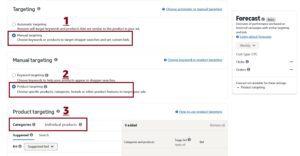
Sponsored Products offers the most targeting control in comparison to Sponsored Brands and Sponsored Display. Within a manual Sponsored Products campaign, create a product targeting ad group and choose between Individual Products with Exact and Expanded options, or Categories with the refinement filters.
Every product targeting campaign starts with the same decision: target individual ASINs or target an entire category. That choice determines your reach, your cost-per-click, and what the data can tell you afterward.
1. Individual Product Targeting
Individual product targeting lets you specify the exact ASINs where you want your ad to appear. When you add individual product targets inside a Sponsored Products manual campaign, Amazon gives you two match type options.
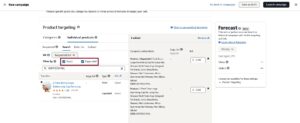
- Exact: Targets only the specific ASIN you selected. Your ad appears on that product’s detail page and nowhere else. The data is clean and fully attributable to the ASIN you chose.
- Expanded: Targets the ASIN you selected plus products Amazon’s algorithm determines are closely related to it. That includes substitute products in the same category, complementary products frequently bought alongside it, and other items customers regularly view with it. The Expanded box is ticked by default when you add an individual ASIN target. If you only want the Exact placement, untick it manually.
Because Amazon updates what qualifies as an expanded product daily, check the Search Term Report regularly to see which ASINs the expanded setting is actually targeting. When non-converting ASINs appear there, add them as negative product targets at the ad group level.
Think of Expanded similarly to broad match in keyword targeting: it provides incremental reach but requires active negative management to stay efficient.
Run Exact and Expanded targets in separate ad groups. When they share an ad group, the data pools together and you cannot tell which placement is driving spend or conversions. Separate ad groups let you bid on Exact targets more aggressively once you confirm they convert, while keeping Expanded in discovery mode at a lower, capped bid.
Three situations where individual ASIN targeting is worth the precision work:
- Competitor Targeting: Place your ad directly on competitor listings. Look for competitors priced above you or rated below 4.0 stars. A seller with 12 reviews targeting a product with 5,000 reviews loses the comparison immediately. Target competitors within a realistic range of your own review count and rating where customers might genuinely choose you.
- Brand Defense: Amazon fills your own product pages with competitor ads by default. Targeting your own ASINs with your other products replaces those placements with your catalog, keeping customers within your brand.
- Complementary Placement: If you sell premium pour-over kettles, targeting popular coffee grinder ASINs puts your ad in front of someone actively building a coffee setup. The intent is high and specific, and CPC on complementary ASINs is typically lower than on direct competitor pages because fewer sellers are bidding on them.
Category Targeting
Category targeting runs your ad across a whole category or subcategory, with optional filters to narrow the audience. Used with intention, they change your competitive positioning on every page your ad appears on. Here are some of the filters you can apply during category targeting.
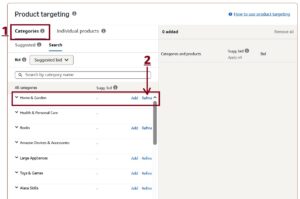
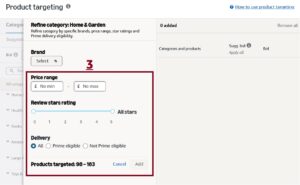
- Price filter. Set a minimum price above your product and every placement shows you as the better-value alternative to the listing your ad appears on.
- Star rating filter. Set a maximum below 4.0 and every page your ad lands on hosts a product with documented customer dissatisfaction. You appear at the exact moment a customer is reading negative feedback about a competitor.
- Brand filter. Exclude your own brand to prevent the category campaign from surfacing on your own listings and diluting your ASIN targeting data.
- Prime eligibility filter. Restricting to Prime-eligible listings keeps placements relevant and avoids appearing alongside listings that may not fulfill at the same standard.
Start at the most specific subcategory relevant to your product. A seller of stainless steel travel mugs should target Travel Mugs, not Drinkware or Kitchen and Dining. Once the subcategory converts at your target ACoS, test one level up in a separate campaign with a lower bid to see whether broader reach adds volume at an acceptable cost.
Keep ASIN targeting and category targeting in separate campaigns. The intent profile, conversion rate, and management rhythm are different enough that combining them produces data you cannot act on.
Product Targeting in Sponsored Brands, and Display
Product targeting is also available in all three main Amazon ad types, but the mechanics, placements, available options, and eligibility requirements differ meaningfully across each one.
Sponsored Brands
Product targeting in Sponsored Brands places a headline ad, including your brand logo, a custom headline, and a selection of products, or video on competitor and complementary product detail pages. The format works across all three Sponsored Brands ad types: Product Collection, Store Spotlight, and Sponsored Brand Video.
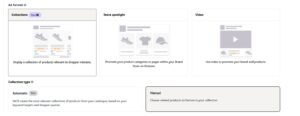
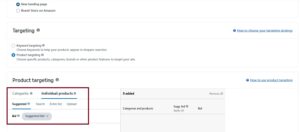
Sponsored Brands product targeting includes both ASIN-level and category targeting. It does not include the Expanded match option available in Sponsored Products. You target the specific ASINs or categories you select, and Amazon does not automatically broaden to related products.
The headline placement at the top of a competitor’s detail page is one of the most aggressive positions available in Amazon advertising. It appears above the listing’s own content, meaning your brand is the first thing a customer sees when they land on that page.
Sponsored Display
Sponsored Display uses product targeting through a different structure from the other two ad types. It offers four targeting options, and each one serves a distinct role in the customer journey.
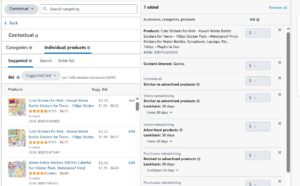
Contextual Targeting
Contextual targeting places your ads based on where customers are on Amazon, specifically on product detail pages and shopping results pages that match what you are targeting. Inside Contextual Targeting, you have two options:
- Individual Products. You select specific ASINs and your ad appears on those product pages. This gives you the same competitor and complementary placement logic as ASIN targeting in Sponsored Products, applied within the Sponsored Display format.
- Categories. You select a product category and your ad appears across that category’s listings. Like in Sponsored Products, you can refine by price range, star rating, brand, and Prime eligibility to sharpen placement relevance.
Expanded product targeting is not available in Sponsored Display. You work with the specific products and categories you select.
Remarketing Audiences
Remarketing targets customers based on their prior behavior with your products or similar ones. There are two remarketing options:
- Views remarketing. Targets customers who viewed your product detail page or similar products within a lookback window of 7, 14, 30, 60, or 90 days but did not purchase. This re-engages the highest-intent customers you already have: people who found your listing, considered it, and left.
- Purchases remarketing. Re-engages customers who previously bought your products or similar ones. Lookback windows extend up to 365 days. It is the right tool for driving repeat purchases on consumables, cross-selling within your catalog, and building customer lifetime value.
In-Market Audiences
In-market audiences target customers whose recent shopping behavior indicates they are actively looking to buy within a specific category. Amazon identifies these customers based on search patterns, product views, and purchase signals within a defined timeframe. Because the behavioral signal is recent and purchase-focused, in-market audiences tend to deliver better conversion rates compared to broader interest-based targeting. This audience type is best used when you want to reach new customers who are in an active buying window for your category but have not yet viewed your listing.
Interest and Lifestyle Audiences
Interest and lifestyle audiences are built from longer-term behavioral patterns rather than recent purchase signals.
- Lifestyle audiences are built from customers whose shopping and content consumption habits indicate an ongoing connection to a particular lifestyle, such as regular home goods purchases on Amazon or consistent streaming of fitness content on Prime Video.
- Interest audiences group customers who share a durable interest in a category, identified through sustained browsing and purchase signals over time rather than a recent buying signal.
These audiences work best for new-to-brand awareness campaigns where the goal is reaching customers who do not yet know your product exists but fit the profile of someone who would buy it. Expect higher ACoS and lower conversion rates compared to contextual or remarketing campaigns. The right measure here is new-to-brand rate, not ACoS alone.
Use Contextual Targeting on competitor and category pages to generate fresh placements, use Remarketing to re-engage customers who visited your listing but left without buying, use In-Market audiences to reach active buyers in your category who have not found you yet, and use Interest and Lifestyle audiences when you are running brand awareness with new-to-brand rate as the primary goal.
Negative Product Targeting
Negative product targeting is the exclusion of your product targeting campaigns. It tells Amazon exactly which product pages you do not want your ad to appear on, and Amazon will not serve your ad on those pages regardless of how relevant they might otherwise seem.
Without it, Amazon continues showing your ad on every ASIN that passes its relevance check, including pages where your product has no realistic chance of converting. A competitor with an incompatible product, a listing in the wrong subcategory, or a page where the price comparison goes strongly against you will keep consuming budget until you explicitly tell Amazon to stop. Reducing a bid to zero does not stop a placement. Only a negative ASIN target does.
Negative product targeting operates at the ad group level in Sponsored Products manual campaigns. You enter the specific ASINs you want to exclude, and Amazon immediately stops serving your ad on those product pages. Unlike keyword negatives, there is no match type variation here. A negated ASIN is a hard block on that exact product page.
You can add negative keywords or brands during campaign setup if you already know which placements to avoid, for example your own ASINs if you are running a pure competitor targeting campaign. You can also enter the brand names where you do not want your ads to appear on their products.
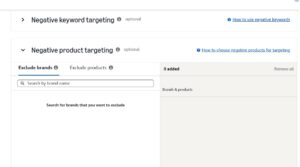
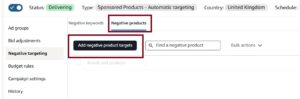
After two to four weeks of running, pull the Search Term Report and look at the ASIN-level data in the search term column. Any ASIN with 10 or more clicks and zero conversions over that window should be evaluated for negation.
Always exclude the most recent three days of data from your analysis window. Amazon’s seven-day attribution window for Sponsored Products means a sale that happened yesterday may not appear in your report until later in the week. Cutting a target based on those last few days is one of the most common optimization mistakes in product targeting because the data looks like zero conversions when the conversions simply have not registered yet.
Advanced Product Targeting Strategies
The strategies below cover how build product targeting campaigns faster, more effectively.
Mining Auto Campaigns for ASIN Targets
The most reliable source of high-converting manual ASIN targets is your own auto campaign data. Download the Search Term Report from auto campaigns. Filter the Customer Search Term column for terms starting with B0. These are the ASINs Amazon already matched to your product through the Substitutes and Complements targeting groups and generated clicks or conversions on. Amazon has already confirmed their relevance. Promote the converters into a manual ASIN campaign and negate the non-converters in the auto campaign.
Price Anchor Targeting
Find the most expensive product in your subcategory and run ASIN targeting on it. A customer who clicks into a $79 product and sees your equivalent at $49 in the sponsored placement is now evaluating you against a price anchor that favors you. The star rating comparison runs at the same moment. This requires no creative work. It is a positioning decision made entirely through ASIN selection.
Defensive Targeting on Your Own Listings
Amazon fills the sponsored placements on your product page with competitor ads by default. Targeting your own ASINs with your other catalog products replaces those competitor placements with your brand. For products with natural cross-sell relationships, this keeps the customer’s next click within your ecosystem rather than handing them to a competitor.
Seasonal Category Rotation
For products tied to seasonal demand, build category targeting budgets to peak before the season begins, not after traffic is already peaking. Rotate category targets in one to two weeks during active seasonal periods, cycling in the top-performing categories from the prior season’s data rather than rebuilding campaigns from scratch each cycle.
Product Targeting During a New Launch
During a product launch, run category targeting at subcategory level with the price filter set above your price and the star rating ceiling below 4.0. This targets customers already reading negative feedback on a competitor product, which creates the highest probability of a comparison purchase. Product targeting during launch contributes to the sales velocity signal Amazon uses in organic ranking decisions. Do not wait for keyword campaigns to generate data before starting product targeting. Keyword data tells you what customers search for. Product targeting data tells you which competing products your buyers were evaluating before they chose you.
Frequently Asked Questions
What is the difference between Exact and Expanded in individual product targeting?
Exact targets only the specific ASIN you entered. Expanded targets that ASIN plus related products Amazon identifies as substitutes, complements, or frequently purchased alongside it. Expanded is ticked by default. Use Exact for clean, attributable data on a specific placement. Use Expanded when you want broader reach and are willing to manage negative ASINs from the Search Term Report.
Is Expanded product targeting available in Sponsored Brands or Sponsored Display?
No. Expanded product targeting is a Sponsored Products-only option. Sponsored Brands uses ASIN and category targeting with no Expanded option. Sponsored Display uses Contextual Targeting with Individual Products and Categories selections, plus three audience-based options: Remarketing, In-Market, and Interest and Lifestyle.
What are the four targeting options in Sponsored Display?
Contextual Targeting places ads based on specific product pages or categories. Remarketing Audiences re-engage customers who viewed or purchased your products or similar ones. In-Market Audiences target customers whose recent behavior signals an active buying intent within a category. Interest and Lifestyle Audiences reach customers based on longer-term shopping habits and content consumption patterns.
Can product targeting and keyword targeting run at the same time?
Yes. They cannot be in the same ad group, but you can run both within separate ad groups in the same campaign or in entirely separate campaigns.
How long before product targeting campaigns show reliable results?
Two to four weeks minimum. Amazon’s attribution window for Sponsored Products is seven days, so early data is incomplete. Do not make bid or negation decisions based on fewer than 50 clicks per target, and always exclude the last three days from any analysis window.
How do I find the best ASINs to target?
Pull your auto campaign Search Term Report and filter the Customer Search Term column for results starting with B0. These are the ASINs Amazon already matched to your product and generated clicks or conversions on. They are your highest-priority manual targets because relevance is already confirmed by Amazon’s own algorithm.
What is negative product targeting?
Negative product targeting blocks your ad from appearing on a specific ASIN’s product page. It is different from reducing a bid to zero, which does not prevent the ad from serving. Negate ASINs that generate clicks without conversions after a full evaluation window.
Does product targeting affect organic ranking?
Indirectly. Product targeting drives sales, and sales strengthen the sales velocity signal Amazon’s algorithm uses in organic ranking decisions. The contribution operates through conversions, not through the ad placement itself.