
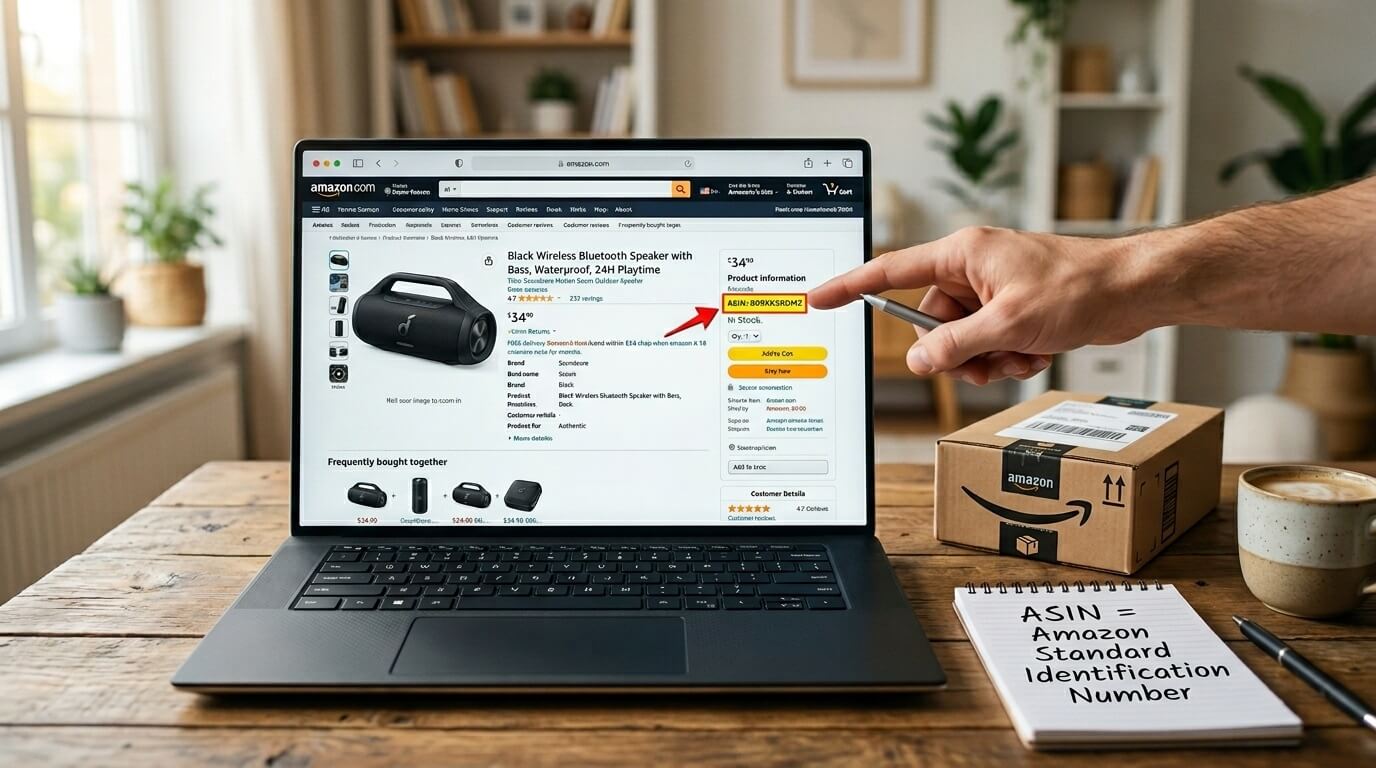
ASIN stands for Amazon Standard Identification Number. It is a unique 10-character alphanumeric code that Amazon assigns to every single product in its catalog. Think of it as Amazon’s internal fingerprint for products. No two different products share the same ASIN within a given marketplace.
Every item you see on Amazon has one. From a $3 phone charger to a $2,000 laptop, each product page is anchored by an ASIN. If you plan to sell on Amazon in 2026, understanding how ASINs work is not optional. They affect everything from product visibility to advertising to whether your listing even shows up in search results.
How an ASIN Is Structured
An ASIN always contains exactly 10 characters. It is a mix of uppercase letters and numbers with no special characters, spaces, or lowercase letters involved.
The “B0” Prefix
If you spend any time browsing Amazon product pages, you will notice that most non-book ASINs start with “B0” followed by eight additional alphanumeric characters. For example: B0CXYZ1234. This pattern has been consistent for years, and it is the format you will encounter most often as a seller.
Amazon generates these codes internally. You do not choose your ASIN, and you cannot customize it. Once Amazon assigns it, that code is permanent.
Books Follow a Different Rule
For books, Amazon does not generate a new ASIN. Instead, it uses the book’s ISBN-10 as the ASIN. If a book has an ISBN-10 of 0134685997, the ASIN on Amazon will also be 0134685997. This is the only product category where the ASIN is not a uniquely generated Amazon code.
A few structural points worth knowing before you go further:
- ASINs are case-sensitive in Amazon’s internal systems (always uppercase)
- Each ASIN maps to a single product detail page
- Multiple sellers can list offers against the same ASIN
- A product can only have one ASIN per Amazon marketplace
- ASINs do not automatically transfer across global marketplaces
Where to Find an ASIN on Amazon
Locating an ASIN takes seconds once you know where to look. There are four reliable methods, and each one works in a different selling context.
On the Product Detail Page
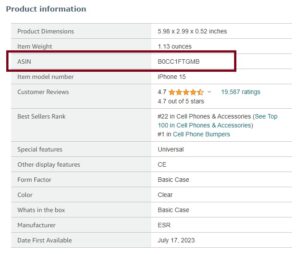
Scroll down to the “Product Information” section on any Amazon listing. The ASIN is displayed alongside details like item weight, dimensions, and date first available. On mobile, this section may be collapsed under “Additional Information.”
In the Product URL
Look at the address bar of any Amazon product page. The ASIN appears right after “/dp/” in the URL.
Example: amazon.com/dp/B0CXYZ1234
The “B0CXYZ1234” portion is the ASIN. This is one of the fastest ways to grab it.
Inside Amazon Seller Central
Registered sellers can find ASINs in multiple places within Seller Central.
- Manage Inventory page (ASIN column in the listing table)
- Business Reports under Detail Page Sales and Traffic
- Advertising Reports in campaign, targeting, and search term data
- FBA Inventory and Inventory Health reports
Using Amazon’s Search Bar
Type an ASIN directly into Amazon’s main search bar. If the product exists and is active, the listing appears as the only search result. This is a quick way to verify whether an ASIN is live.
ASIN vs SKU vs UPC vs EAN vs ISBN vs FNSKU
One of the biggest points of confusion for new sellers is understanding how ASINs relate to other product identifiers. Each one serves a different purpose, and they are not interchangeable.
This side-by-side comparison covers each identifier by who issues it, where it is used, and what separates it from the others.
| Identifier | Full Name | Issued By | Length | Primary Purpose | Where It’s Used |
|---|---|---|---|---|---|
| ASIN | Amazon Standard Identification Number | Amazon | 10 characters | Identify products in Amazon’s catalog | Amazon only |
| SKU | Stock Keeping Unit | Seller (you) | Varies | Internal inventory tracking | Your own systems, Seller Central |
| UPC | Universal Product Code | GS1 | 12 digits | Global product identification | Retail, Amazon (for ASIN creation) |
| EAN | European Article Number | GS1 | 13 digits | Global product identification (mainly Europe) | Retail, Amazon |
| ISBN | International Standard Book Number | ISBN Agency | 10 or 13 digits | Identify books | Publishing, Amazon (books only) |
| FNSKU | Fulfillment Network Stock Keeping Unit | Amazon | 10 characters | Track seller-specific FBA inventory | Amazon FBA warehouses only |
A few important distinctions from the comparison above:
- Your SKU is personal to your business. Two different sellers can use completely different SKUs while listing offers on the same ASIN.
- A UPC or EAN is typically required to create a new ASIN. Without one, you need a GTIN exemption from Amazon.
- The FNSKU ties your specific inventory to your seller account inside Amazon fulfillment centers. It is different from the ASIN even though both are Amazon-issued codes.
- If you sell through FBA, your products carry both an ASIN (for catalog identification) and an FNSKU (for warehouse-level tracking).
How to Create a New ASIN on Amazon
Creating a new ASIN means adding a product to Amazon’s catalog that does not already exist. This is fundamentally different from listing your offer on an existing product page, which does not generate a new ASIN.
If the product is already in Amazon’s catalog, you match your offer to the existing ASIN. You only create a new ASIN when your product has never been listed before.
Amazon’s ASIN Creation Policy
Amazon enforces a strict ASIN Creation Policy. Violating it can result in listing removal, catalog corrections, or account-level warnings. Here is what the policy requires:
- The product must not already exist in Amazon’s catalog
- You need a valid GTIN (UPC, EAN, or ISBN) unless you hold an approved GTIN exemption
- The product must comply with Amazon’s category-specific requirements
- Your listing must follow Amazon’s product detail page rules for titles, images, and descriptions
- Creating duplicate ASINs for products that already have one is a policy violation
Step-by-Step ASIN Creation Process
Creating a new ASIN through Seller Central follows a straightforward sequence that most sellers complete in under 15 minutes.
- Log into Seller Central
- Go to Catalog > Add Products
- Search for your product to confirm it does not already exist in the catalog
- If no match is found, select “I’m adding a product not sold on Amazon”
- Choose the correct product category and subcategory
- Enter the product GTIN (UPC, EAN, or ISBN)
- Fill in required listing fields including title, brand name, bullet points, images, and price
- Submit the listing
Amazon typically assigns the ASIN within minutes. In some cases, particularly in restricted categories or for new seller accounts, the listing may go through a manual review before the ASIN is generated.
GTIN Exemption for Products Without Barcodes
If you sell handmade, unbranded, or private-label products without a UPC, you can apply for a GTIN exemption. This allows you to create ASINs without providing a barcode.
Submit the application through Seller Central under Catalog > Add Products > Apply for GTIN Exemption. You will need to specify the product category and, if applicable, the brand name. Approval is not automatic. Amazon evaluates each request based on the category and the product type.
Parent ASINs and Child ASINs: How Variations Work
If you sell a product that comes in multiple sizes, colors, or styles, Amazon uses a parent-child relationship to group those variations under a single product listing.
This structure is something every seller dealing with product variations needs to understand, because getting it right directly impacts reviews, conversion rates, and search visibility.
What Is a Parent ASIN?
The parent ASIN is not a purchasable product. Customers never see it on the storefront. It exists purely as a structural container that holds all the child ASINs together and tells Amazon, “These products are variations of the same item.”
What Is a Child ASIN?
Each child ASIN represents a specific buyable version of the product. For example, a t-shirt available in three sizes and two colors would have six child ASINs, all linked under one parent.
Here is how a typical parent-child variation structure looks in practice.
| ASIN | Role | Product | Variation |
|---|---|---|---|
| B0PARENT01 | Parent | Cotton T-Shirt | N/A (not purchasable) |
| B0CHILD001 | Child | Cotton T-Shirt | Small / Black |
| B0CHILD002 | Child | Cotton T-Shirt | Medium / Black |
| B0CHILD003 | Child | Cotton T-Shirt | Large / Black |
| B0CHILD004 | Child | Cotton T-Shirt | Small / White |
| B0CHILD005 | Child | Cotton T-Shirt | Medium / White |
| B0CHILD006 | Child | Cotton T-Shirt | Large / White |
Why Variations Give You a Competitive Advantage
Grouping products under a parent ASIN concentrates all customer reviews onto one listing page. This is a significant advantage because of how it compounds over time.
- Reviews from every child ASIN roll up to the parent listing
- Higher review counts improve conversion rates and organic search rankings
- Customers can compare options (size, color, style) without leaving the page
- Advertising campaigns can target individual child ASINs while benefiting from the shared review strength of the parent listing
One critical warning: grouping unrelated products under one parent ASIN to inflate review counts violates Amazon policy. Amazon actively audits variation abuse, and the penalties range from variation splits to listing suppression to account-level enforcement.
ASIN Restrictions, Gating, and Category Approval
Not every ASIN is available for any seller to list against. Amazon restricts certain ASINs, brands, and entire product categories to protect customers from counterfeit, unsafe, or non-compliant products.
If you have tried to list a product and received an “approval required” message, you have encountered gating.
Types of ASIN Restrictions
Sellers typically run into one of these four restriction types.
- Category-Level Gating: Entire categories like Grocery, Topicals (skincare/cosmetics), or Fine Jewelry require approval before you can list any product within them.
- Brand-Level Gating: Certain brands like Nike, LEGO, Disney, or Hasbro require authorization regardless of whether the parent category is open.
- ASIN-Level Gating: Individual ASINs can be restricted even if the broader category and brand are open to you.
- Condition-Level Gating: Some ASINs allow new-condition listings but block used, refurbished, or collectible conditions.
How to Get Ungated
The approval process varies, but these are the most common requirements Amazon looks for.
- Invoices from an authorized distributor or manufacturer (typically showing a minimum purchase of 10 units within the last 180 days)
- A Professional Seller account (Individual seller accounts cannot access most gated categories)
- Strong account health metrics, including a low Order Defect Rate and no active policy violations
- Product compliance documentation such as safety certifications, lab test results, or FDA registration for categories like Toys, Food, or Health and Beauty
Some categories have become progressively easier to unlock over time. Others, like Pesticides, Fine Art, and certain subcategories under Automotive, remain tightly controlled.
What Happens When an ASIN Gets Suppressed
A suppressed ASIN means the product listing still exists in Amazon’s catalog, but it is hidden from search results and browse pages. Customers cannot find or purchase it. This is one of the most frustrating issues sellers deal with, and it happens more frequently than most people realize.
I have personally lost weeks of sales on a listing because the suppression notification was buried in my Seller Central dashboard and I did not catch it in time.
Common Causes of ASIN Suppression
Amazon suppresses ASINs for specific, documented reasons. These are the ones sellers encounter most often.
- Main image does not meet Amazon’s requirements (wrong background color, watermarks, text overlays, or logos)
- Title exceeds 200 characters or contains prohibited content like promotional language or excessive capitalization
- Required product information fields are missing (brand name, manufacturer, item type keyword)
- Pricing appears outside the expected range, either abnormally high or suspiciously low
- Product safety or compliance concerns flagged by Amazon’s automated detection systems
- Intellectual property complaints filed by a brand owner or rights holder
How to Find and Fix Suppressed Listings
You can find suppressed ASINs in Seller Central under Inventory > Manage Inventory, then selecting the Suppressed filter from the dropdown menu. Each suppressed listing shows the exact issue Amazon has flagged.
Follow these steps to resolve suppression:
- Open the flagged listing and read the specific reason provided by Amazon
- Edit the listing to correct the identified issue (update the image, shorten the title, fill in missing fields)
- Save and resubmit the updated listing
- Amazon typically reviews the changes within 24 to 48 hours
For suppressions related to product safety or compliance, you may need to submit supporting documentation through a formal appeal or Plan of Action.
ASIN Hijacking: What It Is and How to Protect Your Listings
ASIN hijacking happens when an unauthorized seller attaches their offer to your product’s ASIN, often selling counterfeit or lower-quality versions of your product. It is a persistent problem on Amazon, particularly for private-label sellers who have built their brand from scratch.
When a hijacker appears on your ASIN, the damage is immediate.
- They undercut your price and win the Buy Box
- Customers receive inferior products and leave negative reviews on your listing
- Your conversion rate drops as buyers choose the cheaper offer
- Organic ranking deteriorates because of declining sales velocity and poor reviews
- You may receive A-to-Z claims or IP complaints that were not your fault
A Layered Defense Strategy
Experienced sellers protect their ASINs through multiple overlapping safeguards rather than relying on any single tool.
- Amazon Brand Registry: The most essential first step. It unlocks Report a Violation, Transparency enrollment, and Project Zero (automated counterfeit removal). You need a registered trademark to enroll.
- Amazon Transparency Program: Unique serialized codes are applied to every unit you manufacture. Amazon scans these codes at fulfillment centers and automatically rejects inventory from sellers who are not enrolled. This physically blocks hijackers from using FBA.
- Project Zero: Brands enrolled in this program can directly remove counterfeit listings without filing a support ticket and waiting for Amazon to investigate.
- Design or Utility Patents: Legal protection adds a powerful enforcement layer, giving you grounds for takedown requests and potential litigation.
- Automated Monitoring: Tools like Helium 10 Alerts or Jungle Scout Alerts notify you the moment a new seller appears on your ASIN, so you can respond before the damage compounds.
If you sell private-label products and you are not enrolled in Brand Registry yet, that should be the first thing you fix in 2026.
ASINs Across Amazon’s Global Marketplaces
One of the most common misconceptions among sellers expanding internationally is that an ASIN on Amazon.com will be identical on Amazon.co.uk or Amazon.de. That is not always the case.
How ASINs Work Across Regions
Amazon operates 21+ marketplaces worldwide. Within unified regions like North America (US, Canada, Mexico) or Europe (UK, Germany, France, Italy, Spain, and others), Amazon attempts to share ASINs for the same product. However, this sharing is not guaranteed, and across different geographic regions, the same physical product will usually carry entirely different ASINs.
The data here outlines how ASIN sharing typically works across Amazon’s major marketplace regions.
| Region | Marketplaces Included | ASIN Sharing Behavior |
|---|---|---|
| North America | US, Canada, Mexico | Shared within region (usually same ASIN) |
| Europe | UK, Germany, France, Italy, Spain, Netherlands, Poland, Sweden, Belgium | Shared within region (usually same ASIN) |
| Japan | Japan | Separate ASIN from other regions |
| Australia | Australia | Separate ASIN from other regions |
| India | India | Separate ASIN from other regions |
| Middle East | UAE, Saudi Arabia, Egypt, Turkey | Partial sharing within the region |
| Singapore | Singapore | Separate ASIN |
| Brazil | Brazil | Separate ASIN |
Build International Listings (BIL) Tool
Amazon’s Build International Listings tool in Seller Central lets you automatically create and synchronize offers across marketplaces within the same region. When you activate BIL, Amazon attempts to match your ASINs to existing catalog entries in the target marketplace. If no match exists, a new ASIN may be generated.
Sellers expanding internationally should always manually verify their ASINs in each marketplace. Do not assume that your US listing automatically carried over with the same ASIN, pricing, or detail page content.
How ASINs Work in Amazon PPC Advertising
ASINs are not just catalog identifiers. They are a core targeting mechanism inside Amazon’s advertising platform, and knowing how to use them in PPC campaigns gives sellers a direct competitive edge.
Product Targeting with ASINs
Sponsored Products and Sponsored Display campaigns allow you to target specific ASINs. This means you can place your ads directly on a competitor’s product detail page or on complementary product pages.
Sellers use ASIN targeting for several strategic purposes:
- Conquest campaigns: Appear on competitor listings where your product has a clear advantage in price, reviews, or features
- Defensive targeting: Target your own ASINs with your own ads so competitors cannot easily take that ad placement
- Complementary targeting: A phone case seller targets popular phone ASINs to reach buyers who are likely to need a case
- Weak-listing targeting: Identify competitor ASINs with low review counts or poor images, where your ad is more likely to convert
ASIN-Level Performance Reporting
Amazon provides advertising performance data broken down to the ASIN level in several reports. The most useful ones include the Advertised Product Report, the Targeting Report, and the Search Term Report.
Analyzing this data helps you answer questions that campaign-level metrics alone cannot.
- Which of my ASINs convert most efficiently from paid traffic?
- Which competitor ASINs return profitable results when I target them?
- Which ASINs are consuming ad spend without generating any sales?
- Which child ASINs within a variation listing deserve their own dedicated ad budget?
Sellers who only look at campaign-level totals miss these ASIN-specific insights and often waste significant ad spend as a result.
Frequently Asked Questions
What does ASIN stand for?
ASIN stands for Amazon Standard Identification Number. It is a unique 10-character alphanumeric code that Amazon assigns to every product in its catalog.
Is an ASIN the same as a UPC?
No. A UPC (Universal Product Code) is a 12-digit barcode issued by GS1 and used across global retail. An ASIN is Amazon’s internal identifier, used exclusively within Amazon’s ecosystem. You typically need a UPC to create a new ASIN, but they are entirely separate codes.
Can two different products have the same ASIN?
No. Each unique product has its own ASIN within a given Amazon marketplace. However, multiple sellers can list their offers against the same ASIN if they are selling the identical product.
Do I need to buy an ASIN?
No. ASINs are free. Amazon assigns them automatically when you create a new product listing through Seller Central. You never need to purchase one. If anyone offers to sell you ASINs, treat that as a red flag.
Can I use the same ASIN on Amazon US and Amazon UK?
Sometimes. Within unified regions like North America or Europe, Amazon often uses the same ASIN for the same product. Across different regions (for example, US and Japan), the same product will typically have different ASINs.
How do I find the ASIN for a product I want to sell?
You can find it in the “Product Information” section on any Amazon product page, in the product URL after “/dp/”, or inside Seller Central under your inventory management listings.
What is the difference between an ASIN and an FNSKU?
The ASIN identifies the product in Amazon’s catalog. The FNSKU identifies your specific inventory units inside Amazon’s fulfillment centers. Two different sellers sending the same product to FBA share the same ASIN but have different FNSKUs, unless they have opted into commingled inventory.
How many ASINs exist on Amazon?
Amazon’s US marketplace alone has over 350 million product ASINs based on publicly reported estimates. The total across all 21+ global marketplaces is significantly larger.
Can I delete an ASIN from Amazon?
Sellers cannot delete ASINs from Amazon’s catalog. You can remove your listing (your offer against that ASIN), but the ASIN itself stays in Amazon’s database. Only Amazon can fully remove an ASIN, and it rarely does so.
What happens if I accidentally create a duplicate ASIN?
Amazon may merge the duplicate into the original ASIN, suppress your listing, or issue a policy violation warning. Repeated violations of the ASIN Creation Policy can escalate to account suspension.
Can I change the ASIN of my product?
No. Once Amazon assigns an ASIN to a product, it cannot be changed. If the listing information is incorrect, you can edit the product detail page (title, images, description), but the ASIN itself is permanent.