

The Amazon Search Term Report is the single most important document for optimizing your PPC campaigns. It reveals the exact words shoppers type into the search bar before clicking on your ad.
Most sellers confuse keywords with search terms, but they are not the same. You bid on Keywords (what you tell Amazon you want), but you pay for Search Terms (what the customer actually searches).
The Search Term Report is the only way to see this data. It allows you to identify exactly which queries lead to conversions and which ones are wasting your ad spend.
If you are not using this report, you are likely paying for thousands of irrelevant clicks that have zero chance of converting. Removal of these costly errors to protect the advertising budget is counted as core competency in Amazon sponsored ads management.
Key Metrics to Analyze
You will see many columns in the Excel file, but only a few matters for the optimization. Below are some of the metrics you will analyze in your report.
1. Customer Search Term
This column contains the raw query or ASIN that triggered your ad. This is where you will find new keywords or negative targets.
2. Impressions
Impressions indicate volume and visibility. If a term has thousands of impressions but no clicks, your main image or price point may not appeal to that specific audience.
3. Clicks and CTR (Click-Through Rate)
Clicks cost money. The CTR tells you how relevant your ad is to the search term. A CTR below 0.3% generally suggests your product is not relevant to what the customer searched for.
4. 7-Day Total Sales and Conversion Rate
These metrics define success. A high number of clicks with zero sales indicates a “bleeding” keyword. Conversely, a high conversion rate suggests a term that needs more bids and budget.
5. ACOS and ROAS
Advertising Cost of Sales (ACOS) and Return on Ad Spend (ROAS) measure efficiency. Compare the ACOS of a specific search term against your profit margin to determine if you should keep it or lower the bid.
Search Term Report Analysis Using Google Sheets
The raw data from Amazon can be messy, with the same search terms appearing across multiple campaigns. The best way to analyze this is by aggregating the data in Google Sheets.
Here is the step-by-step workflow to clean, organize, and optimize your Search Term Report.
Phase 1: Acquiring the Data
Before you can analyze, you need the raw data file from Amazon Seller Central.
1. Log in to Seller Central, open the menu, go to Advertising, and select Campaign Manager.
2. Click on Measurement & Reporting and select Sponsored Ads Reports.
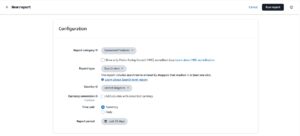
3. Click “Create Report” and apply the following settings:
- Report Category: Sponsored Products.
- Report Type: Search Term
- Time Unit: Summary.
- Select Last 30 Days if you have high sales volume/spend, or Last 60 Days if you have a smaller budget and need more data points to make a decision.
- Run the report and download the file once it is ready.
Phase 2: Import & Aggregating Data
The raw report has a flaw; the same customer search term might appear in five different campaigns. To see the true performance of a specific search term, you need to combine that data. Follow the steps to important and aggregate data.
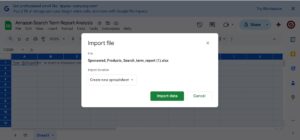
1. Go to Google Sheets > File > Import > Upload. Select your downloaded Amazon report and choose “Replace Spreadsheet” to load the data.
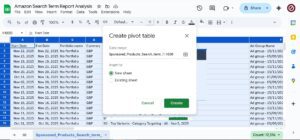
2. Select Data: Click the gray box in the top-left corner (between column A and row 1) to select the entire sheet.
3. Go to Insert > Pivot Table. Select “New Sheet” and click Create.
4. In the Pivot Table editor (right side), find Rows and add “Customer Search Term.” This lists every unique search query.
5. Under Values, add the following metrics and ensure they are set to “SUM”:
- Impressions
- Clicks
- 7-Day Total Sales
- 7-Day Total Orders
- Spend
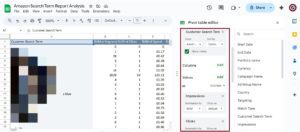
6. You can also add “Portfolio Name” under the Filters section if you only want to analyze a specific group of products under different portfolios.
Phase 3: Creating a Static Analysis Sheet
Pivot tables are great for summarizing, but difficult to sort and filter permanently. You need to move this data to a standard sheet.
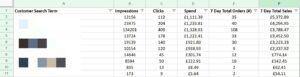
1. Highlight the entire Pivot Table you just created and copy it.
2. Create a New Sheet (tab) at the bottom. Right-click cell A1, select Paste Special, and choose Values Only. This removes the pivot table formatting and leaves you with raw numbers you can easily manipulate.
3. Select the first row (headers) and click the Filter icon in the toolbar.
4. Click the filter arrow on the “Total Sales” column and sort Z to A (Highest to Lowest). This immediately brings your revenue-generating keywords to the top.
Phase 4: Calculating Performance Metrics
Amazon doesn’t export calculated metrics (like ACOS or conversion rate) in the pivot view, so you must add them manually using formulas. Create four new column headers to the right of your data: CTR, CVR, ACOS, and CPC.
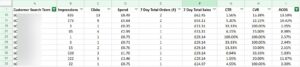
1. Click-Through Rate (CTR)
- Formula: = (Total Clicks / Total Impressions)
- Formatting: Format the column as a Percentage.
2. Conversion Rate (CVR)
- Formula: = (Total Orders / Total Clicks)
- Formatting: Format the column as a Percentage.
3. Advertising Cost of Sales (ACOS)
- Formula: = (Total Spend / Total Sales)
- Formatting: Format the column as a Percentage.
- If you see a #DIV/0! error, it means there were zero sales. You can ignore this or wrap it in an IFERROR function.
4. Cost Per Click (CPC)
- Formula: = (Total Spend / Total Clicks)
- Formatting: Format the column as Currency ($).
Phase 5: Interpreting the Data & taking Action
Now that your data is clean, sorted by sales, and fully calculated, you can make strategic decisions.
Scenario 1: The “Winners” (High Sales, Low ACOS)
1- Filter Conversion Rate to be Greater than your Non-Branded Benchmark.
2– Filter ACOS to be Less than your target break-even point.
3- These are your “Unicorn” terms. They convert well and are profitable. Here is what to do with these search terms
- If these terms are currently in Broad or Auto campaigns, move them to a dedicated Exact Match campaign.
- Assign a higher budget and aggressive bid strategy to maximize impression share on these terms.
- Cross-reference these terms with a tool like Helium 10 to ensure they have high search volume scalability.
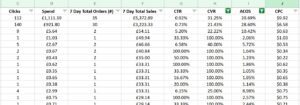
Scenario 2: The “Bleeders” (High Spend, No Sales)
Filter your sheet to show keywords with $0 in sales, then sort by Spend (Highest to Lowest).
1. Use the “Rule of Thumb” math based on your benchmark.
- Formula: 1 / Average Conversion Rate.
- Example: If your CVR is 10%, you need 10 clicks to make 1 sale.
2. Filter the Data:
- Filter Orders to show only 0 (Zero sales).
- Filter Clicks to be Greater than your threshold (e.g., greater than 8 or 10).
3. These are search terms where customers are clicking but not buying at a statistically significant rate. Add these terms to your campaigns as Negative Exact matches to stop wasting budget.
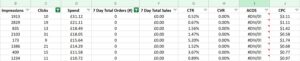
Scenario 3: Competitors Brand Keywords Analysis
Beyond optimizing your own keywords, the Search Term Report is a goldmine for understanding how you perform against specific competitors. You can extract search terms where customers searched for a competitor but ended up buying your product.
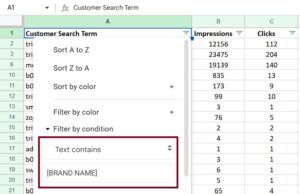
1- In the Filters section under “Customer Search Term,” change the setting to: Filter by Condition > Text Contains.
2- Input the Brand Name of your main competitor.
3- Look at the Conversion Rate and ACOS for these specific terms. If you see sales, it means customers are brand-agnostic enough to switch to your product even when looking for a specific rival.
4- Take these high-performing competitor terms and launch a Competitor Targeting Campaign.
- Use Exact Match for their specific brand name to aggressively bid for their traffic.
- Use Phrase or Broad Match (e.g., “Competitor Name winder”) to capture long-tail variations.
Scenario 4: ASIN Harvesting and Cross-Campaign Expansion
In Auto campaigns, Amazon targets both keywords and specific products (ASINs). When your ad appears on another product’s detail page, it shows up in your Search Term Report as an ASIN (always starting with “b0”).
We can analyze this data to move successful targets from basic Sponsored Products into more advanced ad types.
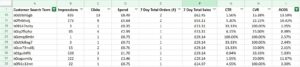
1. In the Pivot Table Filters section under “Customer Search Term,” select Filter by Condition > Text Starts With.
- Input “b0” (or “B0”).
- This will filter out all keywords and leave only the specific ASINs your ads appeared against.
2. Sort by Total Sales (Z to A). Identify ASINs where you have a high Conversion Rate and profitable ACOS. These are products that your product is successfully stealing sales from.
3. Don’t just keep these in Auto campaigns. You should aggressively target these specific ASINs across all ad types:
- Sponsored Products (SP): Create a manual Product Targeting (PAT) campaign targeting these ASINs.
- Sponsored Display (SD): Launch an SD campaign targeting these ASINs to appear directly under their Buy Box or on their listing sidebars.
- Sponsored Brands (SB): If you are brand registered, use Sponsored Brand Video targeting on these specific ASINs to show a video of your product on their detail page.
Scenario 5: The “Missed Opportunities” (High Relevance, Low Conversion)
Sometimes you will find high relevant high search volume keywords that should work (they are highly relevant) but have a terrible conversion rate or high ACOS. Do not delete these yet. Check your product listing.
If you sell a “Protein Shaker with Wire Whisk” and you are getting clicks for “Wire Whisk Shaker” but no sales, check your images. Does your main image clearly show the whisk? If not, customers might click, get confused, and leave. optimizing your images or bullet points to match these high-intent keywords can turn a losing keyword into a winner.
Scenario 6: Optimizing Low-CTR Terms
Filter for Impressions greater than 1000 AND CTR less than 0.3%.
Your ad is showing up, but people are ignoring it. This drags down your campaign quality score. While you might add these as negatives, first check if the term is relevant. If it is, your main image or title might need improvement to attract the click.
Sponsored Brands vs. Sponsored Products STR
The logic of search term report for Sponsored Brands (SB) differs slightly from Sponsored Products (SP).
1. Sponsored Products
For SP, the primary goal is usually immediate conversion and profitability (ACOS). You are targeting specific SKUs.
2. Sponsored Brands
For SB, look at “Search Term Impression Share.” If you want to dominate a niche, you need a high impression share on your main keywords. Also, pay attention to the New-to-Brand metric.
Sponsored Brands are often used for awareness. A keyword might have a higher ACOS in an SB report, but if it brings in 80% new customers, the long-term value justifies the cost.
Integrating STR with Search Query Performance
The Search Query Performance (SQP) report is a newer Amazon tool that provides data on total search volume (organic and paid), whereas the STR only shows paid data.
1. The Difference
The STR tells you what you paid for. The SQP tells you the total market potential. The STR is tactical (bid adjustments), while the SQP is strategic (market share).
2. Gap Analysis Workflow
Open your SQP dashboard and look for high-volume queries where your brand has a low impression share. Cross-reference these queries with your Search Term Report.
If a high-volume term from SQP does not appear in your STR, it means your ads are not targeting it efficiently. You should launch a new campaign specifically targeting these missing terms to capture that traffic.
Frequently Asked Questions (FAQ)
1. Why do I see ASINs (like b0xxxx) in my Search Term Report?
You see these alphanumeric codes because your ad appeared on another product’s detail page, not in the search results. This usually happens in Automatic campaigns or when using Category Targeting. If a shopper is looking at a competitor’s listing and clicks your ad in the “Sponsored products related to this item” carousel, Amazon records that competitor’s ASIN as the “search term.”
2. How often should I download and analyze this report?
For most sellers, downloading this report once a week is the sweet spot. If you check it every day, you won’t have enough data to make statistically significant decisions. You might pause a keyword that just had a bad day but is usually profitable.
However, keep the “attribution window” in mind. Amazon takes up to 7 days to attribute a sale to a click for Sponsored Products (and 14 days for Sponsored Brands). If you analyze data from the last 48 hours, it will look like you have lots of spend and no sales because the sales haven’t registered yet. Always exclude the last 3 days of data when doing your analysis to avoid turning off good keywords prematurely.
3. What is the difference between “Search Terms” and “Keywords”?
This is the most common point of confusion.
- Keywords are what you put into Campaign Manager. They are the targets you bid on (e.g., “coffee maker”).
- Search Terms are exactly what the customer typed into Amazon (e.g., “single serve coffee maker red”).
Your keyword is the net you cast, and the search terms are the actual fish you catch. You pay for the search terms, but you control the budget through the keywords.
4. Why are some of my sales not showing up in the Search Term Report?
You might see a discrepancy between your Campaign Manager totals and your Search Term Report totals. This happens because Amazon filters out search terms that have very low search volume to protect customer privacy.
If a search term was only searched once by one person, Amazon often groups this data into an “Other” category or simply excludes the line item while still counting the spend in the campaign total. This “data loss” is normal and usually accounts for the long-tail queries that are too small to optimize anyway.
5. Should I use Negative Phrase or Negative Exact match?
Be very careful with Negative Phrase. If you add the word “cheap” as a Negative Phrase, you block “cheap sunglasses,” “cheap glasses,” and “cheap accessories.” This is powerful but risky.
Negative Exact is safer. It only blocks the specific string of words you enter. If you sell high-end leather boots and see a click for “cheap plastic boots,” use Negative Exact for that full phrase first. Only use Negative Phrase if you are 100% sure you never want to show up for any search containing that specific word.
6. What is a “good” Click-Through Rate (CTR) in this report?
While it varies by category, a CTR under 0.3% (0.30%) is generally considered poor. It means for every 1,000 people who saw your ad, only 3 clicked. This usually signals a relevancy issue. Your main image might not match the customer’s intent, or your price is too high compared to the other results on the page.
If you see a term with high impressions (over 2,000) and a very low CTR (under 0.2%), you should likely pause it or add it as a negative to stop dragging down your campaign’s relevance score.