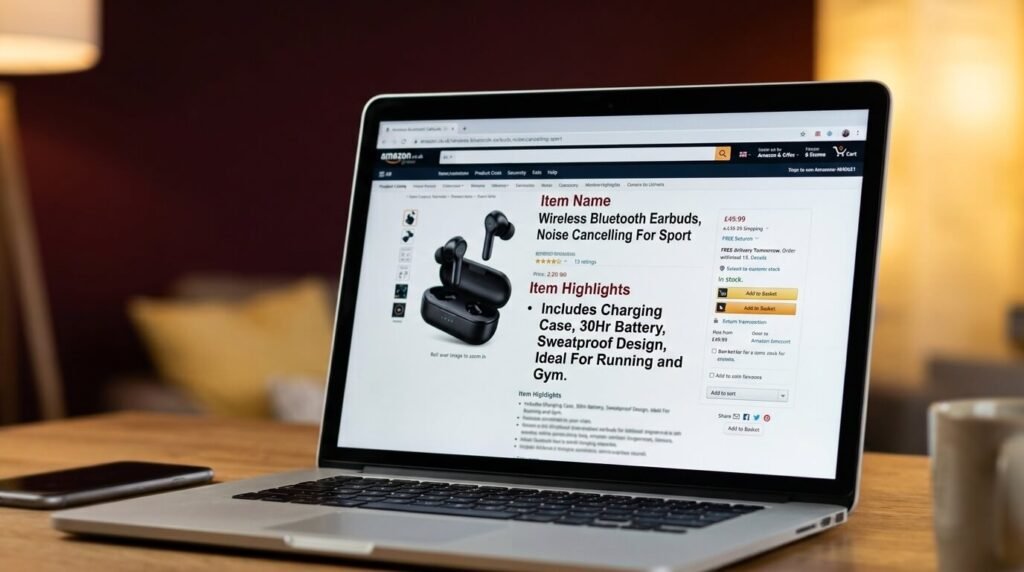


Amazon Brand Analytics is a free data suite inside Seller Central that gives brand-registered sellers direct access to real customer search queries, click behavior, purchase patterns, and demographic breakdowns.
It pulls from Amazon’s own first-party data, which makes it fundamentally different from every third-party tool on the market. Before Amazon opened this tool to third-party sellers in 2019, this level of data was only available to Vendor Central accounts.
In 2026, only 25% of 600,000 registered brands regularly use Brand Analytics beyond a surface-level check. The tool now includes six distinct report types covering search behavior, customer demographics, repeat purchase patterns, and competitive click distribution.
First-Party Data Advantage
Third-party Amazon analytics tools like Helium 10, Jungle Scout, and DataDive do not have direct access to Amazon’s raw search data. Instead, they build their estimates using a combination of sources including Amazon’s Brand Analytics program (available to brand-registered sellers), BSR tracking, review velocity, and broader ecommerce search signals.
Brand Analytics does not estimate. When the Top Search Terms report shows that “organic protein powder” has a Search Frequency Rank of 847 during a specific week, that number comes from Amazon’s actual search logs.
How to Access Brand Analytics
Step 1: Log in to Seller Central.

Step 2: Click Brands in the top menu. and Select Brand Analytics.

Step 3: Open the dashboard or report you want to review.
If Brand Analytics does not appear, your brand is either not enrolled in Amazon Brand Registry or your user permissions do not include access to it.
How Many Reports It Has
Amazon Brand Analytics currently has 8 main reports and dashboards.
- Customer Journey Analytics
- Customer Loyalty Analytics
- Top Search Terms under Search Analytics
- Search Query Performance under Search Analytics
- Search Catalog Performance under Search Analytics
- Repeat Purchase Behavior under Consumer Behavior Analytics
- Demographics under Consumer Behavior Analytics
- Market Basket Analysis under Consumer Behavior Analytics

The details of each report are covered in the coming sections.
Report 1: Customer Journey Analytics
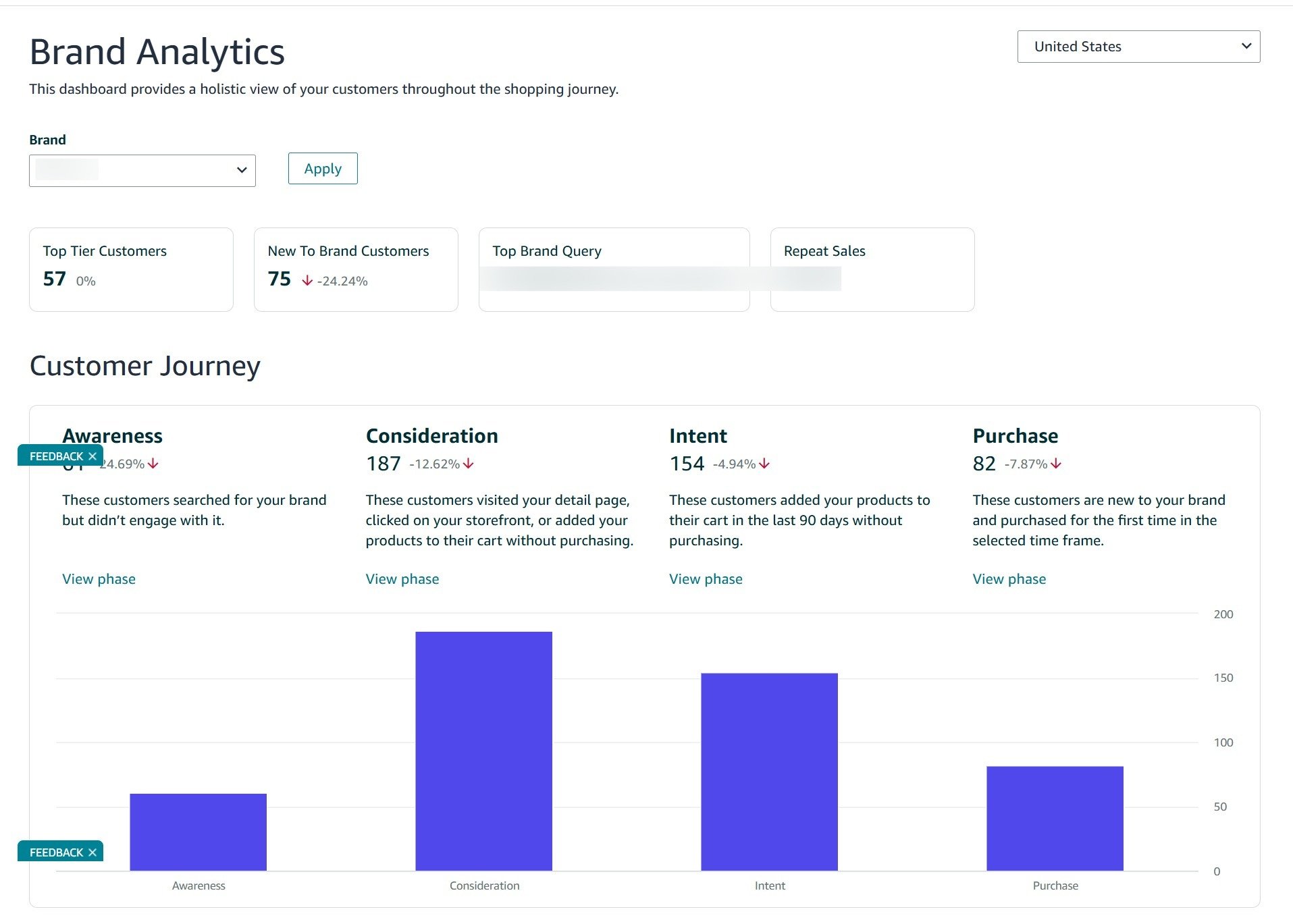
Customer Journey Analytics tracks how customers move through four stages of interaction with your brand: Awareness, Consideration, Intent, and Purchase. Each stage represents a deeper level of engagement, and the dashboard shows you exactly how many customers sit at each stage, which direction those numbers are trending, and which specific ASINs are driving or losing traffic at each point.

Understanding the Four Stages
Awareness includes customers who searched your brand name or viewed your product in search results without purchasing in the last 12 months. These customers know your product but have not purchased. The dashboard also shows a Branded Search Ratio, which tells you what percentage of your awareness traffic comes from customers searching your brand name specifically versus generic category terms.
Consideration includes customers who visited your detail page, review page, or brand store within the selected period without purchasing in the last 12 months. These shoppers went beyond search results and actively evaluated your product but did not buy.
Intent includes customers who added your product to their cart or wishlist but have not completed a purchase. These are your warmest non-converting shoppers.
Purchase includes customers who completed a transaction during the selected period.
What the Dashboard Shows
For each stage, the dashboard shows total customer count with percentage change compared to the previous period. A brand might see 243 customers in the Awareness stage with a 167% increase, meaning significantly more shoppers are discovering the brand compared to the prior period. If Awareness is growing but Consideration is flat, customers are seeing your product in search results but not clicking through to your detail page, which points to a main image, title, or pricing problem.
The dashboard also highlights high-impact products in the customer journey. It flags ASINs that are declining in awareness, ASINs with the highest drop-off between stages, and trending products gaining momentum. For example, the dashboard might show that a specific ASIN observed a 25.9% decline in traffic compared to the last period, giving you an early signal to investigate what changed for that listing.
Behavior Data Within the Dashboard
Inside the Awareness stage, the dashboard shows your top search queries driving traffic and your top ASINs by impressions. This tells you which keywords are bringing shoppers to your brand and which products they are seeing first. If your top search queries are generic terms like “laptop” or “tablet” rather than your brand name, most of your awareness traffic is unbranded, which means you are competing on category terms rather than brand recognition.
Acting on Each Stage
If Awareness is high but Consideration is low, your search result appearance needs work. Test your main image, check your title for keyword relevance, and compare your pricing against the top three competitors on your primary keywords.
If Consideration is high but Intent is low, your detail page is not convincing shoppers. Review your title, images, bullet points, A+ Content, review score, and pricing. Shoppers are visiting but not adding to cart.
If Intent is high but Purchase is low, customers are adding to cart but not completing the purchase. This usually comes down to price comparison, shipping speed, or a competitor offering a better deal. Check whether your product is Prime eligible and whether your price is competitive against competitors.
Report 2: Customer Loyalty Analytics
Customer Loyalty Analytics segments your entire customer base using Amazon’s RFM model, which stands for Recency, Frequency, and Monetary value. It tells you not just who is buying but how loyal they are to your brand overall. The dashboard has two views. The brand view shows the overall distribution of your customers across all four segments. The segment view lets you drill into each segment individually to see sales, orders, repeat purchase rate, average order value, and even predictive lifetime value for that specific group.

Amazon divides your customers into four segments:
Top Tier customers purchased recently, spend the most, and buy frequently. Amazon notes these customers are unlikely to switch to another brand but need to feel valued to stay. Discounts, brand engagement, and rewards keep them active.
Promising customers purchased recently, buy occasionally, and spend above average. They show strong potential but have not yet reached the purchase frequency of Top Tier.
At Risk customers have not purchased recently or frequently and show varied spend. They are showing early signs of disengagement.
Hibernating customers have not purchased in a long time, buy infrequently, and show varied spend. These are close to being lost entirely.
Reading the Brand View
The brand view gives you a pie chart breakdown of your total customer base across all four segments alongside key figures like total customers, new to brand customers, basket abandoners, repeat purchase rate, and average repeat purchase interval. For example, a brand with 1,582 total customers might see 134 Top Tier customers representing 8.47% of the base, 1,185 Promising customers at 74.91%, and 263 At Risk customers at 16.62%. A rising At Risk percentage week over week is a direct warning sign that needs action before those customers move to Hibernating.
New to brand customers and basket abandoners are also shown here. Basket abandoners are shoppers who added your product to their cart but did not complete the purchase. A high basket abandoner count relative to new customers signals a pricing or detail page issue worth investigating.
Reading the Segment View
Clicking into any segment shows granular data for that group including total sales, average sales per customer, total orders, average orders per customer, average order value, repeat purchase rate, and average repeat purchase interval. The segment view also includes a predictive customer lifetime value breakdown showing how many customers in that segment are projected to grow, maintain, or decline their spend with your brand in the next 12 months.
For example, inside the Top Tier segment you might see 5 customers generating £213.97 in sales with a 40% repeat purchase rate and an average repeat purchase interval of 1.33 days. The predictive view might show 7 growing Top Tier customers with last year sales of £30.45 per customer projected to grow to £39.58 per customer next year. This tells you exactly which customers are worth prioritizing for retention efforts.
How to Act on Each Segment
Top Tier customers need consistent quality and early access to new products. Use Subscribe and Save to secure their recurring purchases and consider exclusive discount codes through Amazon’s promotions to reinforce loyalty.
Promising customers are your biggest growth opportunity since they already buy and spend above average. The goal is increasing their purchase frequency. Running Sponsored Display retargeting campaigns on your own ASINs keeps your brand in front of them between purchases.
At Risk customers require re-engagement before they move to Hibernating. Sponsored Display retargeting targeting your own ASINs is the most direct way to bring them back. If your At Risk segment is growing as a percentage of total customers, investigate whether a product quality issue, a competitor price drop, or a listing change is driving the shift.
Hibernating customers have the lowest recovery probability. Broad retargeting spend on this group rarely pays off. Focus your budget on Promising and At Risk segments where the return on re-engagement is higher.
Report 3: Top Search Terms Report
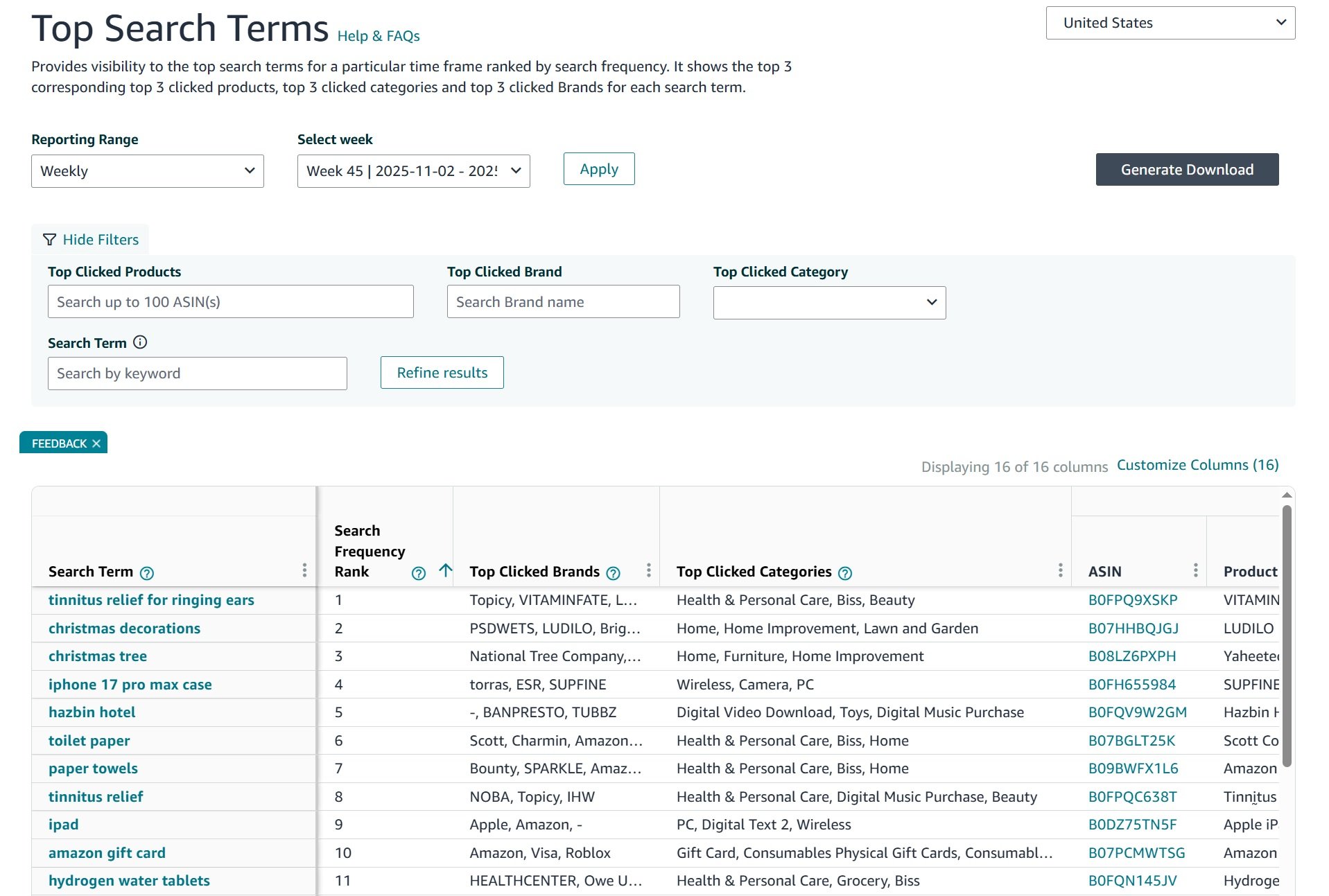
The Top Search Terms report is the most widely used Brand Analytics feature. It shows the most popular search queries on Amazon during any selected period and reveals the top three ASINs that received the highest click volume for each term.
1. Search Frequency Rank
Every search term in the report is assigned a Search Frequency Rank from 1 to 10,000. SFR 1 is the most searched term on Amazon during that period and SFR 10,000 is the lowest volume term still making the list. Terms not appearing in the report did not rank in the top 10,000 for that period.
2. Top Three Clicked Products
For each search term, Amazon shows the top three clicked ASINs with their click share and conversion share. The first ASIN typically holds the highest conversion share, the second lower than the first, and the third lower than both, but all three are the primary converting products on that keyword and represent your real competition.
3. Building a Keyword List
Export the full report as CSV for a monthly period. Sort by SFR from lowest to highest. Filter manually to terms relevant to your product category. Build a spreadsheet with columns for the search term, SFR, top three ASINs, their click and conversion shares, and a column marking whether your ASIN appears.
Keywords where you do not appear in the top three but which are directly relevant to your product are your highest-priority targets for organic ranking with PPC. Keywords where you appear but have low conversion share relative to click share are signals that your listing needs optimization.
4. Tracking Competitor Movement
Export this report weekly and store exports by date. After 8-12 weeks, you can spot trends a single snapshot cannot reveal. Watch for competitor ASINs rising in click share across multiple keywords simultaneously, which usually indicates a new PPC campaign, a price reduction, or a review surge. Spotting this early gives you time to respond.
Also track keywords where SFR is changing significantly. A keyword moving from SFR 45,000 to SFR 12,000 over six weeks represents growing demand. Getting positioned on that keyword before competitors recognize the trend provides a meaningful first-mover advantage in both organic ranking and ad costs.
Report 4: Search Query Performance Report
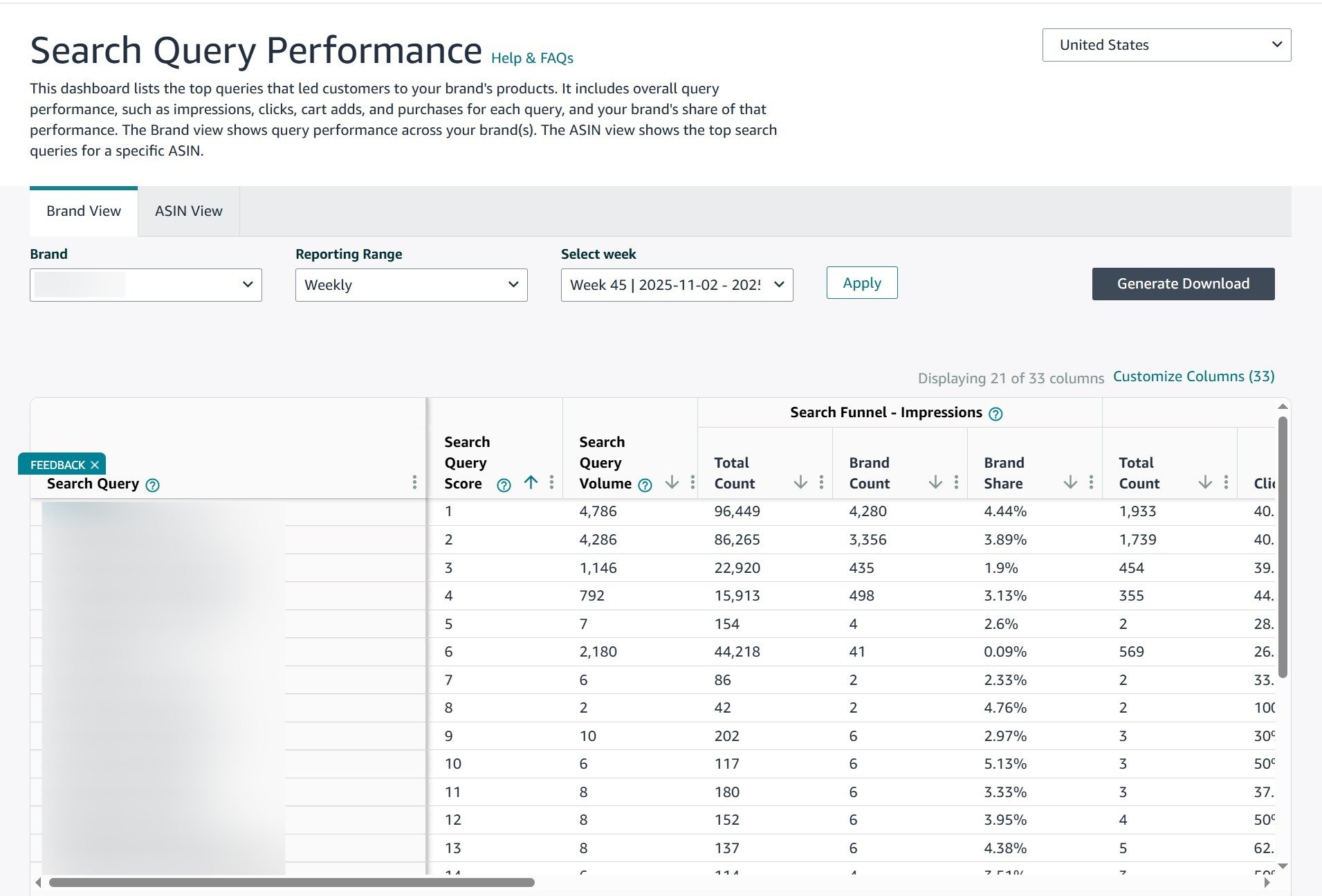
Search Query Performance shows how your brand performs across every search query where any of your products appeared. Unlike the Top Search Terms report, which shows category-wide data, this report is filtered to your brand specifically and provides funnel metrics from impressions through purchases.
Brand-Level Aggregation
This report combines data from all ASINs under your brand for each search query. If you sell five phone cases and all five appear for “iPhone 15 case,” the report shows total impressions, clicks, cart adds, and purchases for your brand as a whole on that term. For individual ASIN breakdowns, you can use ASIN view option.
Funnel Drop-off Analysis
The report breaks performance into impressions, clicks, cart adds, and purchases. Each transition point tells you something specific.
Impression-to-click rate reveals how optimized is your main image. The average CTR from Amazon search results ranges between 1.5% and 4% depending on category. Below 1% means your main images, titles, pricing, or review ratings are not competitive.
Click-to-cart-add rate reveals whether your detail page convinces shoppers. A healthy range is 10-25% depending on category. Below 10% suggests pricing higher than expected, main image that misleads about the actual product, or missing size or color options.
Cart-add-to-purchase rate is typically 30-60%. Low rates here often indicate price sensitivity (customers comparing options in their cart) or shipping time concerns. Products with Prime delivery and competitive pricing sit at the higher end.
Click Share vs. Purchase Share
When your purchase share exceeds your click share on a keyword, your products convert better than the category average. Increasing traffic on these keywords through higher PPC bids or improved organic ranking will likely produce profitable incremental sales.
When your click share exceeds your purchase share, shoppers click your products but buy from competitors more often. This indicates a detail page problem: title or bullet points that do not address buyer concerns, weak images or A+ Content, pricing issues, or low product rating with recurring complaints. Fix the listing before spending more on that keyword.
Weekly Monitoring Protocol
Pull this report every Monday for the previous week. Compare your top 25 keywords against the prior week. Flag any keyword where click share dropped more than 3 percentage points or purchase share dropped more than 2 points. A sudden click share drop usually means a competitor improved their positioning with higher PPC bids. A purchase share drop with stable click share means your detail page is not convincing the buyers, possibly from new negative reviews, or a price increase
Report 5: Search Catalog Performance Report
Search Catalog Performance provides the ASIN-level detail that Search Query Performance lacks. While Search Query Performance tells you how your brand performs on a keyword, this report tells you how each individual product performs.

Why ASIN-Level Data Changes Decisions
Search Catalog Performance shows performance data at the individual SKU level. If you sell Garlic Press A, B, and C under the same brand, you can see impressions, clicks, cart adds, and purchases for each one separately.
Search Query Performance might show your brand captures 12% of purchases on “garlic press” overall. Search Catalog Performance breaks that down and shows Garlic Press A driving 10% of that while B and C contribute 1% each. Put your PPC budget behind A since it is already converting. For B and C, either fix their listings or test them on more specific keywords that better match what they offer.
Per-Product Funnel Diagnostics
Filter the report for a single SKU and look at its impressions, clicks, cart adds, and purchases. Calculate CTR, cart-add rate, and purchase rate for each SKU.
Low CTR: your main image needs testing. Download competitor main images and compare side by side. Look for differences in angle, staging, and information density.
Healthy CTR but low cart-add rate: the problem is on your detail page. Common issues include bullet points that miss primary buyer concerns, A+ Content that is brand-focused rather than product-focused, or a review profile with recurring complaints.
Healthy cart-add rate but low purchase rate: customers add your product but ultimately buy something else. Check whether competitors offer faster shipping, lower prices, or bundle deals providing better perceived value.
Cannibalization Detection
If you sell multiple variations of the same product, Search Catalog Performance shows whether one SKU is pulling all the traffic while others sit idle. If Garlic Press A, B, and C all have impressions but only A generates purchases, B and C are diluting your overall brand performance without contributing to sales. Either differentiate their listings more clearly, bundle the weaker ones, or discontinue them.
Measuring Listing Change Impact
After changing a main image, title, or bullet points, pull this report for two weeks before and two weeks after. Compare CTR and conversion rates per SKU. If a new main image increased CTR but dropped conversion, the image is attracting the wrong shoppers. Keep a log of every change with dates and before/after numbers. Over time this tells you exactly which types of changes work in your category.
Report 6: Demographics Report
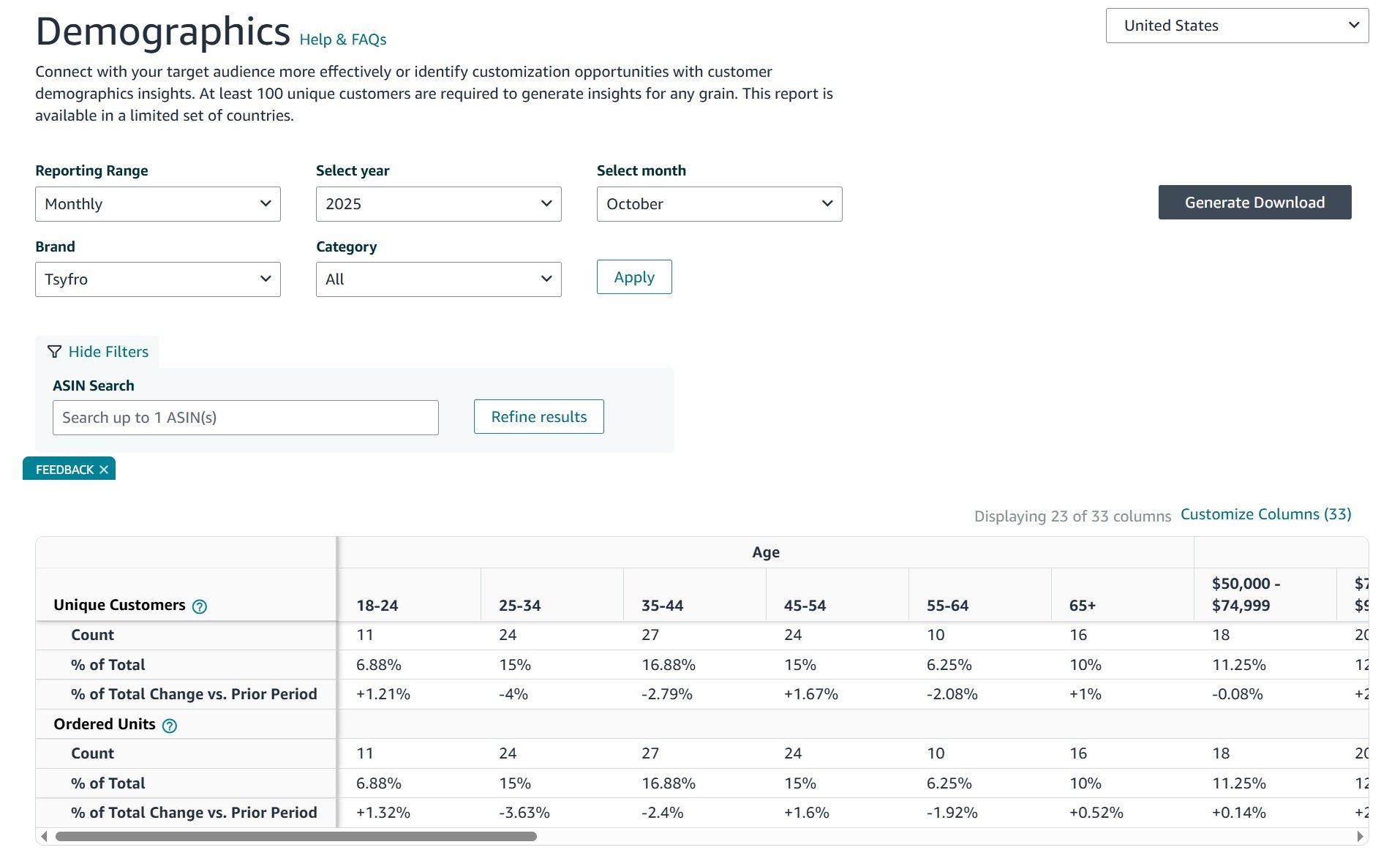
The Demographics report breaks down your customer base by age group, household income, education level, marital status, and gender. Amazon compiles this from customer account information and purchase history.
Applying Age Data to Listing Content
If 55% of your customers fall in the 25-34 bracket, your A+ Content should feature lifestyle images and settings reflecting that demographic. Products targeting 25-34 year olds perform better with clean, modern imagery and concise, direct language.
If your Demographics report shows your primary buyers are in the 35–44 age range, your listing images should reflect that. Using models in their early 20s creates a disconnect with your actual audience. Match your lifestyle photos and messaging to the age group that is actually purchasing your product to maximize conversions.
Income Bracket Pricing Decisions
Amazon breaks household income into four ranges: under $50K, $50K-$100K, $100K-$150K, and $150K+. If your buyers are concentrated in the $150K+ bracket, test higher price points. If they sit in the $50K-$100K range, competitive pricing and value-focused copy will perform better.
Customers in higher income brackets are more likely to buy a premium version at a higher price. Mid-income customers respond better to multipacks or bundles that reduce the per-unit cost.
Using Demographics for External Advertising
If you run traffic through Google Ads, Meta, or TikTok to your Amazon listings, Demographics data gives you a verified audience profile. Instead of guessing which age groups to target in a Facebook or Instagram campaign, use the exact distribution from your Demographics report. This alignment significantly reduces wasted ad spend on audiences unlikely to convert.
Report 7: Market Basket Analysis Report
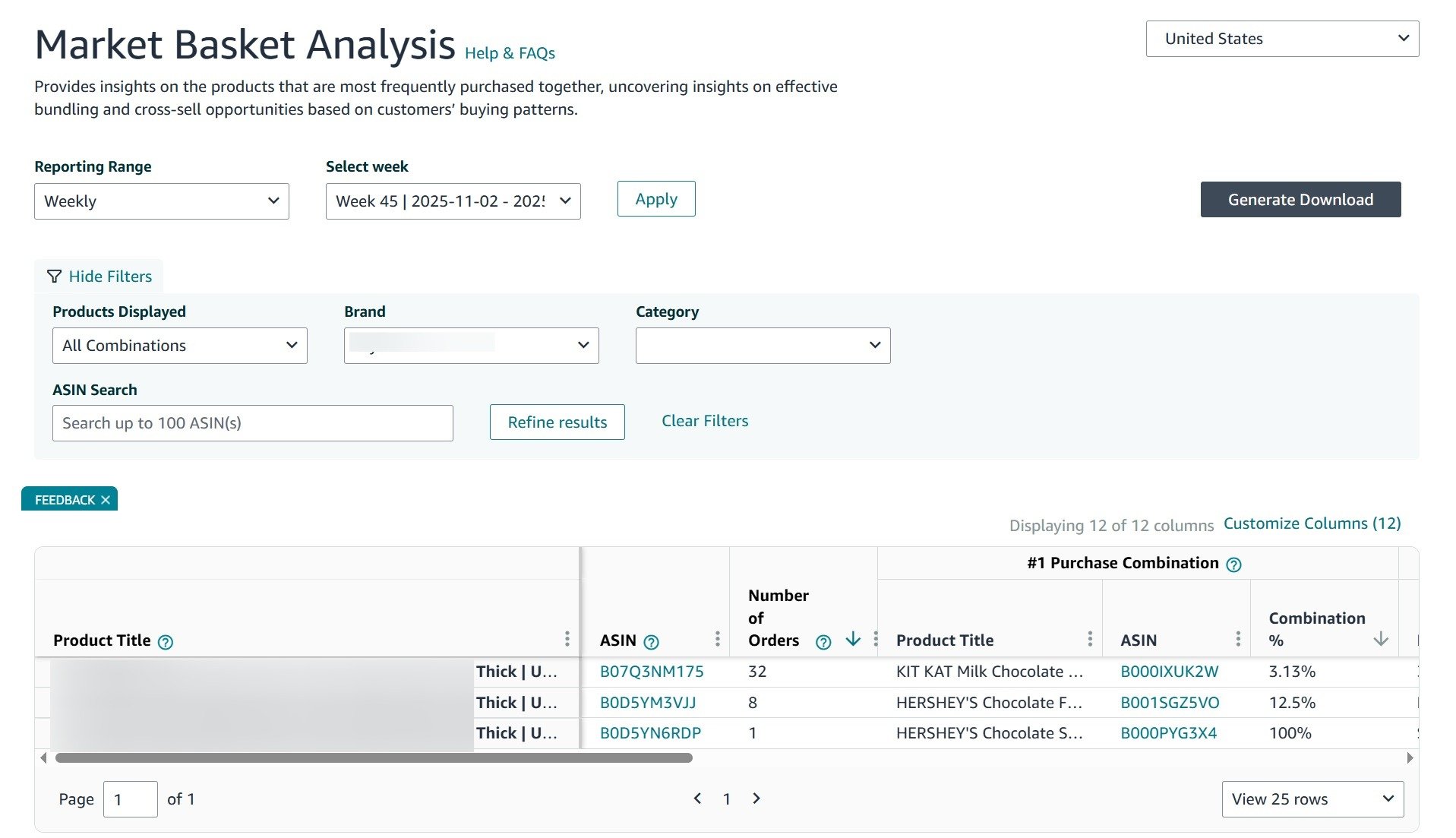
The Market Basket Analysis report shows which products customers most frequently purchase alongside your products in the same transaction. This is actual shopping cart data, not browsing behavior. The products appearing in this report are competitor or third-party products, not your own, which makes it useful for two things: identifying what complementary products your customers are already buying, and finding competitor ASINs worth targeting with ads.
Reading the Data
The report shows the percentage of orders where a specific product was purchased alongside yours. Combinations appearing in more than 10% of orders indicate strong complementary buying behavior. Between 5-10% are moderate signals worth monitoring. Below 5% may be coincidental.
If your bamboo cutting board shows that 12% of orders also include a specific knife set and 8% include mineral oil for wood care, your customers clearly need these products. That is useful in two ways.
Product Development and Bundling
The competitor products appearing in your Market Basket data tell you exactly what your customers are buying that you are not selling. If a silicone handle cover appears frequently alongside your cast iron skillet, source your own version or design your next skillet with an integrated heat-resistant handle. When the same complementary product appears across multiple ASINs in your catalog, the development priority is higher because it serves your existing customer base at multiple entry points.
For bundling, Amazon allows virtual bundles through Brand Registry but only using your own ASINs, not competitor products. So if you already sell both a cutting board and a wood care oil, Market Basket data confirms there is demand for bundling them together. Price the bundle 5-10% below the combined individual prices and track conversion rate against the individual listings over 30 days.
Competitor ASIN Targeting Through Ads
The competitor products appearing in your Market Basket report are your best ASIN targeting opportunities. Customers buying those products are already in your purchase ecosystem. You can target these ASINs through Sponsored Products product targeting, Sponsored Display, or Sponsored Brands video ads. All three ad types allow ASIN-level targeting. Since these customers are already buying complementary products, they are warmer audiences than broad keyword targeting and typically convert at a higher rate.
Report 8: Repeat Purchase Behavior Report
The Repeat Purchase Behavior report shows how many customers return to buy the same product again within a set time period. It has two views. The brand view shows repurchase behavior across your entire brand, giving you an overall picture of customer retention.
The ASIN view breaks it down by individual product so you can see which specific products are bringing customers back and which are not.
This report is most valuable for consumable categories like supplements, food, pet supplies, beauty, and cleaning products where repeat purchases drive the majority of long-term revenue.
Repurchase Rates
A repurchase rate above 25% in a consumable category indicates strong product-market fit. Between 15-25% is average. Below 15% suggests a quality issue, a quantity or size that does not match how customers actually use the product, or a competitor offering a better alternative that customers switch to after the first purchase.
Subscribe and Save
If your median repurchase window is around 30-45 days, offer Subscribe and Save at 1-month and 2-month intervals. Set the base discount at 5% and 10% for customers with 5 or more active subscriptions. Amazon adds an additional 5% on top for customers who have 5+ active subscriptions across all their purchases. If your repurchase rate is strong but Subscribe and Save enrollment is low, add clearer messaging on your detail page highlighting the subscription discount.
Lifetime Value and PPC Decisions
Many sellers evaluate PPC campaigns on single-purchase ROAS, which leads to cutting campaigns that are actually profitable when repeat purchases are factored in. If your product sells for $34.99 and the average customer buys 4 times per year, that customer is worth approximately $140 annually. A campaign spending $15 to acquire that customer is highly profitable even if the first sale barely breaks even. Use the ASIN view to identify which products have the strongest repeat purchase behavior and prioritize those in your PPC investment.
Diagnosing Low Repurchase Rates
Check your 1-star and 2-star reviews for recurring complaints about quality, packaging, or product performance. Also check whether your product size or quantity matches real usage cycles. A hand soap lasting 60 days priced the same as a competitor’s 90-day supply will lose repeat purchases regardless of how good the product is.
Frequently Asked Questions
Is Amazon Brand Analytics completely free?
Yes. No additional charge beyond the $39.99 monthly Professional Selling Plan and Brand Registry enrollment, which itself is free but requires a registered trademark.
Can I see Brand Analytics data for products I have not launched yet?
The Top Search Terms report covers all search terms on Amazon regardless of whether you sell in that category. You can research any keyword and view the top three clicked products before committing to a new product launch.
What is the difference between Search Query Performance and Search Catalog Performance?
Search Query Performance aggregates all your brand’s products together for each keyword. Search Catalog Performance breaks the same data down by individual ASIN, showing which specific products contribute to or drag down performance on each keyword.
Does Brand Analytics show exact search volume numbers?
No. Amazon provides Search Frequency Rank (relative ranking) and, as of 2025-2026, volume band indicators. Use SFR for prioritization and relative comparison rather than absolute volume estimation.
How far back does historical data go?
Generally about one year, though this varies by report. Amazon does not guarantee long-term availability, so export data regularly if you need to track trends over multiple years.
Can Brand Analytics data be accessed through the API?
Yes. The Search Query Performance and Top Search Terms reports are available through Amazon’s Selling Partner API as of 2026 for programmatic access and automated dashboards.
Do I still need third-party tools if I have Brand Analytics?
Brand Analytics provides verified first-party data but does not estimate competitor revenue, track keyword ranking positions over time, or offer workflow automation. Many sellers use Brand Analytics as their primary data source and supplement with third-party tools for specific functions it does not cover.