

Amazon product bundling is a selling strategy where two or more complementary items are grouped together and sold as a single listing at a combined price. Sellers use it to increase average order value, reduce competition on individual ASINs, and create differentiated offers in crowded categories.
There are two distinct bundling formats on Amazon: physical product bundles (where items ship together in one package) and virtual product bundles (a feature that lets you group ASINs without physically combining them). Both have separate rules, separate setup processes, and separate implications for your inventory and catalog.
What Amazon’s Bundling Policy Actually Says
Amazon’s product bundling policy is a set of enforceable rules. Before building a bundle, you need to know where Amazon draws the line.
1. The Complementary Product Requirement
Amazon requires that bundled products be genuinely complementary. A yoga mat bundled with a carrying strap makes sense. A yoga mat bundled with a USB cable does not, and Amazon will reject or suppress listings where the connection between items is unclear. The standard Amazon applies is whether the bundle offers a meaningful benefit to the customer that buying items separately would not.
2. The ASIN Ownership Rule
You cannot bundle a product with an ASIN you do not own or manufacture unless you are an authorized reseller. More specifically, Amazon prohibits creating new bundle listings for items that are already listed individually if you do not have the right to modify that product’s catalog data. Bundling someone else’s branded product with yours under a new ASIN without authorization violates both bundle policy and intellectual property rules.
3. The Single-Item Bundle Prohibition
Listing one item in a bundle format is not allowed. A bundle must contain at least two distinct, physically separate products. Padding a bundle with duplicate quantities of the same item to inflate perceived value is also against policy. Amazon considers this deceptive.
4. Price, Title, and Detail Page Rules
The bundle price must represent a clear value over purchasing individual items separately. The title must identify the bundle clearly, typically including the word “bundle” and the number of items (for example, “3-Piece Kitchen Bundle”). The detail page must accurately reflect all items included, with no ambiguity about what the buyer receives.
5. Media Products Cannot Be Bundled
Amazon explicitly prohibits bundling books, music, videos, DVDs, and other media products with non-media items. This applies even if the media is genuinely complementary. The restriction exists because media products have separate catalog handling and value-assessment systems on Amazon’s back end.
6. Brand Registry and Generic Bundling
If your bundle contains a branded product from another manufacturer, that brand must be clearly identified in the listing. You cannot create a bundle that appears to be from a specific brand when it contains products from multiple brands. If all items are generic, that must be reflected in the listing as well.
Physical Product Bundles on Amazon FBA
A physical bundle is exactly what it sounds like: two or more items packaged together, shipped together, and sold as one unit. From Amazon’s fulfillment standpoint, it is treated as a single ASIN with its own barcode, its own FBA inventory, and its own listing.
1. How Physical Bundles Work in FBA
You create a new ASIN for the bundle, assign it a unique UPC or FNSKU, package all items together before shipping to an Amazon fulfillment center, and send the complete bundle in as one sellable unit. Amazon picks, packs, and ships it as a single item. The bundle must arrive at the fulfillment center already assembled. Amazon does not assemble bundles on your behalf.
2. Why Sellers Build Physical Bundles
When you bundle products, you create a listing that competitors cannot directly price-match. If your competitor is selling a water bottle for $14.99 and you sell the same bottle with a cleaning brush and carry sleeve for $24.99, the competitor’s listing is not competing with yours at the ASIN level. You also sidestep the race to the bottom that plagues single-item commodity listings.
Bundle listings also tend to have lower return rates in certain categories because customers feel they received more complete solutions. A kitchen knife set bundled with a honing rod and cutting board gets fewer “it feels incomplete” returns than any of those items sold alone.
3. The Packaging Requirement
Amazon requires that bundled items be packaged in a way that prevents separation. If a customer could open your package and remove one item while leaving the other, Amazon considers that poor bundle construction, and it can cause listing issues at the fulfillment center level. Bundles should arrive in secure poly bags, boxes, or shrink-wrapped packaging where all items are clearly together as one unit.
4. FBA Fees for Physical Bundles
Physical bundle fees are based on the dimensions and weight of the fully packaged unit. A bundle that tips into the next tier of Amazon’s size classification will incur higher pick-and-pack fees. Sellers frequently underestimate this. Adding a small accessory to a product can push the bundle from a large standard-size fee to an oversize fee, reducing margins significantly. The 2026 FBA fulfillment fee structure ties fees tightly to dimensional weight, so model your COGS carefully before committing to a physical bundle configuration.
5. Creating a Physical Bundle Listing
To list a physical bundle, go to Seller Central, select Add a Product, choose Create a New Product, and complete all listing fields with bundle-specific data. You will need to obtain a GS1 UPC for the bundle (your existing individual product UPCs do not transfer to the bundle ASIN). In the product title, include the term “bundle” and list the count of items. In the bullet points, list every item included and its specifications. The main image must show all bundled items together. Never use a stock photo of just one item for a bundle listing.
Amazon Virtual Product Bundles
Amazon’s Virtual Bundles is a feature that allows you to group two to five existing FBA ASINs together into a single bundle offer without creating new physical inventory. When a customer purchases a virtual bundle, each ASIN in the bundle ships separately from its own FBA inventory pool. The customer gets multiple packages, but the checkout experience is a single transaction at a combined price.

1. Eligibility Requirements for Virtual Bundles
Your brand must be enrolled in Amazon Brand Registry. All ASINs in the virtual bundle must be fulfilled by Amazon (FBA). The products must be in active, buyable status. You can only bundle ASINs that belong to your own registered brand. The tool supports between 2 and 5 ASINs per bundle. Sellers using Seller-Fulfilled Prime or Merchant Fulfilled are not eligible. Third-party or wholesale ASINs cannot be included.
2. How Virtual Bundle Inventory Works
Virtual bundles draw from the existing FBA inventory of each individual ASIN. If your bundle includes Product A with 300 units and Product B with 40 units, the virtual bundle will show as having 40 available units because that is the limiting factor. When a virtual bundle sells, one unit is deducted from the inventory of each ASIN in the bundle. This means your inventory management for the bundle is automatic, but stockouts in any single ASIN will suppress the entire bundle listing.
3. The Customer Experience
The customer sees the bundle as a single add-to-cart offer. They pay once at checkout. However, each ASIN ships from whichever fulfillment center holds that SKU’s inventory. This means the customer may receive separate packages on different days. Amazon does not disclose this clearly in the purchase flow, so sellers in some categories do see occasional customer confusion. That said, most buyers accept this once the shipments arrive, and return rates for virtual bundles are comparable to individual ASIN return rates.
4. Pricing Rules for Virtual Bundles
The virtual bundle price must be lower than the combined prices of the individual ASINs added together. Amazon validates this automatically. If you price the bundle equal to or above the sum of individual ASINs, the tool will reject the submission. Discounts typically range between 5% and 15% off the combined individual prices. Keep in mind that because each ASIN’s inventory is being used, your per-unit profitability on a virtual bundle sale is slightly lower than individual sales, but the higher basket value offsets this in most cases.
5. Advertising and Ranking
Virtual bundle listings can appear in organic search results, and they are eligible for Sponsored Products advertising. However, virtual bundles do not qualify for deals or coupons in the same way standard ASINs do. You can run Sponsored Products campaigns directly on the bundle ASIN to drive traffic. Because virtual bundles are newer ASINs in the catalog, they typically start with zero reviews, which can hurt conversion until you build some history on the listing.
Step-by-Step: How to Create a Virtual Bundle on Amazon
1. Access the Virtual Bundles Tool
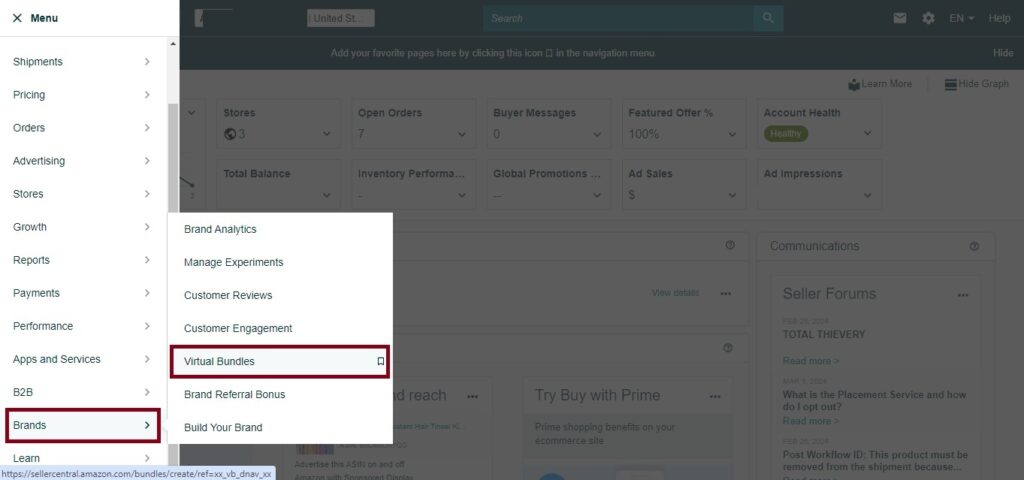
Log into Seller Central. Go to the Brands menu in the top navigation bar. Select Virtual Bundles from the dropdown. If you do not see this option, your brand is either not enrolled in Brand Registry or you are accessing Seller Central from a marketplace where virtual bundles are not yet supported. As of 2026, virtual bundles are available in the U.S. only.
2. Start a New Bundle
Click Create a virtual bundle on the Virtual Bundles dashboard. You will see a bundle builder interface that lets you search for ASINs by keyword, ASIN, or SKU. Only eligible ASINs will appear in the search results. If an ASIN is ineligible (out of stock, merchant-fulfilled, or from another brand), it will not show up.
3. Add Your Products
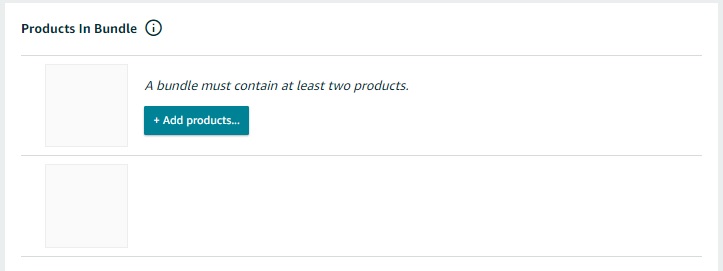
Add 2 to 5 ASINs to the bundle. For each ASIN, you can specify which variation (size, color, style) to include if the product has variants. The system will show you the current FBA inventory for each selection and the projected bundle availability based on the lowest-inventory ASIN. Review this carefully before proceeding.
4. Set the Bundle Price
After adding all ASINs, the tool calculates the combined individual price. Enter your bundle price in the price field. The bundle price must be strictly less than the sum of the individual ASIN prices at their current list prices. There is no system-enforced minimum discount, but Amazon recommends at least 5% off. Price it competitively enough to make the bundle attractive without making your individual ASINs look overpriced by comparison.
5. Build the Bundle Listing
Complete the following listing fields:
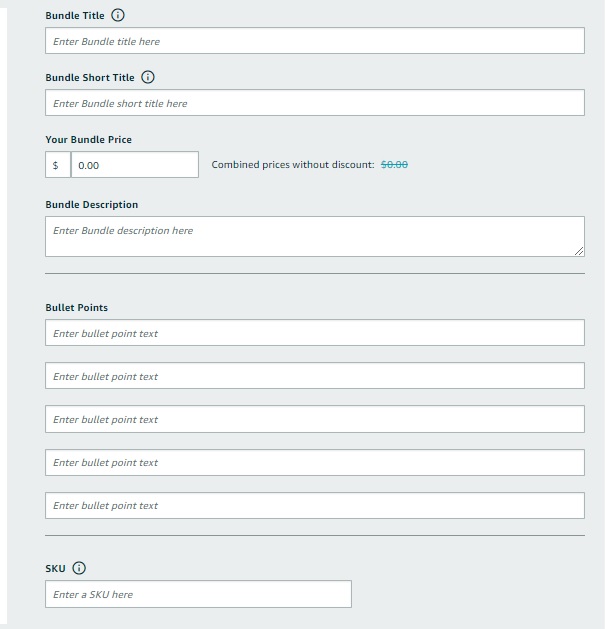
1- Title: Write a clear, descriptive title that includes the word “bundle” and reflects all key products in the group. Keep it under 200 characters and prioritize the primary product in the first 80 characters.
2- Bullet points: Use all five bullet points. Describe what each item is, what it does, and why the combination makes sense for the buyer. Be specific. Avoid generic copy-paste from your individual ASIN listings.
3- Description: Write a unique description for the bundle. Do not duplicate the individual product descriptions. Explain the bundle as a complete solution or a use-case pairing that justifies buying them together.
6. Upload Bundle Images
Virtual bundles require their own images. You need a main image showing all bundled items together in a single shot on a white background per Amazon’s image requirements. You can also upload lifestyle images that show the products in use together. Do not use the main image from one of your individual ASINs as the bundle’s main image. Amazon may suppress the listing for non-compliant images.
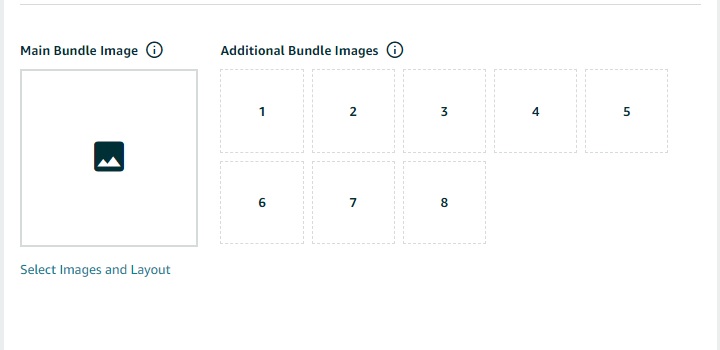
Upload a minimum of one image and ideally four or more to fill the image gallery. Use the same 2000×2000 pixel resolution standard that applies to all Amazon product images.
7. Submit and Review
Click Submit to push the bundle into Amazon’s catalog review queue. Bundle listings typically go live within 24 to 72 hours. Amazon reviews the bundle for policy compliance, pricing validity, and image quality before making it searchable. Once live, you will see the bundle ASIN on your Manage Inventory page alongside your standard ASINs.
Amazon Bundle Strategy
Sellers who do well with bundles are not just packaging things together randomly. They are solving a problem that the individual listing cannot solve.
1. Use Customer Review Data to Find Gaps
Read the one-star and two-star reviews on your top ASINs and on competitors’ ASINs. If customers consistently say “I wish it came with X” or “would be perfect if it included Y,” those are bundle opportunities. The best bundles start with customer frustration, not seller convenience.
2. Bundle for the Occasion, Not Just the Product
A phone case bundled with a screen protector is fine. The same phone case bundled with a car mount, screen protector, and charging cable targets a specific buyer: someone who just got a new phone and wants to be set up. The more clearly your bundle serves a specific moment or need, the higher the conversion rate. Bundles targeting gift occasions, setup kits, and starter packs consistently outperform generic groupings.
3. Profitability Math Before You Commit
Run the numbers before creating any bundle. Your bundle profit per unit equals: combined COGS of all items, plus FBA fees for the bundle dimension and weight, plus a proportional allocation of PPC spend, subtracted from your bundle price. Sellers often discover that adding a third item increases fees more than it increases price ceiling, making two-item bundles more profitable than three-item ones in certain size tiers.
4. Virtual Bundles as a Testing Ground
Because virtual bundles require no physical inventory changes, they are a low-risk way to test which product combinations resonate with buyers. You can create multiple virtual bundles with different configurations, run traffic to each using Sponsored Products, and use conversion data to decide which combination is worth investing in as a physical bundle. Treat virtual bundles as market research as much as a revenue channel.
5. Keyword Strategy for Bundle Listings
Bundle listings have their own keyword real estate. Your bundle title, bullet points, description, and backend search terms (now 500 bytes per Amazon’s current policy) should target search queries that reflect the bundle’s combined purpose. Customers searching “baby bath kit” or “home office setup bundle” are already in bundle-buying mode. Capturing those search terms on a bundle-specific listing outperforms trying to rank an individual product for those multi-item queries.
Frequently Asked Questions
What is the difference between a physical bundle and a virtual bundle on Amazon?
A physical bundle is a single packaged unit containing multiple items that ships together from one FBA inventory location under one ASIN. A virtual bundle groups existing FBA ASINs into one checkout offer without physical repackaging, and each item ships separately from its own inventory.
Do I need Brand Registry to create an Amazon virtual bundle?
Yes. Virtual bundles are only available to sellers enrolled in Amazon Brand Registry, and all ASINs in the bundle must belong to your registered brand.
How many products can I include in a virtual bundle?
Between 2 and 5 ASINs per virtual bundle. You cannot create a virtual bundle with only one product or with more than five.
Can I run ads on virtual bundle listings?
Yes. Virtual bundle ASINs are eligible for Sponsored Products campaigns. They are not currently eligible for Lightning Deals or Best Deal promotions.
What happens when one product in my virtual bundle goes out of stock?
The entire virtual bundle listing is suppressed automatically until that ASIN is back in stock. Plan replenishment at the bundle level, not just the individual ASIN level.
Can I bundle products from other brands in a virtual bundle?
No. Virtual bundles only support ASINs from your own registered brand. Physical bundles can include other brands’ products but require authorization and must follow Amazon’s bundling policy.
Does Amazon notify customers that virtual bundle items ship separately?
Amazon’s checkout process does not prominently disclose that items ship separately. Customers may be surprised when packages arrive at different times. Consider mentioning this in your product description to manage expectations.
Can virtual bundles get customer reviews?
Yes. Reviews can be left on the virtual bundle ASIN, but they accumulate separately from reviews on the individual ASINs. New bundle listings start with zero reviews, which is a known drawback of the virtual bundle format.
What is the minimum discount required for a virtual bundle?
Amazon requires the bundle price to be strictly lower than the sum of the individual ASIN prices, but there is no enforced minimum percentage discount. A discount of even one cent technically qualifies, though a meaningful discount (5% or more) improves customer conversion.
Can I include variation ASINs in a virtual bundle?
Yes. You can select specific size, color, or style variants when adding an ASIN to a virtual bundle. The bundle will use the inventory of that specific variant.
What barcode do I use for a physical bundle?
You need a unique GS1-registered UPC specifically for the bundle ASIN. You cannot reuse the UPCs from the individual products within the bundle.
Are bundles allowed in all Amazon categories?
Most categories allow bundles, but media products (books, music, DVDs, video games) cannot be bundled with non-media items. Some categories like jewelry and watches have additional bundling restrictions. Always check the category-specific bundling guidelines in Amazon’s policy documentation before building a bundle listing.