
Every product you send to an Amazon fulfillment center needs a barcode that tells Amazon exactly who that unit belongs to. That barcode is called an FNSKU. Without it, Amazon has no way to connect a physical product sitting in a warehouse bin to your seller account, your listing, or your sales.
If you are setting up your first FBA shipment or trying to figure out why Amazon keeps flagging labeling errors, this guide covers everything. You will learn what the FNSKU code on Amazon actually is, how it differs from UPC and ASIN numbers, the exact Amazon FNSKU label size you need, and step-by-step instructions for printing and placing your labels correctly.
What Is an FNSKU Code on Amazon?
FNSKU stands for Fulfillment Network Stock Keeping Unit. It is a barcode that Amazon generates for your product when you list it under the Fulfilled by Amazon (FBA) program. The FNSKU is unique to your seller account, meaning no other seller will ever have the same FNSKU for the same product.
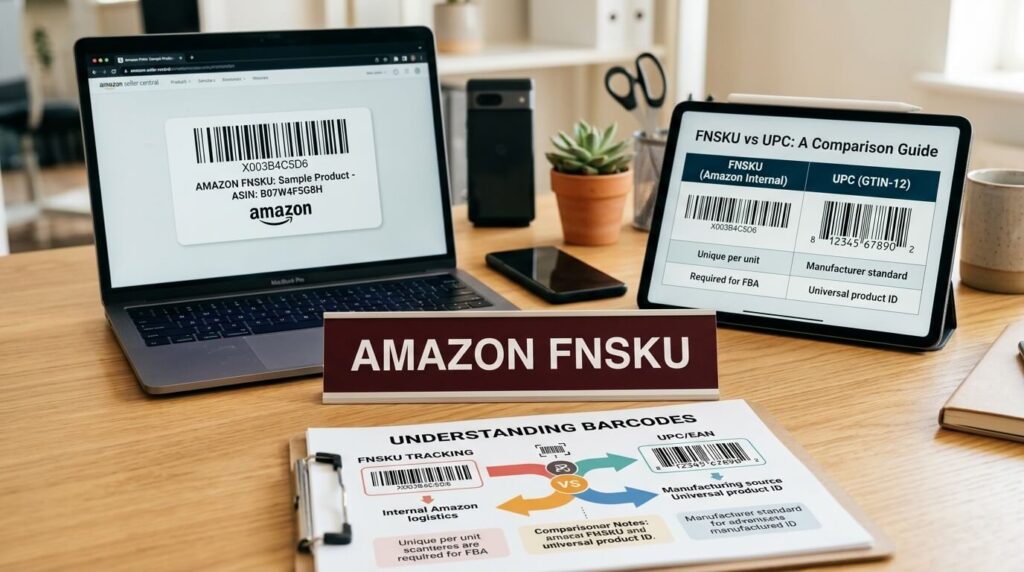
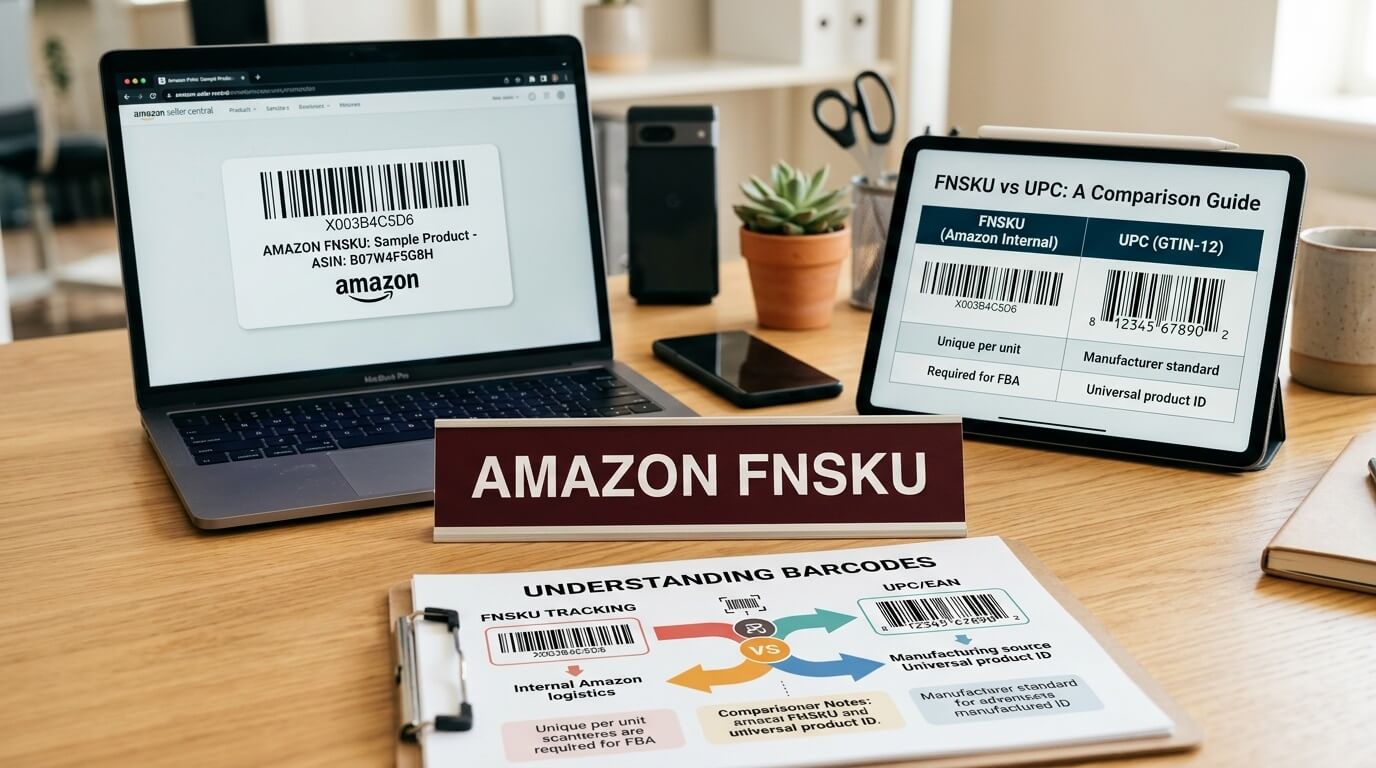
This is the key difference between an FNSKU and a universal product code like a UPC. A UPC identifies what the product is. An FNSKU identifies what the product is AND which seller owns that specific unit.
Here is what you need to know about the FNSKU at a glance.
- It is automatically generated by Amazon when you create an FBA listing
- Each seller gets a unique FNSKU for the same product, even if 50 sellers list the identical item
- The barcode uses Code 128 symbology, a standard 1D barcode format
- It appears as a 10-character alphanumeric string, typically starting with an “X00” prefix (example: X001KR74B2)
- It only applies to FBA inventory and is not used for Fulfilled by Merchant (FBM) orders
How Amazon Uses Your FNSKU Behind the Scenes
When your shipment arrives at a fulfillment center, every unit gets scanned at receiving. The Amazon FNSKU barcode tells the warehouse system three things simultaneously: the product identity, the seller it belongs to, and the listed condition (New, Used, Collectible, etc.).
This tracking follows your product through its entire lifecycle inside Amazon’s network. Storage, picking, packing, shipping, and even customer returns all reference the FNSKU. If a customer returns a product, Amazon uses the FNSKU to credit it back to the correct seller’s inventory rather than someone else’s.
FNSKU vs UPC vs ASIN vs SKU
New sellers often confuse these four identifiers because they all appear in Seller Central and seem to do similar things. They do not. Each one serves a different purpose, and understanding the distinction prevents real problems down the line.
The data below shows how each identifier functions in Amazon’s system.
| Identifier | What It Is | Who Creates It | Unique To | Used For |
|---|---|---|---|---|
| FNSKU | Amazon FBA tracking barcode | Amazon (auto-generated) | Each seller + product combination | Warehouse scanning and inventory tracking |
| UPC/EAN | Universal product identifier | GS1 (purchased by brand owner) | The product itself | Retail scanning, Amazon listing creation |
| ASIN | Amazon Standard Identification Number | Amazon (auto-generated) | Each product listing on Amazon | Identifying a product page on Amazon |
| Seller SKU | Merchant-created stock code | You (the seller) | Your own internal system | Your personal inventory management |
A few important distinctions worth highlighting.
- ASIN is shared across all sellers on a listing. Every seller on the same product page uses the same ASIN.
- FNSKU is private to your account. Your FNSKU for a product will never match another seller’s FNSKU for that same product.
- UPC is tied to the product, not the seller or the platform. It works at Walmart, Target, and anywhere else.
- Seller SKU is completely internal. Amazon does not scan it at fulfillment centers.
The practical takeaway is simple. The FNSKU is the only barcode that physically goes on your product when you send it to FBA using Amazon’s barcode option. Everything else stays in the digital backend.
Amazon Barcode vs Manufacturer Barcode
When you convert a listing to FBA in Seller Central, Amazon asks you to choose between two barcode options. This choice directly impacts how your inventory is stored and whether it gets mixed with other sellers’ stock.
Below is a comparison of the two options Amazon provides.
| Feature | Amazon Barcode (FNSKU) | Manufacturer Barcode (UPC/EAN) |
|---|---|---|
| Label required on product | Yes, FNSKU label | No additional label needed |
| Inventory tracking | Separated by seller | Commingled with other sellers |
| Risk of counterfeit mixing | Very low | Higher |
| Extra labeling work | Yes | No |
| Best for | Private label, wholesale, arbitrage | Established brands with no counterfeit concerns |
| Eligible product types | Most FBA products | Only products with valid, GS1-registered UPCs |
Why Commingled Inventory Creates Problems
When you choose the manufacturer barcode option, Amazon stores your units alongside identical units from other sellers. This is called commingled or stickerless inventory. When a customer orders your product, Amazon may ship a unit that was actually sent in by a different seller.
This becomes a serious issue if another seller sends in counterfeit, damaged, or expired versions of the same product. A customer receives a bad unit, leaves a negative review on your order, and you take the hit even though the defective product was never yours. Sellers have received intellectual property complaints and even account suspensions over inventory they never physically touched.
When Manufacturer Barcode Makes Sense
The manufacturer barcode option works for sellers who own the brand and are the only ones selling that product on Amazon. If you manufactured the product, control the listing, and no other sellers are on your ASIN, the risk of commingling is essentially zero because there is nobody else’s stock to mix with.
- Brand-registered sellers with exclusive ASINs can safely use manufacturer barcodes
- It eliminates the cost and labor of applying FNSKU labels
- Products with barcodes already printed on retail packaging do not need additional stickers
For everyone else, especially wholesale sellers, retail arbitrage sellers, and anyone sharing a listing with other merchants, the FNSKU barcode is the safer choice.
How to Generate Your FNSKU Barcode in Amazon Seller Central
You do not need any special software or third-party tools to get your FNSKU. Amazon generates it automatically when you set up a product as FBA. The process takes a few minutes inside Seller Central.
Follow these steps to generate and download your FNSKU in 2026.
- Step 1: Log into Seller Central and go to Inventory > Manage All Inventory
- Step 2: Find the product you want to send to FBA. If it is currently Fulfilled by Merchant, click the dropdown arrow and select Change to Fulfilled by Amazon
- Step 3: Amazon will generate the FNSKU automatically once the listing converts to FBA. You will see it appear in the product details under the “FNSKU” field
- Step 4: To download printable labels, select the product using the checkbox, then click Print Item Labels from the action menu above the inventory list
- Step 5: Choose the number of labels you need and the label format (21-up, 24-up, 27-up, or 30-up depending on your label sheets). Click Print Item Labels to download the PDF
A few things to keep in mind during this process.
- The FNSKU will not appear until the listing is active and set to FBA
- If you are creating a brand-new listing, you need a valid product identifier (UPC, EAN, or GTIN exemption) before the FNSKU can be generated
- Each product condition gets its own FNSKU. A “New” listing and a “Used – Like New” listing for the same product will have different FNSKUs
- You can also access FNSKU labels during the shipment creation workflow under Send to Amazon
Amazon FNSKU Label Size and Printing Specifications
Getting the label size and print quality right is not optional. Amazon’s fulfillment centers use high-speed barcode scanners, and labels that are too small, blurry, or poorly printed cause scan failures. Scan failures lead to delayed receiving, misplaced inventory, or units flagged as unfulfillable.
Required Label Dimensions
Amazon recommends a standard label size of 1 inch by 2-5/8 inches (25.4 mm x 66.7 mm). This matches the widely available Avery 5160 and 8160 label sheets, which hold 30 labels per letter-sized sheet.
The full label specification details from Amazon are outlined below.
| Specification | Amazon Requirement |
|---|---|
| Recommended label size | 1″ x 2-5/8″ (25.4 mm x 66.7 mm) |
| Alternative acceptable sizes | 1″ x 3″, 2″ x 3″ for larger products |
| Barcode type | Code 128 (1D barcode) |
| Minimum print resolution | 300 DPI |
| Required text on label | Product name, condition (New/Used), FNSKU number |
| Quiet zone (blank space around barcode) | Minimum 0.25″ on each side |
| Background color | White or light-colored only |
| Barcode color | Black bars on white background |
Barcode Print Quality Standards
Amazon rejects labels that scanners cannot read. Blurry, smudged, or low-contrast barcodes are the most common reasons for scan failures.
- Print at 300 DPI or higher. Most thermal printers handle this natively, but inkjet printers may need settings adjusted.
- Never shrink or stretch the barcode. Scaling a barcode changes the bar widths and makes it unreadable.
- Avoid glossy or reflective label materials. Scanner lasers bounce off shiny surfaces and fail to read the barcode.
- Use only black ink for the barcode bars. Color ink or gray tones reduce contrast and cause scan issues.
Label Material and Adhesive Standards
Amazon does not require a specific label brand, but the adhesive needs to hold up in warehouse conditions. Products sit in fulfillment centers for weeks or months, sometimes in non-climate-controlled areas.
- Use labels with permanent adhesive. Removable adhesives peel off during handling.
- Direct thermal labels work well for short to medium storage periods, but the print can fade over many months. Thermal transfer labels last longer.
- If your product is stored in a poly bag, the label goes on the outside of the bag, not inside.
- Labels applied to shrink-wrapped products must not wrinkle or crease across the barcode.
How to Print Amazon FNSKU Labels
Sellers print FNSKU labels using either a dedicated label printer or a standard laser/inkjet printer with adhesive label sheets. Both methods work, but the right choice depends on how many products you ship to FBA each month.
Thermal Printers vs Laser and Inkjet Printers
Thermal printers are the go-to choice for most FBA sellers doing regular shipments. They produce clean, high-contrast barcodes without ink cartridges. Laser and inkjet printers work fine for smaller volumes when paired with the right label sheets.
The comparison below covers the most popular printers FBA sellers use for FNSKU labels.
| Printer | Type | Approximate Cost | Ink Required | Best For |
|---|---|---|---|---|
| Rollo X1040 | Direct Thermal | $200 to $240 | No | High-volume FBA sellers |
| DYMO LabelWriter 550 | Direct Thermal | $100 to $140 | No | Low to mid-volume sellers |
| Zebra ZD421 | Direct Thermal / Transfer | $250 to $400 | No (thermal) | Commercial-grade, high durability |
| Brother QL-820NWB | Direct Thermal | $150 to $200 | No | Mid-volume with wireless printing |
| Any laser printer | Laser | $50 to $200 | Yes (toner) | Occasional FBA shipments using Avery sheets |
Compatible Label Sheets and Rolls
If you are using a standard printer, these are the most commonly used label sheets for Amazon FNSKU labels.
- Avery 5160 (laser): 1″ x 2-5/8″, 30 labels per sheet, works with Amazon’s 30-up PDF format
- Avery 8160 (inkjet): Same dimensions as 5160, designed for inkjet printers
- Avery 5163 (laser): 2″ x 4″, 10 labels per sheet, useful for larger products
- DYMO 30336 (thermal): 1″ x 2-1/8″, compatible with DYMO LabelWriter printers
- Rollo direct thermal rolls: 4″ x 6″ standard (requires trimming or custom sizing for FNSKU)
For thermal printers, look for rolls in the 2″ x 1″ or 2.25″ x 1.25″ size range. These fit FNSKU labels perfectly and align with the barcode dimensions Amazon generates.
Printing Labels from Seller Central
Amazon provides FNSKU labels as downloadable PDF files. When you print from Seller Central, choose the label format that matches your sheets or printer.
- 30-up format matches Avery 5160/8160
- 21-up format matches Avery 5161 or similar European A4 sheets
- 24-up and 27-up formats match various other label sheet configurations
Open the PDF and print at 100% scale. Do not select “fit to page” or “shrink to fit,” as this will alter the barcode dimensions and potentially make it unscannable.
Where to Place FNSKU Labels on Products
Label placement affects whether Amazon’s scanners can read the barcode during receiving. A perfectly printed label stuck in the wrong spot causes the same problems as a bad label.
Here are Amazon’s placement rules.
- Place the FNSKU label on a flat, smooth surface where it will not curve, wrinkle, or fold
- The label must be visible and scannable without opening any packaging
- For boxed products, place the label on the outside of the box
- For poly-bagged items, the label goes on the outside of the bag
- For bundled products, the label goes on the outermost packaging that holds the bundle together
- For books and media, place the label on the back cover, covering the existing ISBN barcode
Covering Existing Barcodes Is Mandatory
This is a rule many sellers miss. Every scannable barcode on the product other than the FNSKU must be covered or removed. If the original UPC is still visible, Amazon’s scanners might read it instead of the FNSKU, leading to receiving errors and incorrect inventory assignment.
- Use the FNSKU label itself to cover the original barcode when they are similar in size
- If the existing barcode is on a different surface than where you place the FNSKU, use a blank opaque sticker to cover it
- Any barcode on the product, the box, or the packaging needs to be covered. This includes retail UPCs, QR codes, and any other 1D or 2D barcodes
FNSKU Labeling for Different Amazon Business Models
How you handle FNSKU labels varies depending on whether you are a private label seller, a wholesale buyer, or an arbitrage seller. Each model has different practical considerations.
Private Label Sellers
Private label sellers have the most flexibility. Since you control the product packaging, you can print the FNSKU barcode directly onto your packaging during manufacturing. This eliminates the need for sticker labels entirely.
- Work with your manufacturer to include the FNSKU in the packaging design
- Alternatively, use manufacturer barcode if you are the only seller on your listing and have Brand Registry
- If you opt for FNSKU on packaging, double-check the barcode is scannable by testing it with a barcode scanner app before shipping thousands of units
Wholesale Sellers
Wholesale sellers purchase branded products from distributors and resell them on existing Amazon listings. Since multiple sellers usually share the same listing, using the FNSKU barcode is strongly recommended.
- Always apply FNSKU labels over the manufacturer UPC
- Never rely on commingled inventory when other sellers are on the same listing
- Keep a record of which FNSKU corresponds to which supplier batch, in case quality issues arise
Retail and Online Arbitrage Sellers
Arbitrage sellers buy discounted products from retail stores or online retailers and resell them on Amazon. Every unit needs an FNSKU label because you are almost never the only seller on a listing.
- Print FNSKU labels before you start prepping products to streamline your workflow
- Use a thermal printer for speed. Applying labels by hand from printed sheets slows down the process significantly with large batches.
- Some arbitrage sellers pre-print labels in bulk by downloading FNSKUs for their entire inventory at once
Bundles and Multipacks
Bundles and multipacks each require their own unique ASIN and FNSKU. You cannot reuse the FNSKU from individual component products.
- Create a new listing for the bundle with its own UPC or GTIN exemption
- Amazon generates a unique FNSKU for the bundle listing
- The FNSKU label goes on the outer packaging that holds all items together
- Cover the individual UPCs on each item inside the bundle
FBA Labeling Requirements
Below is a consolidated view of all key FBA labeling requirements that apply to FNSKU labels in 2026.
| Requirement | Detail |
|---|---|
| Barcode type | FNSKU (Amazon barcode) or Manufacturer barcode (UPC/EAN) |
| Label size | 1″ x 2-5/8″ recommended; 1″ x 3″ or 2″ x 3″ acceptable |
| Print resolution | 300 DPI minimum |
| Label text | Product name, condition, FNSKU code |
| Barcode format | Code 128 |
| Placement | Flat, scannable surface on outside of packaging |
| Other barcodes | Must be covered or removed |
| Label adhesive | Permanent (not removable) |
| Background | White or light, non-reflective |
| Ink | Black only for barcode bars |
Common FNSKU Mistakes
Most FBA labeling problems are preventable. Here are the mistakes sellers make most often and what happens when they do.
Printing labels at the wrong scale. Selecting “fit to page” in your printer settings shrinks the barcode. Amazon’s scanner cannot read it, and your shipment gets flagged at receiving.
Placing labels on curved surfaces. Labels on rounded bottles, cans, or tubes wrinkle and distort the barcode. Use a flat area, or wrap the product in a poly bag first and label the bag.
Forgetting to cover existing barcodes. Amazon’s scanner may pick up the UPC instead of the FNSKU, assigning your inventory to the wrong pool or another seller’s account.
Using the wrong FNSKU. If you have multiple listings or variations, it is easy to print the FNSKU for the wrong size, color, or condition. Every unit labeled with the wrong FNSKU gets counted as the wrong product.
Low-quality label material. Cheap labels with weak adhesive peel off during shipment or warehouse handling. The unit becomes unscannable and goes to stranded inventory.
Applying FNSKU labels inside the packaging. Labels must be scannable without opening the product. A label hidden under shrink wrap or inside a box serves no purpose.
Troubleshooting FNSKU and Labeling Issues
Even experienced sellers run into FNSKU-related problems. Here are the most common issues and how to resolve them.
Stranded or Unfulfillable Inventory
Stranded inventory usually means Amazon received a unit but could not match it to an active listing. This often happens when an FNSKU label is damaged, missing, or associated with a listing that has been deleted or suppressed.
- Check the Stranded Inventory report in Seller Central under Inventory > Inventory Planning
- If the listing was deactivated, reactivate it and the inventory should reconnect
- If labels were the issue, create a removal order and relabel the products before sending them back
FNSKU Not Generating in Seller Central
If you do not see an FNSKU for your product, one of these situations usually applies.
- The listing is still set to Fulfilled by Merchant. Convert it to FBA first.
- The product is missing a valid product identifier (UPC, EAN, or GTIN exemption). Amazon cannot create a listing without one.
- You selected “Manufacturer barcode” as your barcode preference. Switch to “Amazon barcode” in your FBA settings.
Barcode Scan Failures at Receiving
When Amazon reports scan issues with your shipment, these are the most likely causes.
- Print resolution below 300 DPI
- Barcode covered by tape, shrink wrap, or another label
- Barcode placed on an uneven or textured surface
- Label smudged or faded from moisture or heat during transit
Prevent scan failures by testing a sample label with a free barcode scanner app on your phone before printing a full batch. If your phone cannot read it, Amazon’s scanner likely will not either.
FNSKU Across Amazon International Marketplaces
If you sell on multiple Amazon marketplaces (such as Amazon.com, Amazon.co.uk, Amazon.de, or Amazon.co.jp), each marketplace generates its own FNSKU for the same product. You cannot use an FNSKU from one marketplace to ship inventory to a fulfillment center in another country.
- Products listed on Amazon.com and Amazon.ca through Remote Fulfillment with FBA (formerly NARF) share the same US-based FNSKU
- If you are enrolled in FBA Export, your US FNSKU covers those orders since the inventory ships from US warehouses
- For Pan-European FBA or European Fulfillment Network (EFN), verify your FNSKU for each European marketplace separately
- Always download FNSKU labels from the specific marketplace’s Seller Central account
Frequently Asked Questions
What does FNSKU stand for?
FNSKU stands for Fulfillment Network Stock Keeping Unit. It is Amazon’s internal barcode for tracking FBA inventory by seller.
Is the FNSKU the same as the ASIN?
No. The ASIN identifies a product listing on Amazon and is shared by all sellers on that listing. The FNSKU is unique to each individual seller’s account for that product.
Can two sellers have the same FNSKU?
No. Every FNSKU is unique to one seller and one product combination. Even if two sellers list the identical product, Amazon assigns each of them a different FNSKU.
What size should Amazon FNSKU labels be?
Amazon recommends 1 inch by 2-5/8 inches (25.4 mm x 66.7 mm). This matches Avery 5160/8160 label sheets, which are 30 labels per page.
Can I print FNSKU labels on a regular printer?
Yes. A standard laser or inkjet printer works fine when paired with compatible adhesive label sheets like Avery 5160 (laser) or Avery 8160 (inkjet). Print at 100% scale and 300 DPI or higher.
Do I need an FNSKU if I use manufacturer barcode?
No. If you select “manufacturer barcode” in your FBA settings, Amazon uses the existing UPC or EAN to track the product. However, your inventory will be commingled with other sellers’ stock.
Does the FNSKU change if I edit my listing?
No. Editing the title, images, or description does not change the FNSKU. However, changing the product condition (from New to Used, for example) generates a new FNSKU.
What happens if I send products to FBA without FNSKU labels?
If your barcode setting is set to Amazon barcode and you ship without FNSKU labels, Amazon may apply labels for you through the FBA Label Service and charge $0.55 per unit. In some cases, the shipment may be refused or delayed.
Can I use the same FNSKU on Amazon US and Amazon UK?
No. Each Amazon marketplace generates its own FNSKU. You need to download and print labels from the Seller Central account for the specific marketplace you are shipping to.
Where do I find my FNSKU in Seller Central?
Go to Inventory, then Manage All Inventory. Click on the product listing and look under the product details. The FNSKU appears alongside the ASIN and SKU.