
Amazon Reimbursement Claim and IDR Portal Guide
Investigate FBA inventory discrepancies, prepare evidence, submit the right claim, and verify the units and money resolved.

Before you file
- Choose the claim type from the recorded event and inventory history.
- Use IDR for supported defects and the appropriate process for inbound shipments and removals.
- Check unresolved quantities, unit values, account credits and later reversals separately.
What Is an Amazon Reimbursement Claim?
An Amazon reimbursement claim is a request for Amazon to investigate an eligible FBA inventory discrepancy and compensate you under the applicable policy. Depending on the case, Amazon may replace the affected inventory or credit your seller account.
A customer refund returns money to the buyer. A seller reimbursement compensates your business for a qualifying issue, such as inventory lost or damaged while under Amazon’s responsibility. A refunded order can require investigation, but the refund alone does not establish that Amazon owes you reimbursement.
Amazon automatically resolves some eligible issues. Before filing a manual claim, check whether the units have been located, returned to your inventory or already reimbursed. Your claim should address the quantity or amount that remains unresolved.
The Inventory Defect and Reimbursement (IDR) Portal helps you review supported inventory defects, their status and Amazon’s resolution reasons. Use it to establish what happened and whether action is needed, then follow the process for that claim type.
The key is to connect the discrepancy to evidence. Identify the affected units, check the applicable filing window and show why the existing resolution does not account for the loss.
Which Reimbursement Claim Should You File?
Choose the claim type based on where the discrepancy occurred in the fulfillment process. Amazon separates FBA inventory claims into four categories, each with its own investigation process, evidence requirements and filing window.
Use the following table to identify your starting point.
| Your inventory problem | Records to investigate | Applicable claim process |
|---|---|---|
| Amazon received the inventory, then reported units lost or damaged during fulfillment-center operations | IDR defect details, Inventory Ledger and existing reimbursements | Fulfillment center operations claim |
| An FBA customer refund or replacement has an unresolved return-related discrepancy | IDR customer-return defects, order details, return records and existing reimbursements | Customer return claim |
| Units sent to Amazon are missing or damaged during the inbound shipment process | Shipment Contents tab, receiving discrepancies, ownership documents and delivery records | Shipment to Amazon claim |
| Inventory being removed from Amazon is missing, damaged, incorrect or incomplete | Removal order details, shipment tracking, received-unit records and photographs | Removal claim |
The records you investigate and the tool you use to file can be different. For example, IDR provides the details needed to investigate a warehouse defect, while the applicable claim tool may request an FNSKU or transaction item ID. Inbound investigations begin with the shipment’s discrepancies and eligibility for investigation.
Check the inventory history before choosing a category. If Amazon received the units and subsequently reported them lost, investigate the fulfillment-center event. If the discrepancy concerns units never accounted for during receiving, investigate the inbound shipment.
Fee overcharges require a separate review. Incorrect weight or dimensions, for example, fall under Amazon’s fee reimbursement process rather than a missing-inventory claim. Seller-fulfilled SAFE-T claims, MCF claims and Vendor Central disputes also have their own procedures.
Start with the event and supporting records. A lower inventory balance alone does not identify the claim type or establish reimbursement eligibility.
How to Access the Inventory Defect and Reimbursement (IDR) Portal
Sign in to Seller Central and select the marketplace you want to investigate. To open the Inventory Defect and Reimbursement (IDR) Portal through the FBA dashboard:
- Open the main menu and select Inventory.
- Select Dashboard under Fulfillment by Amazon.
- Open the dashboard’s Inventory dropdown.
- Select Inventory Defect and Reimbursement.
You can also access IDR through Fulfillment Reports, under Reconciling Inventory, or through the information banner on the Reimbursements and FBA customer returns pages.
Set the Filters Before Reviewing Defects
Start with the filters that apply across the portal:
| Filter | How to use it |
|---|---|
| Date Range | Select the period in which the defect records were created. |
| Product Search | Search by SKU, ASIN or FNSKU to investigate a particular product. |
| Event Type | Focus on warehouse operations or customer-return events. |
The overview summarizes defects across Eligible for Claim, In Progress and Resolved. Open the relevant status to examine individual records.
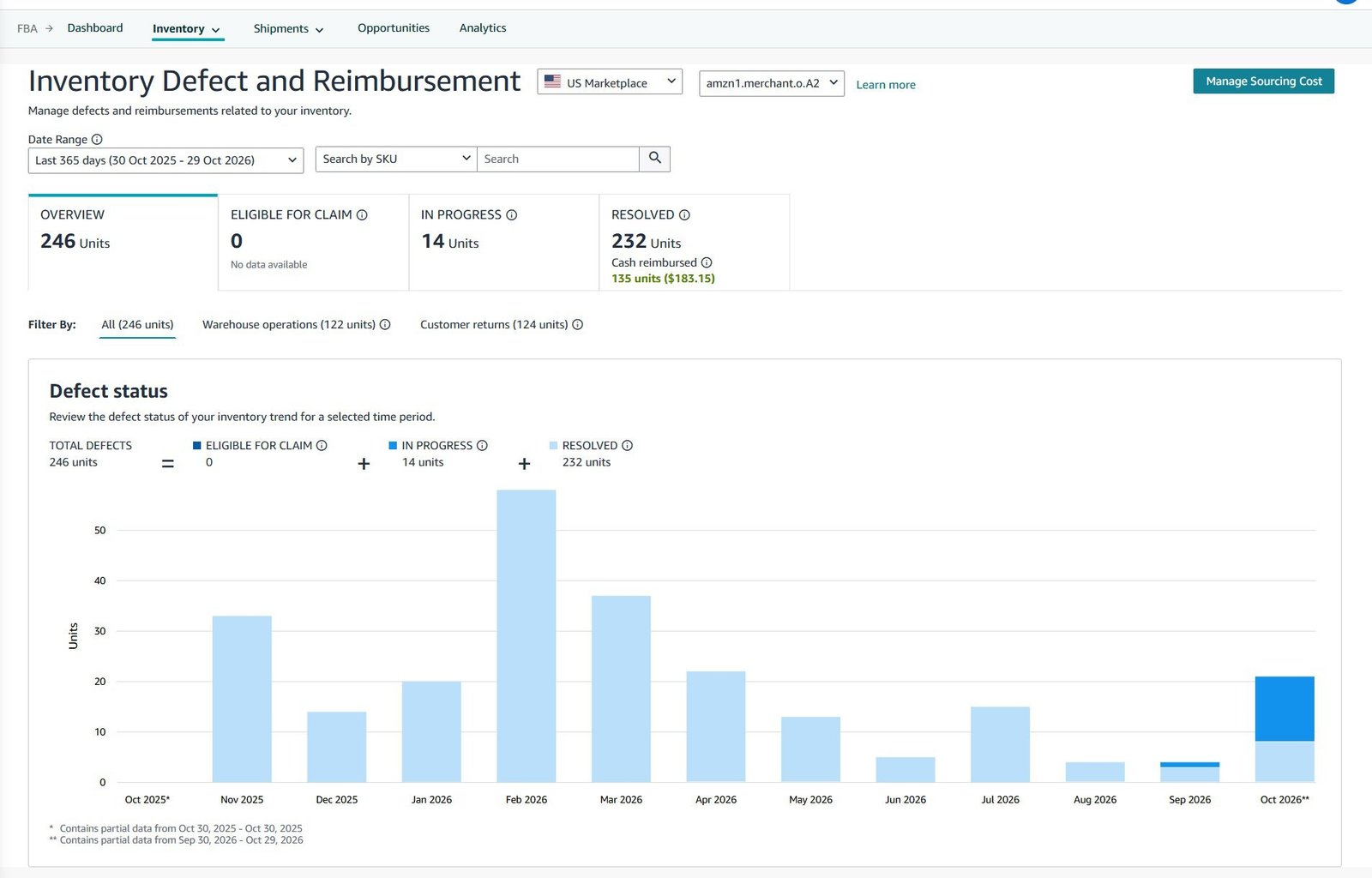
If an expected record is missing, broaden the date range, clear the event filter and check the product identifier before concluding that no defect exists. Check the applicable filing deadline separately from the reporting period displayed.
Know Which Problems Need Another Route
IDR covers warehouse loss, warehouse damage and customer-return defects. Missing inbound inventory, removal discrepancies and warehouse disposals require separate investigation routes under Amazon’s documented portal scope.
For example, if units from a shipment were never accounted for during receiving, begin with that shipment’s Contents tab. An empty IDR search does not settle whether the inbound discrepancy qualifies for investigation.
How to Read IDR Defects, Statuses, and Resolution Reasons
Review the individual defect before deciding what to do. A product can have several unrelated losses, returns or adjustments, so matching the FNSKU alone is not enough. Match the event, quantity and relevant transaction or order as well.
Eligible for Claim Means Your Review Is Needed
Use this tab to identify defects that require seller action. Check the product, event date, defect type and quantity, then collect the identifiers requested by the applicable claim tool.
For fulfillment-center claims, Amazon uses the FNSKU for lost items and the transaction item ID for damaged items. Copy the identifier requested by the tool rather than substituting an ASIN or case number.
Treat eligibility as permission to submit the issue for investigation. The final decision still depends on the policy requirements and supporting information.
In Progress Means Amazon Is Reviewing the Defect
This tab includes defects under investigation and tracks manually filed claims. A customer-return record can also appear here while Amazon waits for the item to return; that situation does not require seller action at that stage.
Read the latest action before following up. If you have already submitted a claim, check the associated case for requests for information. Keep its reference in your tracker so another team member does not submit the same issue again.
Resolved Means You Need to Check the Outcome
Open the resolution details and examine the resolved quantity, reason, resolution date and reimbursement type. Where reimbursement applies, IDR distinguishes cash from inventory.
| Resolution shown | What to check |
|---|---|
| Reimbursed | Match the quantity and reimbursement type to the affected units. |
| Reconcile | Read the reason and trace the inventory records supporting the resolution. |
| Ineligible | Compare Amazon’s stated reason with the evidence for that event. |
These resolution categories appear in IDR’s resolution breakdown. Resolved does not automatically mean paid in cash.
For example, inventory may have been restored. Check what happened to the units before requesting payment.
If the evidence contradicts the outcome, record the specific disagreement. Amazon’s fulfillment-center policy allows you to submit a claim using the information on the Resolved tab when you disagree with its decision.
Keep Product, Event and Case Identifiers Separate
Each identifier answers a different question:
- ASIN, SKU and FNSKU identify the catalog product, your listing or the relevant FBA inventory.
- Order ID connects a customer-related discrepancy to the order.
- Transaction item ID identifies the inventory event requested by the damaged-item claim tool.
- Case ID identifies the support investigation.
An existing case number helps Amazon trace the conversation. Include the underlying event or order reference as well so the request identifies exactly which units remain unresolved.
What to Check Before Submitting a Reimbursement Claim
Before filing, establish which units remain unresolved, why they may qualify and which records support your request. A claim should describe a specific loss with evidence that Amazon can match to its records.
Confirm the Quantity That Remains Unresolved
Check subsequent inventory movements, previous reimbursements and existing investigations for the same event.
For example, suppose six units of one FNSKU were reported lost. Two were later located and restored to inventory, and a different unit was already reimbursed. That leaves three units to investigate, subject to the applicable policy.
Match each adjustment to the affected units. A positive inventory adjustment for the same product does not, by itself, prove that a particular loss was resolved. Likewise, do not include an already reimbursed unit in a new claim for the same loss.
Verify Eligibility and the Relevant Dates
Confirm the marketplace, claim category, product identifier, event date and applicable filing window. Check whether Amazon is already investigating the issue or requesting information in an existing case.
For lost or damaged inventory, also check the policy requirements, including FBA registration, inventory compliance and account status. A quantity discrepancy alone does not establish eligibility.
Prepare Evidence for the Specific Claim Type
Use this as a preparation checklist, then follow the documents requested by the applicable claim process.
| Claim type | Identifiers to collect | Supporting evidence to prepare |
|---|---|---|
| Fulfillment-center loss or damage | FNSKU, relevant transaction item ID, event date and quantity | IDR defect details, Inventory Ledger entries and previous resolutions |
| Customer-return discrepancy | Customer order ID, affected product and quantity | Refund or replacement details, return records and reimbursement history |
| Inbound shipment discrepancy | Amazon shipment ID, affected FNSKUs and quantities | Shipment Contents details, proof of ownership and applicable delivery records |
| Removal discrepancy | Removal order ID, shipment ID, affected products and quantities | Tracking, receiving records and photographs of affected units where applicable |
Amazon’s claim tools request different identifiers and supporting documents depending on the discrepancy.
Check That the Documents Support Your Request
For inbound ownership evidence, Amazon requires matching product names, quantities and purchase dates. A signed packing slip is an ownership-document option for manufacturers. Pro forma invoices do not demonstrate a completed purchase, and Amazon requires non-editable copies of the original documents.
For removal damage, photograph the actual affected units. Amazon does not accept photographs of substitute example units or wide group photographs as evidence of individual damage.
Before submission, compare the quantity in your written request with the quantity supported by the records. Explain any difference rather than leaving Amazon to infer it.
Amazon Reimbursement Claim Deadlines and When Each Clock Starts
Your filing deadline depends on the claim category and the event that starts its clock. Record both the earliest eligible filing date and the final submission date. A waiting period and a filing deadline serve different purposes.
Match the Deadline to the Correct Event
| Claim or dispute | Event that starts the clock | Filing rule |
|---|---|---|
| Fulfillment-center loss or damage | Date Amazon reports the item lost or damaged in IDR or the Inventory Ledger | Submit no later than 60 days after that date. |
| Shipment to Amazon | Verified delivery to the fulfillment center or a facility operated on Amazon’s behalf | File once the shipment shows eligible for investigation, no later than nine months after verified delivery. |
| Removal inventory damaged in transit or a grading dispute | Delivery of the removal order to the return address | The US removal guidance specifies 60 days from delivery. |
| Disagreement with reimbursement value | Date Amazon issues the reimbursement | The US inventory reimbursement policy specifies 60 days after issuance. |
These windows come from the respective Amazon policies and removal guidance.
For warehouse losses, 60 days is the filing limit, not an instruction to wait 60 days. Check the defect and its existing resolution as soon as you identify the issue.
For inbound claims, the delivery date and the date the shipment becomes eligible for investigation are separate facts. Record both. Do not substitute the shipment’s closure date for verified delivery when calculating the policy’s outer deadline.
Check Customer Returns and Lost Removals Separately
For customer-return claims, record the customer refund or replacement date. For a lost removal shipment, retain its creation date and last confirmed tracking movement. Open the applicable claim process in your selected marketplace and confirm the earliest filing point and final deadline before scheduling the submission.
Keep those dates separate in your tracker. Do not calculate every deadline from when you first noticed the discrepancy or downloaded a report.
Track Appeals and Valuation Disputes Separately
An initial claim, an appeal against its resolution and a dispute over reimbursement value can have different timing requirements. Record the relevant decision or reimbursement date alongside the original inventory event.
Save the policy reference, eligibility dates, case ID and submission confirmation. If Amazon requests additional information, record the response deadline separately and answer within that period.
How Amazon Calculates Reimbursements and Uses Your Sourcing Cost
An approved claim does not automatically repay your selling price or total landed cost. Check the valuation method, reimbursed quantity and unit value separately.
Pre-Fulfillment Losses and Customer-Return Claims
Amazon uses different valuation methods depending on the event.
| Eligible claim | Basis for calculating reimbursement |
|---|---|
| Inbound, fulfillment-center or removal loss occurring before fulfillment | The item’s sourcing cost, using your accepted cost or Amazon’s estimate. |
| FBA customer-return claim | The customer refund amount or the replacement item’s price on the original order, minus applicable fees. |
For inventory already in unsellable condition, Amazon may use a reduced estimated cost. The US FBA inventory policy also sets a maximum reimbursement of $5,000 per unit.
Sourcing Cost Is Different From Landed Cost
Sourcing cost is what you pay a manufacturer, wholesaler or reseller for the product, or what it costs to produce the item yourself. Amazon excludes shipping, handling, customs duties and other costs from this definition.
Keep those amounts separate in your records. If an invoice combines the product price and freight, identify the product’s unit cost before submitting a sourcing value. Your retail price and expected profit do not establish that cost.
How to Review and Update Manage Your Sourcing Cost
From IDR, open Manage Your Sourcing Cost, then:
- Find the correct FNSKU and select Update.
- Enter the sourcing cost per unit in the applicable currency and select Save changes.
- Check the submission status and provide proof-of-value documentation if requested.
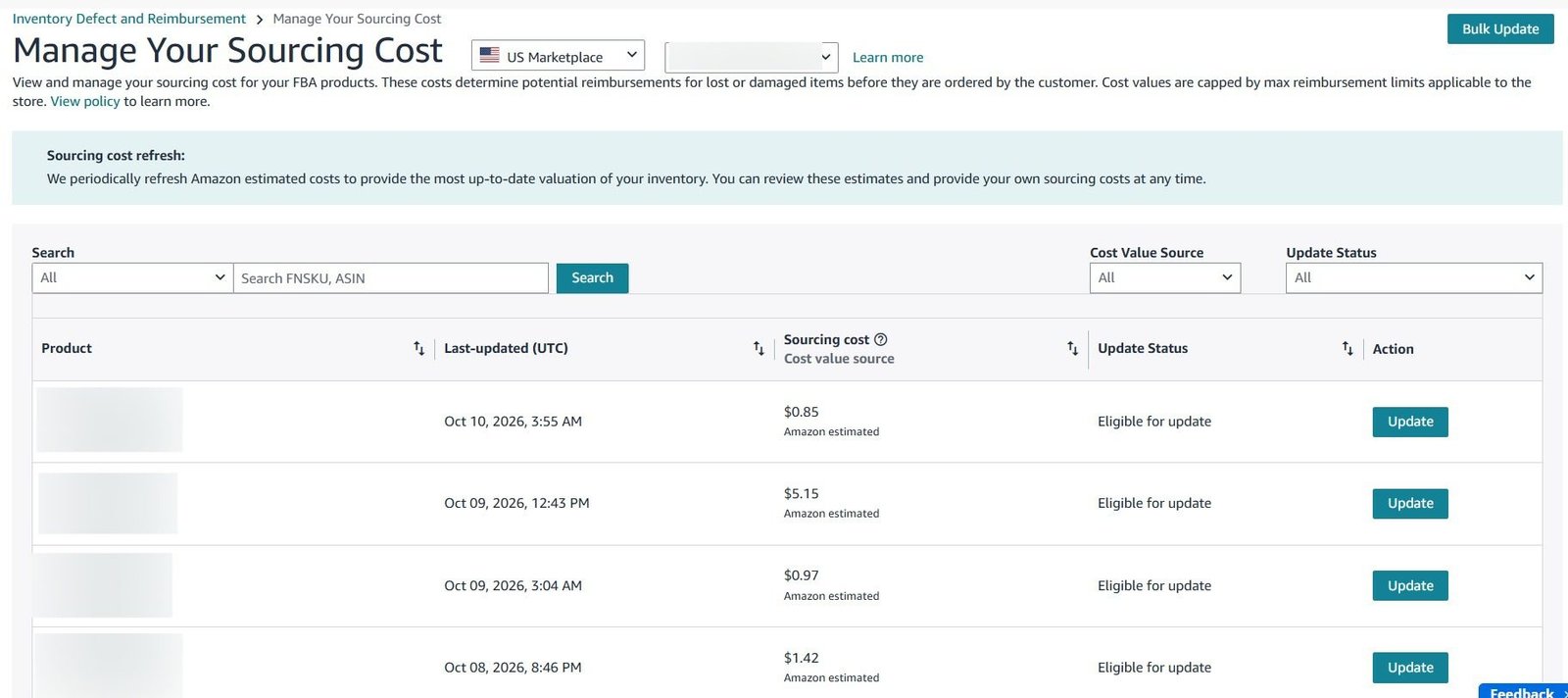
Check both the Sourcing cost column and its source indicator. Seller submitted indicates an accepted value used for future reimbursements for that FNSKU. A newly submitted update can still be under review.
For multiple products, use Bulk update and enter direct values in the designated Seller Cost – New column. Supporting documents, if requested afterward, must be submitted individually.
A proof-of-value document must support the amount you submit. Check the unit price, currency and product match before uploading it.
How to Identify a Possible Valuation Error
Continuing the earlier hypothetical example, suppose Amazon approves reimbursement for the three remaining units. Amazon’s estimated sourcing cost is $4.20, while your supplier records show a $6 unit cost.
| Valuation basis | Unit value | Reimbursement for three units |
|---|---|---|
| Amazon’s estimate | $4.20 | $12.60 |
| Your documented cost, if accepted and applicable | $6.00 | $18.00 |
The potential difference is $5.40. If Amazon has already credited $12.60, the dispute concerns that difference, subject to acceptance of the $6 valuation.
Updating sourcing cost for future reimbursements does not automatically settle an earlier payment. For an existing reimbursement still within the applicable dispute window, request re-evaluation and identify the reimbursement, affected FNSKU, accepted cost and calculation.
How to File a Claim for Inventory Lost or Damaged at Amazon
Use the fulfillment center operations claim process for eligible inventory that Amazon received and subsequently reported lost or damaged. Start with the recorded event and check whether Amazon has already investigated or resolved it.
Investigate Lost Inventory
In IDR, select warehouse operations and filter by the affected FNSKU and warehouse-loss defect type. Review the event date and quantity, then check In Progress and Resolved for related investigations or adjustments.
Compare the defect with relevant Inventory Ledger entries and reimbursement records. If the records appear inconsistent, identify the specific transaction and quantity you want Amazon to investigate. A current stock balance alone does not explain what happened to those units.
Investigate Warehouse-Damaged Inventory
Identify the damage event and copy its transaction item ID from IDR or the Inventory Ledger. Check the classification before filing. Customer-damaged or defective inventory does not qualify simply because it is physically held at an Amazon fulfillment center.
For warehouse damage, collect the event details Amazon can investigate. Photographs of units returned through a removal order belong to the evidence for that separate situation; they are not available for every warehouse-damage event.
Submit Through the Applicable Claim Tool
While signed in on a desktop browser, open Amazon’s fulfillment-center operations claim page and use the tool for the affected event:
- For lost inventory, enter the FNSKU.
- For damaged inventory, enter the transaction item ID.
- Follow the eligibility check and submission prompts. Provide the event date, unresolved quantity and supporting details requested, including the fulfillment center ID if needed.
The US filing limit is 60 days after the item is reported lost or damaged in IDR or the Inventory Ledger. Prepare and submit the eligible claim within that window.
For the three unresolved units in our hypothetical example, a submission could read:
Please investigate three remaining warehouse-lost units for FNSKU [FNSKU], reported on [event date].
The original loss involved six units. Two were later located and restored to inventory, and one additional unit was reimbursed under [reimbursement ID]. The attached records account for those resolutions and identify the three units still unresolved.
Relevant event references are [transaction references]. Please investigate these units for replacement or reimbursement under the fulfillment center operations policy. If they have already been resolved, please provide the corresponding inventory adjustment or reimbursement references.
Use this structure only when the statements match your records. Respond to the specific questions in the tool rather than replacing requested information with a generic message.
Record the Claim for Follow-Up
Save the submission confirmation, any case ID provided, FNSKU, event references, claimed quantity and supporting files in your tracker. For supported defects, use IDR’s In Progress page and case filter to track manually filed claims.
Check the existing investigation before opening another case for the same units.
How to Investigate and Claim FBA Customer Return Discrepancies
Investigate customer returns at the order and unit level. Establish what Amazon refunded or replaced, whether the affected item returned, how it was graded and whether your account received the corresponding inventory or reimbursement.
The Customer Was Refunded but the Item Has Not Returned
Start with the customer order ID and check:
- Refund or replacement details to establish the date, product and affected quantity.
- IDR to review the customer-return defect and any existing investigation or resolution.
- FBA customer returns and reimbursement records to check for a received unit or an existing credit.
A return can appear in IDR’s In Progress tab while Amazon waits for the item. No seller action is required at that stage. Review its status and applicable eligibility window rather than opening another request immediately.
If you cannot find a return record, check the order’s refund details before treating the item as missing. A refund may have been issued without requiring a physical return; the absence of a return does not establish eligibility by itself.
The Item Returned so Check Its Condition and Resolution
Read the customer’s return reason separately from Amazon’s condition and responsibility classification.
| Finding | What to investigate |
|---|---|
| Sellable unit returned to inventory | Confirm the inventory restoration for the affected quantity. |
| Amazon-responsible damage | Check the defect resolution and reimbursement records. |
| Customer-damaged or defective classification | Check whether the classification matches the evidence; an unsellable unit alone does not establish Amazon’s responsibility. |
Amazon’s inventory disposition guidance distinguishes these conditions and responsibility for damage.
Also check your customer returns evaluation settings. Returns processed with evaluation disabled are marked Defective, and Amazon states that damaged returns handled this way are not eligible for reimbursement. That setting can explain the classification you see.
The Returned Product Is Wrong, Incomplete or Incorrectly Graded
Identify the specific disagreement. A different product, missing accessory and disputed damage classification require different evidence.
If inspection is needed and the unit is available for removal, arrange its return and retain the removal references. Photograph the actual item, packaging, labels and relevant identifiers. Record how it differs from the product that should have been returned.
Use the applicable removal or grading-dispute process for the inspected unit. Describe the item actually received rather than presenting it as a return that never arrived.
Submit and Verify the Customer-Return Claim
For an unresolved customer-return discrepancy, open Amazon’s customer-return reimbursement process and enter the customer order ID to check reimbursement status and eligibility.
Where a claim is available, provide the affected product, quantity, refund or replacement date and evidence supporting the specific issue. For a multi-unit order, separate the unresolved quantity from units already returned or reimbursed.
Keep a short event summary with the submission. For example, “One unit refunded on [date]; no corresponding return or reimbursement identified in the records reviewed through [date].” Use that wording only when the records support it.
After resolution, match the outcome to the same order and units. Check the quantity, reimbursement amount and whether Amazon resolved the issue through inventory instead of cash.
How to Claim Missing or Damaged Inbound Inventory
Investigate inbound discrepancies through the shipment record. Establish what actually left your supplier, what Amazon accounted for and which units remain unresolved.
Check Shipment Eligibility
Open Shipments, select Track shipment for the affected shipment, then open Contents. Check its investigation eligibility. Amazon requires a closed shipment for reconciliation; closure alone does not establish a reimbursable loss.
For Amazon US, the shipment-to-Amazon policy allows filing once eligible for investigation, with an outer limit of nine months after verified delivery. Keep the delivery evidence and eligibility date with your records.
Reconcile Every Product Before Requesting Research
Compare the expected quantity with your actual dispatch records and Amazon’s located-unit breakdown. Inspect receiving and reconciliation details before treating the displayed shortage as a claimable quantity.
Consider a separate hypothetical inbound shipment. The shipping plan lists 100 units, but your supplier confirms dispatching 98. Amazon accounts for 96, with no other reconciliation or reimbursement identified. The investigation concerns two potentially missing units. The two units never dispatched must also be acknowledged.
Select Research missing units only when your records support that the units were shipped. Use Units not shipped when the discrepancy resulted from a confirmed short shipment. Classify every row marked Action required before submitting.
If Amazon reconciles the shortage against another product or shipment, inspect those references before disputing the outcome.
Match Ownership and Delivery Evidence
Prepare evidence for both ownership and delivery.
| Evidence | What it should establish |
|---|---|
| Supplier invoice or accepted ownership document | Purchase date, matching products and quantities. Manufacturers can use the applicable signed packing slip. |
| Small-parcel tracking | An active tracking ID for each package. For non-partnered shipments, supply missing tracking information before reimbursement. |
| Freight delivery documentation | Box count and total weight at carrier pickup, with Amazon’s receipt stamp and signature confirming fulfillment-center delivery. |
These documents support different parts of Amazon’s investigation.
An invoice supports ownership; it does not, by itself, establish that every unit was packed into this shipment. Match it with dispatch and delivery records that explain the shortage.
Submit the Request and Verify the Result
For eligible missing-unit research, upload the documents, explain the discrepancy, preview the request and submit it. Include useful locating details, such as carton markings, box descriptions or known product-label differences.
Amazon permits one claim per shipment, so review every affected product before submitting. Save the resulting case number.
For damaged inbound units, contact Selling Partner Support through the shipment-to-Amazon claim process with the shipment ID, affected products, quantities and supporting evidence. Identify the issue as inbound damage rather than a warehouse-damage event reported after receipt.
Follow the investigation through the shipment record and case correspondence. Compare the final resolution with your submitted quantities and check any reimbursement or inventory reconciliation references. If units remain unresolved, identify the precise difference when following up on the existing case.
How to File Removal Order Claims
Investigate removal discrepancies at the shipment and unit level. A removal order can contain inventory that is still processing, multiple outbound shipments and units already delivered. Establish which part of the order has the problem before calculating a claim quantity.
Investigate Removal Inventory Lost in Transit
In Manage Orders, search for the removal order ID, open its details, select View all shipped units, then View Tracking Details.
Check each shipment separately. Inventory from different fulfillment centers can arrive in separate shipments with different tracking numbers. For Amazon’s internal delivery service, use the tracking updates inside Seller Central.
Compare the shipped quantities with your receiving records. Keep units still awaiting dispatch separate from units that shipped but did not arrive.
If tracking shows delivery but your warehouse has no receipt, obtain the available delivery evidence and check the receiving location, date and receiving logs. Describe that discrepancy accurately when requesting investigation.
Document Damaged, Incorrect or Incomplete Units
Accept the delivery and document what arrived. Prepare a receiving record linking each affected unit to its shipment.
Your evidence checklist should include:
- Removal order ID, shipment ID and delivery date.
- Affected ASIN or FNSKU and quantity.
- Shipping label, packing slip and packaging photographs.
- Clear photographs of each affected unit and its damage, wrong product or missing component.
- Any visible LPN label, barcode, model or serial number relevant to identifying the unit.
Keep packaging and labels while the investigation is open. Amazon requires evidence of the actual affected units; substitute example photographs and wide group photographs do not establish individual damage.
Explain Grading Disputes After Inspection
State precisely why Amazon’s classification does not match the item you received. For an incorrect product, show the distinguishing model, brand, material or serial number where applicable.
A unit labeled customer-damaged does not qualify simply because you disagree with the classification. Explain the discrepancy and attach evidence that supports your account. Where available, connect the inspected unit to the original return through its identifiers.
Submit Through the Removal Claim Process
Open Amazon’s removal-claims process and use the Resolve a removal order issue tool with your removal order ID. Provide the shipment reference, affected products, quantities, tracking or delivery evidence and photographs where applicable.
For transit damage and grading disputes, the US removal guidance specifies filing within 60 days of delivery to the return address. Check the applicable claim window separately for lost shipments.
Save the case reference and submitted evidence. If Amazon resolves only part of the quantity, compare the decision with your receiving record and identify the remaining units in your follow-up.
How to Track a Claim and Verify the Reimbursement
Track the decision, the reimbursement record and the account credit separately. A claim is fully checked only when the affected quantity and financial outcome match the supporting records.
Match the Decision to the Reimbursement Record
For supported defects, review IDR’s resolution reason, resolved quantity and reimbursement type. Keep the case reference with the associated inventory event or customer order.
Open the Reimbursements report and identify the relevant entries using the available case or order references, FNSKU and reimbursement ID. Include the approval period in your report dates, even if the original loss occurred earlier.
Check every relevant line. One reimbursement ID can include multiple line items, so do not assign its entire value to a single product without checking the breakdown.
Check Cash and Inventory Quantities Separately
The report separates units reimbursed in cash from units reimbursed with inventory. Its total reimbursed quantity combines those two figures. Do not add that total to the individual quantities again.
For the three units in our hypothetical warehouse claim, the checks might look like this:
| Check | Example result |
|---|---|
| Quantity included in this claim | 3 units |
| Units reimbursed in cash | 3 units |
| Units reimbursed with inventory | 0 units |
| Cash reimbursement per unit | $4.20 |
| Total cash reimbursement | $12.60 |
Here, all three units received a cash reimbursement. The remaining question is valuation. If a $6 unit cost is accepted and applicable, the potential additional amount is $5.40, as calculated earlier.
Record that distinction as quantity resolved, valuation under review. Do not describe the same three units as entirely unpaid.
Trace Reversals Back to the Original Credit
Amazon can reverse a reimbursement issued in error or when reimbursed inventory is found and returned to your stock.
For an adjustment, check the Original Reimbursement ID and associated product and quantity. Compare the original credit, adjustment and relevant Inventory Ledger movements.
If Amazon says the inventory was restored but you cannot match the claimed restoration to your records, identify the missing adjustment reference in your follow-up. Keep the original reimbursement and reversal together in your tracker.
Confirm the Account Credit and Bank Disbursement Separately
Match the cash reimbursement to the account transaction, then review the relevant settlement and disbursement in the Payments Dashboard.
A reimbursement approval does not confirm that money has reached your bank. Disbursements combine account activity, and refunds, expenses and reserves can affect the amount available for transfer.
Keep separate tracker fields for reimbursement approval, the account credit and bank disbursement verification. If the credit is present but the payout is pending, investigate the payment status rather than submitting another inventory-loss claim.
What to Do When Amazon Denies or Underpays a Claim
Read the decision before preparing another submission. A rejected claim, an unresolved quantity and an incorrect unit value are different problems. Identify which finding you dispute and what evidence supports a different outcome.
Identify What Amazon Actually Rejected
| Decision or issue | What to verify | Evidence to provide |
|---|---|---|
| Units were already reconciled or reimbursed | Whether the cited resolution accounts for the same event and quantity | Relevant inventory movements and reimbursement references |
| Ownership or shipment evidence was insufficient | Whether the documents match the products and dispatched quantities | Accepted ownership documents and applicable delivery records |
| The claim was outside its window | The triggering event, applicable policy and recorded submission date | Dated event records and submission confirmation |
| The reimbursement used an incorrect unit value | The amount used, documented sourcing cost and affected FNSKU | Proof of value and the original reimbursement reference |
| Damage was classified as customer-caused or defective | Whether the inspected unit supports that classification | Unit-specific photographs and an explanation of the disagreement |
Amazon’s claim and sourcing-cost processes require evidence relevant to the specific issue being disputed.
Match New Evidence to the Decision
Explain what the additional evidence establishes. If Amazon says units were located, identify why the cited adjustment does not account for your shortage. If the problem is a document mismatch, provide a valid document that resolves that mismatch.
Ownership evidence and proof of value serve different purposes. A document with its price hidden may support ownership but fail a sourcing-cost review because it does not show the amount requested.
For sourcing-cost submissions, check the decline reason in Manage Your Sourcing Cost before resubmitting. Correct the stated issue and follow the applicable restrictions on repeat requests.
Use the Correct Resolution or Valuation Dispute Process
For a disputed warehouse resolution, use the relevant information from IDR’s Resolved tab and follow the applicable claim process.
For an incorrect sourcing-cost reimbursement, use Get help and resources, then Submit a reimbursement claim dispute:
- Enter the original reimbursement ID.
- Select the affected FNSKU.
- Upload proof of value if requested.
- Enter the complete sourcing cost per unit.
- Submit and save the resulting case reference.
The tool handles one FNSKU at a time. Enter the full unit value, not the total additional amount you want to recover.
In our hypothetical example, that means entering $6.00, subject to documentation and acceptance. The potential additional payment for three units is $5.40. Those figures belong in different fields and explanations.
A concise supporting statement could read:
Reimbursement [ID] covers three units of FNSKU [FNSKU] at $4.20 per unit. The attached [document reference] supports a $6.00 unit sourcing cost. Please re-evaluate the unit value and resulting reimbursement difference.
The US policy specifies submitting valuation disputes within 60 days after reimbursement issuance.
Know When the Records Do Not Support Another Request
If units were properly restored or reimbursed, or the evidence supports an excluded condition, record that outcome and close the investigation.
Complete documents do not guarantee acceptance of a sourcing value. The requested amount must also meet Amazon’s policy guidelines. Further submissions should address a specific unresolved issue with relevant evidence.
When to Use Reimbursement Software or a Managed Service
Choose additional support based on the work your team cannot consistently complete. IDR already brings supported defects, investigation statuses and resolution details together. Start by identifying what you need beyond that existing process.
| Your situation | Approach to consider |
|---|---|
| Your team can investigate discrepancies, prepare evidence and follow up before deadlines | Manage claims internally using Amazon’s tools and a shared tracker. |
| Your team handles submissions but needs help reviewing a large volume of records | Consider software that supports the monitoring and reconciliation tasks you need. |
| Evidence preparation and case follow-ups repeatedly remain unfinished | Consider a managed service with clear responsibility for those tasks. |
Before connecting an app or signing an agreement, confirm:
- Coverage of your marketplaces and claim types, including inbound shipments, removals and valuation disputes.
- Responsibilities for gathering documents, submitting claims, answering Amazon and verifying credits.
- Billing for automatic reimbursements, inventory replacements, existing cases and later reversals.
- Access permissions and whether the provider can submit claims or only identify potential discrepancies.
- Reporting that connects each billed recovery to its case, reimbursement reference, affected units and credited amount.
Keep historical audit coverage separate from filing eligibility. Reviewing older records does not make an expired claim eligible under Amazon’s policy.
Assign ownership of existing cases before another provider starts. Your internal team and service provider should be able to identify who is handling each event, so the same units are not submitted twice.
For provider comparisons, see our Amazon reimbursement tools guide. If you need ongoing support with claim records and Seller Support follow-ups alongside other account operations, review our Amazon account management services.