

Amazon product listing gets two, maybe three seconds before a shopper scrolls past or stops to read. The main images pull weight. Bullet points do their job. But that product description section sitting below the fold? On most Amazon listings, it is a wall of unformatted plain text that almost nobody reads.
Amazon A+ Content replaces the default text description with a visual layout built from modular blocks of images, comparison charts, banners, and formatted copy. Instead of a paragraph shoppers skip, you get a section that communicates value, builds trust, and answers the questions that bullet points cannot cover in enough depth.
Amazon used to call this feature Enhanced Brand Content (EBC) for third-party sellers on Seller Central. Vendor Central always called it A+ Content. In 2019, Amazon unified the naming. Everything is now A+ Content, regardless of whether you sell through Seller Central or Vendor Central. If you see older guides referencing “EBC” or “Enhanced Brand Content,” they are talking about the same feature.
Who Qualifies for A+ Content
A+ Content has one hard requirement: your brand must be enrolled in Amazon Brand Registry.
Brand Registry requires an active registered trademark in the country where you sell. In the United States, that means a trademark registered with the USPTO. In the EU, trademarks registered through the EUIPO or individual country offices qualify for their respective marketplaces.
Once your brand is enrolled, the A+ Content Manager appears in Seller Central. There is no application, no waiting period, no minimum sales threshold, and no fee.
Sellers who resell products from brands they do not own cannot create A+ Content for those ASINs. The feature is locked to brand owners. If you run an arbitrage or wholesale account without brand ownership, A+ Content is not available to you.
One common point of confusion: you do not need the IP Accelerator program. Brand Registry through a standard registered trademark is sufficient. IP Accelerator can speed up enrollment if your trademark application is still pending, but it is not the only path.
Standard vs. Premium A+ Content
Amazon offers two tiers of A+ Content. Standard A+ is available to all brand-registered sellers. Premium A+ is available to sellers who meet additional eligibility criteria.
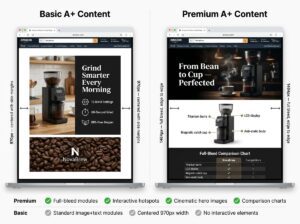
Here is a direct comparison between standard A+ content and Premium A+ content:
| Feature | Standard A+ Content | Premium A+ Content |
|---|---|---|
| Cost | Free | Free (if eligible) |
| Maximum modules per ASIN | 5 | 7 |
| Video modules | No | Yes |
| Interactive hotspot modules | No | Yes |
| Carousel modules | No | Yes |
| Enhanced comparison tables | No | Yes |
| Navigation module | No | Yes |
| Q&A module | No | Yes |
| Full-width image backgrounds | No | Yes |
| Estimated content width | 970 px | 1,464 px |
| Brand Registry required | Yes | Yes |
| Additional eligibility criteria | None | Yes (see below) |
Standard A+ Content covers most of what sellers need. The modules are flexible enough to create visually strong product descriptions with images, text blocks, comparison charts, and brand logos. Most sellers should start here and build out every ASIN before considering Premium.
Premium A+ Content is where things get interesting. The wider layout, video support, and interactive elements create a significantly richer product page. According to Amazon, Premium A+ Content can increase conversion rates by up to 20%. It was previously reserved for Vendor Central accounts paying upwards of $250,000 per project. Amazon opened it to Seller Central brand owners at no cost, which was one of the more significant listing tool changes in recent years.
What A+ Content Does to Conversions
Amazon’s published data says standard A+ Content increases sales by an average of 3% to 10%. That range is wide, and real-world results vary based on category, product price, and how well the content is built. But even the low end of that range translates into meaningful revenue at scale.
Here is what a 5% conversion rate increase looks like in practice:
| Monthly Sessions | Current CR | Current Sales | New CR (5% lift) | New Sales | Monthly Revenue Gain (at $30 AOV) |
|---|---|---|---|---|---|
| 10,000 | 12% | 1,200 | 12.6% | 1,260 | $1,800 |
| 25,000 | 15% | 3,750 | 15.75% | 3,938 | $5,640 |
| 50,000 | 10% | 5,000 | 10.5% | 5,250 | $7,500 |
Even on a listing with modest traffic, the compounding effect matters. Higher conversion rates also improve your organic ranking on Amazon. Amazon’s algorithm favors listings that convert well relative to their impressions. So A+ Content does not just increase sales from existing traffic. It can generate more traffic over time by improving your ranking position.
There is a secondary benefit that is harder to measure but equally real: reduced return rates. When shoppers see detailed comparison charts, close-up product images, and clear feature breakdowns before purchasing, they make more informed decisions. Fewer surprises after delivery means fewer returns. For categories like apparel, electronics accessories, and home goods, this matters a lot.
How to Create A+ Content in Seller Central
The creation process is straightforward once you know where to go. Amazon has reorganized Seller Central navigation several times over the past two years, so if older guides send you to a menu that does not exist, this is the current path.
1. Open the A+ Content Manager
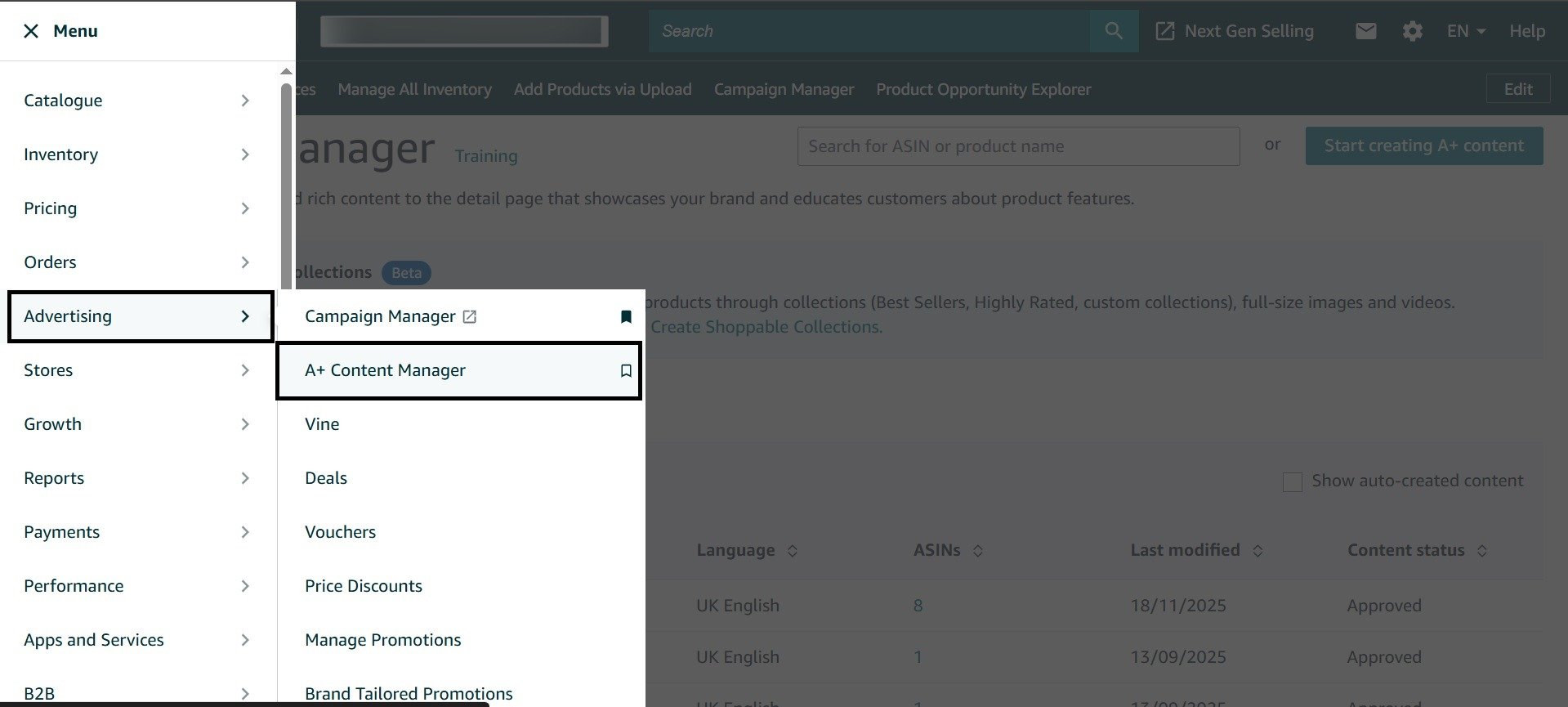
Log into Seller Central. From the main navigation menu, go to Advertising and select A+ Content Manager. In some accounts, you may find it under Brands instead of Advertising. Amazon has been shifting menu locations, but the destination page is the same.
2. Start a New Project
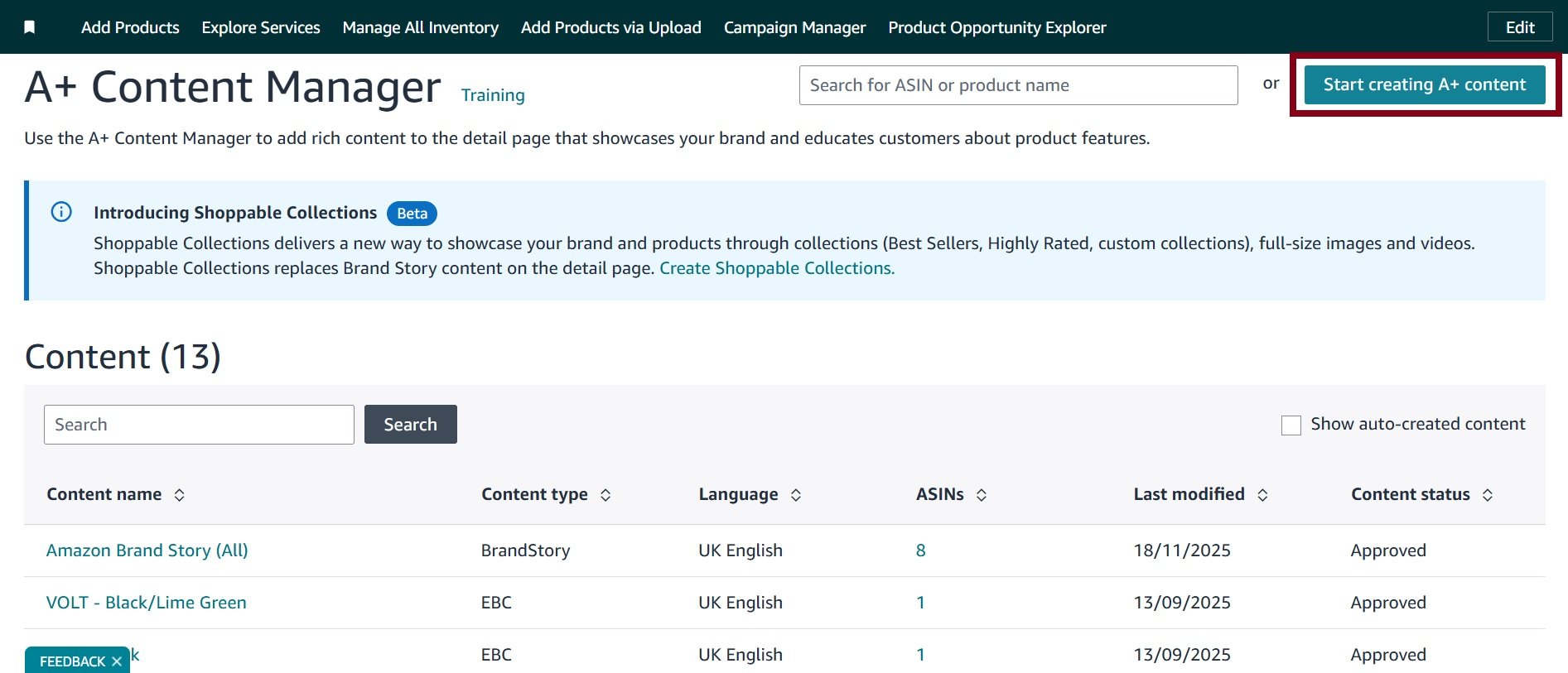
Click “Start creating A+ content.” You will see options for the type of content you want to create. The two main choices are:
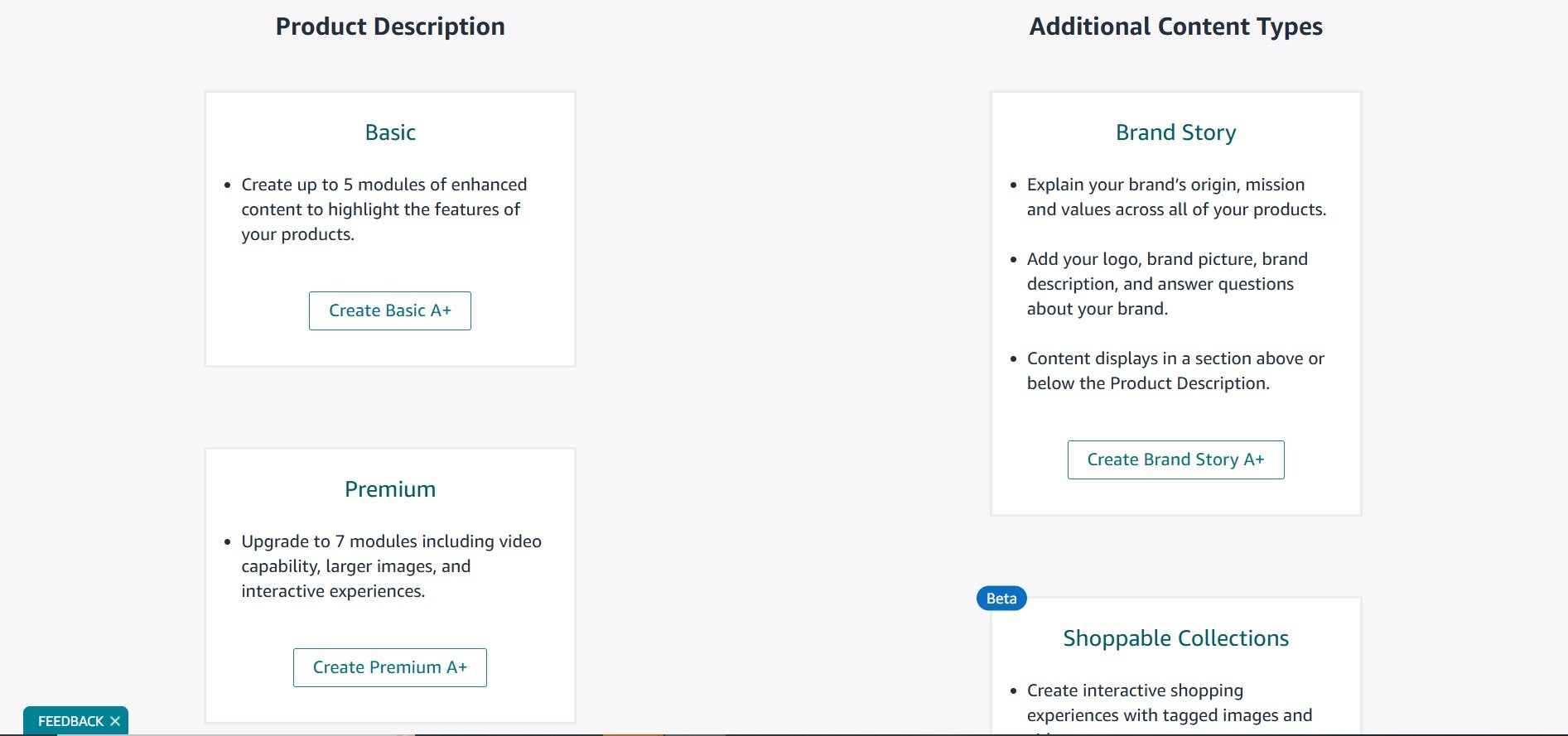
- Basic (Standard A+ Content): The standard visual modules described in this guide.
- Brand Story: A separate scrollable brand section that appears above your A+ Content. (Covered in its own section below.)
If your account qualifies for Premium A+ Content, a third option will appear here.
3. Name Your Content
Enter a content name. This is internal only, and shoppers never see it. Use something descriptive so you can find it later. A naming convention like “ProductName_A+_v1” works well once you have dozens of projects.
4. Choose and Build Modules
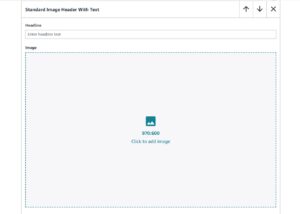
Select from the available module layouts. Each module has designated image upload areas and text fields. You can add up to five modules for standard A+ Content. Drag modules to reorder them.
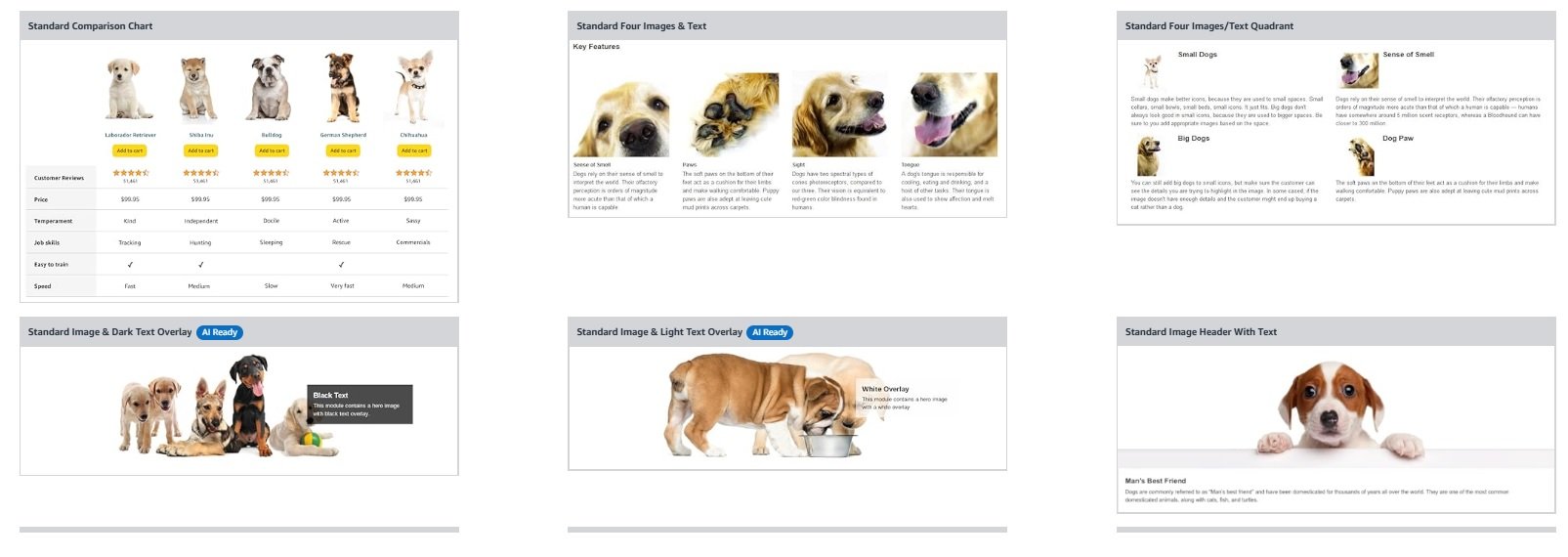
For each image upload, the A+ Content Manager displays the recommended pixel dimensions. Upload images that match these dimensions exactly to avoid cropping or scaling artifacts.
5. Add Alt Text to Every Image
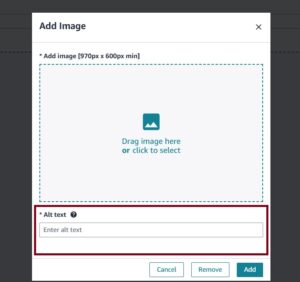
Each image has an alt text field. Fill this in for every single image. Alt text serves two purposes: accessibility for visually impaired shoppers using screen readers, and search indexing. Amazon has confirmed that A+ Content alt text is indexed for Amazon search. Skipping alt text is leaving discoverability on the table.
6. Apply to ASINs
After building your modules, you will be prompted to select which ASINs should display this content. You can search by ASIN or product name. For products with variations (size, color, etc.), applying A+ Content to the parent ASIN pushes it to all child ASINs automatically.
You can also apply different A+ Content to individual child ASINs if variations are different enough to warrant separate descriptions.

7. Submit for Review
Click “Review and Submit.” Amazon reviews A+ Content for compliance with its content guidelines. Approval typically takes 7 business days. During Q4 peak season, expect up to 14 days. You will receive a notification in Seller Central once the content is approved or rejected.
If rejected, Amazon provides a reason. You can edit and resubmit without losing your work.
A+ Content Modules and Image Sizes
This is the section most sellers bookmark. Every standard A+ Content module has specific image dimension requirements. Using the wrong size results in cropped images, blank space, or blurry visuals that hurt more than they help.
Below are the standard A+ Content modules available in 2026, with their recommended image sizes in pixels. All images should be uploaded as JPEG or PNG, in RGB color mode, with file sizes under 2 MB per image.
| Module Name | Image Size (px) | Number of Images | Text Fields |
|---|---|---|---|
| Standard Company Logo | 600 x 180 | 1 | Yes |
| Standard Image Header with Text | 970 x 600 | 1 | Yes (headline + body) |
| Standard Image & Light Text Overlay | 970 x 300 | 1 | Yes (overlay text) |
| Standard Image & Dark Text Overlay | 970 x 300 | 1 | Yes (overlay text) |
| Standard Single Image & Highlights | 300 x 300 | 1 | Yes (bullet highlights) |
| Standard Single Image & Sidebar | 300 x 400 | 1 | Yes (sidebar text) |
| Standard Single Image & Specification Detail | 300 x 300 | 1 | Yes (specs list) |
| Standard Single Left Image | 300 x 300 | 1 | Yes (right-side text) |
| Standard Single Right Image | 300 x 300 | 1 | Yes (left-side text) |
| Standard Three Images & Text | 300 x 300 | 3 | Yes (text per image) |
| Standard Four Images & Text | 220 x 220 | 4 | Yes (text per image) |
| Standard Four Image/Text Quadrant | 135 x 135 | 4 | Yes (text per quadrant) |
| Standard Comparison Chart | 150 x 300 | Up to 6 | Yes (feature rows) |
| Standard Text | N/A | 0 | Yes (body text only) |
| Standard Technical Specifications | N/A | 0 | Yes (table format) |
A few practical notes from working with these modules:
1. Design at 2x Resolution
Amazon compresses images. If the recommended size is 970 x 300 px, design your source file at 1940 x 600 px and then export at the target dimensions. This keeps text and fine details sharp, especially on high-density screens and tablets.
2. Banner Modules Carry the Layout
The 970 x 300 px overlay modules (light and dark text) work best as section dividers. Use them to separate feature zones or introduce a new topic visually. Do not cram product specs into these. The text overlay area is limited, and small text on a background image becomes unreadable on mobile.
3. The Comparison Chart Module Is Underused
The comparison chart lets you place up to six products side by side with feature rows that shoppers can scan quickly. This is one of the most effective modules for cross-selling within your catalog. Each product in the comparison chart links to its listing, so it drives internal traffic between your ASINs. If you sell multiple products in the same category, this module belongs in your A+ Content.
4. Four Images & Text Works for Feature Breakdowns
The four image module (220 x 220 px per image) is the workhorse layout. Use it to show four key product features, each with a small icon-style image and a short description. Keep the text under each image to two or three lines. Longer text blocks get cut off on mobile.
Premium A+ Content: Eligibility and Modules
Premium A+ Content is no longer a paid upgrade. Amazon removed the fee and opened eligibility to Seller Central brand owners who meet these requirements:
1. Brand Story Published on All ASINs
Every ASIN in your catalog that is associated with your brand must have a Brand Story module published. This is a separate content type from standard A+ Content (covered in the next section).
3. Active A+ Content Project Within the Past 12 Months
5+ Approved A+ Content submissions (Basic or Brand Story) in the past 12 months.
Premium modules add capabilities that standard modules cannot replicate:
| Premium Module | Description | Background Size |
|---|---|---|
| Video Module | Embed product video directly in A+ Content | N/A (video upload) |
| Interactive Hover Hotspot | Shoppers hover over image areas to reveal feature details | 940 x 360 px (background) |
| Carousel Module | Scrollable image cards within a single module | Varies by card count |
| Enhanced Comparison Table | Richer comparison layout with more visual elements | Product images vary |
| Navigation Carousel | Clickable cards linking to other ASINs or brand store pages | Varies |
| Q&A Module | Structured question-and-answer format | N/A |
The wider content area (1,464 px vs. 970 px for standard) gives Premium A+ Content a full-width feel that standard content cannot match. Combined with video and interactivity, Premium listings look and feel significantly more polished.
For sellers in competitive categories like supplements, consumer electronics, beauty, and home improvement, Premium A+ Content is worth the effort of meeting eligibility. The visual difference between a standard and Premium listing is immediately noticeable when shoppers compare products.
Brand Story: The Module Most Sellers Skip
The Brand Story module sits above your A+ Content on the product detail page. It is a horizontally scrollable section that tells your brand’s story through a series of cards. Each card can include a background image, headline, body text, and links to your Amazon storefront or other ASINs.
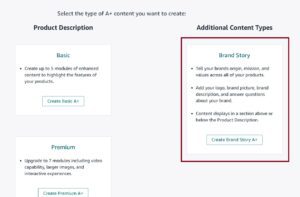
Brand Story is separate from your five (or seven) A+ Content modules. It does not count against your module limit. You can have a Brand Story and five standard modules, giving you six total content blocks on a single listing.
Here is what makes Brand Story worth building:
1. It Is Required for Premium A+ Eligibility
As covered above, every branded ASIN needs a Brand Story published before Premium A+ unlocks. Even if you never plan to use Premium modules, getting Brand Story done across your catalog opens the door for later.
2. It Appears Above A+ Content
The Brand Story section shows before the A+ Content modules. It is the first enhanced content shoppers see when they scroll past the bullet points. This is prime positioning for establishing brand credibility before the product-focused A+ modules take over.

3. It Supports Cross-Selling
Brand Story cards can link to other ASINs in your catalog. A skincare brand with a cleanser, toner, and moisturizer can use Brand Story cards to showcase the full routine and link to each product. This drives traffic between listings without relying on the comparison chart module.
To create a Brand Story, select “Brand Story” as the content type in the A+ Content Manager. You will be prompted to add cards with image uploads (typically 362 x 453 px per card background) and text. The module supports multiple cards, and shoppers scroll through them horizontally.
Does A+ Content Affect Search Rankings?
This question comes up constantly, and the answer depends on whether you mean Amazon search or Google search.
1. Amazon Search
Amazon confirmed that A+ Content text is indexed for Amazon’s search algorithm. This means keywords you include in your A+ Content module text fields and image alt text can contribute to your discoverability on Amazon.
This does not mean you should stuff A+ Content with keywords. Amazon’s algorithm evaluates relevance across your entire listing: title, bullet points, backend search terms (which now allow up to 500 bytes), and A+ Content. The primary purpose of A+ Content is conversion, not keyword density. But thoughtfully including relevant terms in your module copy and alt text gives your listing additional keyword coverage.
Here is a practical approach: use your title, bullet points, and backend search terms for primary keyword targeting. Use A+ Content text to naturally incorporate secondary and long-tail keywords that do not fit elsewhere. Write alt text that describes the image accurately while including a relevant keyword where it makes sense.
2. Google Search Visibility
The standard text product description that A+ Content replaces was plain HTML that Google could crawl and index easily. A+ Content uses Amazon’s rendering framework, which layers images, text, and layouts through a more complex structure.
Modern Googlebot can render JavaScript and read dynamically loaded content better than it could a few years ago. Some A+ Content text does appear in Google search results for branded queries. But there is a practical limitation: much of the “text” in A+ Content is actually embedded inside images (infographics, feature callouts, branded banners). Google cannot read text inside images.
If Google SEO is a priority for your Amazon listings, fill in the alt text fields on every A+ Content image with descriptive, keyword-aware text. Use the text fields in your modules for actual typed copy rather than relying solely on text-within-images. This gives Google crawlable content to work with.
That said, most Amazon sellers generate the vast majority of their traffic from Amazon’s own search engine, not Google. Optimize A+ Content for Amazon search and shopper conversion first. Google indexing is a secondary benefit, not the primary goal.
A+ Content Best Practices for 2026
These are not theoretical tips. These are patterns that consistently show up in high-converting A+ Content across categories.
1. Lead with Your Strongest Module
The first module after the Brand Story sets the tone. Use the 970 x 600 px header module or a 970 x 300 px banner to make a visual impact. Feature your product in use, in context, or positioned alongside its key benefit. Avoid using the first module for your company logo. Shoppers care about the product first.
2. Design for Mobile First
Over 70% of Amazon shoppers in the US browse on mobile devices. Every design decision you make should be tested on a phone screen before anything else.
Standard A+ Content uses a single image per module that Amazon automatically scales and reformats for both desktop and mobile displays. You design one image at the recommended dimensions, upload it once, and Amazon handles the responsive rendering across devices.
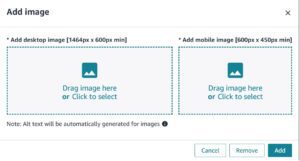
Premium A+ Content works differently. Each module requires separate image uploads for desktop and mobile versions. This means you need to design two distinct images per module placement: one optimized for the wider desktop layout (1,464 px content width) and one optimized for mobile screens (typically narrower with vertical orientation). The mobile image is not simply a cropped or scaled version of the desktop image. It is a separate upload with its own dimensions.
3. Do Not Repeat Your Bullet Points
This is the most common mistake. Sellers copy their bullet point text into A+ Content modules and call it done. This adds zero value. Shoppers already read your bullets. A+ Content should cover ground that bullets cannot: detailed use cases, comparison with your other products, brand story, product construction or materials, lifestyle context, and answers to common pre-purchase questions.
4. Use the Comparison Chart to Cross-Sell
If you sell more than one product, the comparison chart module should be in every A+ Content layout. It allows shoppers to see your other options without leaving the page. The products in the chart link directly to their listings. For product lines (different sizes, models, or flavors), this module converts browsers into buyers of the right variant.
5. Text Inside Images Must Be Minimal
If you put a paragraph of text inside a graphic, shoppers will not read it. Use text overlays for headlines, single-line callouts, and feature labels. Detailed descriptions belong in the typed text fields of each module, not baked into the image files.
6. Maintain Visual Consistency Across ASINs
Your A+ Content should feel like one brand across all products. Use consistent colors, fonts, image styles, and module layouts. When a shopper lands on one product and then clicks to another through a comparison chart, the visual continuity reinforces that they are shopping from a cohesive brand, not a random assortment of listings.
7. Value Proposition in the First 300 Pixels
On mobile, the first 300 vertical pixels of your A+ Content are visible before the shopper has to scroll further. Put your strongest selling point in that space. Not your logo. Not a generic lifestyle image. A clear statement of what makes this product different from every other option.
Rejection Reasons and How to Fix Them
Amazon reviews every A+ Content submission against its content guidelines. Rejections are common, especially for first-time submissions. Here are the rejection reasons that come up most often, with specific fixes.
1. Prohibited Claims
Amazon does not allow health or medical claims, environmental certifications you cannot verify, or guarantees that violate their policies. Phrases like “clinically proven,” “FDA approved” (for non-FDA-regulated products), “eco-friendly” (without third-party certification), and “100% satisfaction guaranteed” will trigger rejection. Fix: remove the claim or replace it with factual, verifiable language. Instead of “clinically proven to reduce wrinkles,” write “formulated with retinol and hyaluronic acid.”
2. References to Competitor Brands
You cannot mention competitor brand names in your A+ Content. Even in comparison charts, you cannot say “better than [Brand X].” Fix: use generic language like “leading competitors” or better yet, compare your own products against each other rather than against competitors.
3. Pricing, Promotional, or Shipping Language
Mentioning specific prices, discounts, “free shipping,” “limited time offer,” or anything that implies a time-sensitive deal will get your content rejected. A+ Content is meant to be evergreen product information, not a promotional flyer. Fix: remove all price and promotion references.
4. Warranty or Guarantee Statements
Statements about warranties, money-back guarantees, or satisfaction guarantees are restricted. Amazon has its own return and refund policies, and seller-specific guarantees can conflict with those. Fix: remove guarantee language. If your product has a manufacturer warranty, mention it in the bullet points where it is more appropriate and less likely to conflict with Amazon’s guidelines.
5. Low-Resolution or Blurry Images
Images that are visibly pixelated, stretched, or blurry will be rejected. This often happens when sellers upload images that are smaller than the recommended module dimensions. Fix: always design images at or above the recommended pixel dimensions. Use the 2x resolution approach described in the modules section.
6. Contact Information
Including your website URL, email address, phone number, or social media handles in A+ Content is not allowed. Amazon restricts this to prevent driving traffic off the platform. Fix: remove all contact information and external links.
7. Lifestyle Images with Unsafe Depictions
If your product is shown being used in a way that could be seen as unsafe (particularly for children’s products, electrical items, or anything ingestible), Amazon may reject the content. Fix: review images for any depiction that could be interpreted as improper use.
A/B Testing with Manage Your Experiments
Most sellers publish A+ Content and never look at it again. That is a missed opportunity. Amazon offers a built-in A/B testing tool called Manage Your Experiments that lets you test different versions of your A+ Content against each other and measure which version converts better.
Manage Your Experiments is available in Seller Central under Brands and requires Brand Registry. Here is how to use it effectively:
1. Run One Variable at a Time
Do not redesign your entire A+ Content and test version A against version B. Change one element: the header image, the module order, the comparison chart products, or the lead copy. Testing one variable at a time gives you clean data about what actually caused the performance difference.
2. Let Tests Run for the Full Duration
Amazon recommends running experiments for at least 8 weeks to reach statistical significance. Cutting a test short because one version looks like it is winning after 10 days leads to unreliable conclusions. Traffic patterns fluctuate weekly, and short tests capture noise instead of signal.
3. Test High-Impact Elements First
Start with the first module (the first thing shoppers see), then test the inclusion or exclusion of the comparison chart, then test different image styles (lifestyle vs. product-on-white vs. infographic). These elements have the largest impact on engagement and conversion.
4. Use the Winning Version, Then Test Again
After a test concludes and Amazon declares a winner, publish the winning version and set up a new test with a different variable. Continuous testing over 6 to 12 months creates compounding improvements. A 2% conversion lift from one test, followed by another 1.5% lift from the next, adds up fast.
5. Metrics That Matter
Manage Your Experiments tracks conversion rate, units sold, and revenue for each version. Focus on conversion rate as your primary metric. Revenue differences can be influenced by external factors like price changes or seasonal demand. Conversion rate isolates the impact of the content itself.
Mistakes That Kill A+ Content Performance
Beyond the best practices and rejection reasons, there are strategic errors that do not get your content rejected but quietly undermine its effectiveness.
1. Treating A+ Content as a One-Time Task
Your competitors update their A+ Content. Seasonal relevance changes. Your product line expands. Customer feedback reveals new questions or concerns. A+ Content should be revisited at least twice per year. If you launch a new product that could appear in your comparison chart, update the chart. If customer reviews consistently mention a feature you do not highlight, add a module for it.
2. Ignoring the Product Detail Page Context
A+ Content does not exist in isolation. It sits below your title, images, bullet points, and pricing. If your bullet points already cover everything and your A+ Content repeats it, shoppers get nothing new. Map out what each section of your listing covers and assign distinct jobs to each. Title handles keywords and identification. Bullets handle features and specs. A+ Content handles visual storytelling, comparisons, and deeper explanations.
3. Using Stock Photography
Shoppers can spot stock photos instantly. A lifestyle image of a generic model holding a generic product in a generic kitchen does not build trust. It actively erodes it. Use real product photography. If budget is tight, even well-lit smartphone photos of your actual product outperform stock imagery.
4. Building for Desktop Only
This was mentioned in best practices but deserves emphasis. Previewing your A+ Content only on desktop and assuming it looks fine on mobile is one of the most common errors. Text that is perfectly sized at 970 px becomes microscopic at 360 px. Always preview on a mobile device after publishing.
5. Skipping Alt Text
Alt text fields are optional in the A+ Content Manager, and many sellers leave them blank. This is a mistake for two reasons. First, Amazon indexes alt text for search. Second, accessibility compliance matters, and alt text is a legal requirement under ADA guidelines that apply to digital content. Fill in every alt text field with a descriptive, keyword-relevant phrase.
Frequently Asked Questions
Is Amazon A+ Content free?
Yes. Standard A+ Content has no cost for brand-registered sellers. Premium A+ Content is also free for sellers who meet eligibility requirements (Brand Story on all ASINs, A+ Content on all ASINs, and an approved A+ project within the past 12 months).
How long does A+ Content take to get approved?
Amazon typically reviews and approves A+ Content within 7 business days. During Q4 (October through December), review times can extend to 14 business days due to higher submission volume. If your content is rejected, you can edit and resubmit immediately.
Can I use A+ Content without Brand Registry?
No. Brand Registry enrollment is the only way to access A+ Content on Seller Central. Brand Registry requires an active registered trademark in the marketplace country where you sell.
Does A+ Content replace my product description?
Yes. Once A+ Content is published on an ASIN, it replaces the standard text product description. Shoppers will see your A+ Content modules instead of the plain text description. If you remove or unpublish A+ Content, the original text description reappears.
Can I add video to A+ Content?
Only through Premium A+ Content. Standard A+ Content modules do not support video. If you want video on your product detail page without Premium A+, you can upload product videos through the main image gallery (which is separate from A+ Content).
How many modules can I use?
Standard A+ Content allows up to 5 modules per ASIN. Premium A+ Content allows up to 7 modules per ASIN. The Brand Story module does not count toward this limit.
Does A+ Content help my product rank higher on Amazon?
A+ Content text and alt text are indexed by Amazon’s search algorithm, so keywords in your A+ Content do contribute to discoverability. More importantly, A+ Content improves conversion rates, and conversion rate is a significant factor in Amazon’s ranking algorithm. Higher-converting listings tend to rank higher organically.
What happens if I apply A+ Content to a parent ASIN?
The A+ Content will display on all child ASINs (all variations) associated with that parent. You can override this by applying different A+ Content to individual child ASINs if specific variations need unique descriptions.
What file formats does Amazon accept for A+ Content images?
Amazon accepts JPEG and PNG files. Images must be in RGB color mode (not CMYK). Each image file should be under 2 MB. Upload images at the exact pixel dimensions recommended for each module to avoid cropping or quality loss.
Why does my A+ Content look different on mobile?
Amazon reformats A+ Content for mobile screens. Modules that appear side by side on desktop stack vertically on mobile. Text may be resized, and image proportions may shift. This is normal behavior. Design with mobile layout in mind from the start, and preview your listing on a phone after publishing to check readability.
Can I use the same A+ Content on multiple ASINs?
Yes. A single A+ Content project can be applied to multiple ASINs. This is useful for products that share the same brand story or feature set. You can also create unique A+ Content for individual ASINs if different products need distinct descriptions.
What is the difference between A+ Content and a Brand Store?
A+ Content appears on individual product detail pages in the product description section. A Brand Store (Amazon Storefront) is a standalone multi-page shopping destination for your brand with its own URL. They serve different purposes. A+ Content sells a specific product. A Brand Store showcases your entire catalog and brand story.