

Amazon Seller Central is the web-based platform where third-party sellers run every part of their Amazon business. Listings, orders, inventory, advertising, payments, account health, and reporting all live inside this single platform.
Think of it as the control room behind your Amazon business. Customers never see it. You use it every single day.
As of 2026, over 2.5 million active sellers operate through Seller Central globally, and third-party sellers account for nearly 60% of all units sold on Amazon. Whether you are just starting out or trying to get a firmer grip on the platform, this breakdown covers every major section, what it does, and exactly how to reach it.
Seller Central vs. Vendor Central
New sellers frequently mix these two up. They are built for completely different business models.
Seller Central is open to anyone. You sell directly to customers, control your prices, manage your listings, and choose how to fulfill orders.
Vendor Central is invite-only. Amazon contacts selected brands and manufacturers directly and invites them to sell inventory wholesale to Amazon. Amazon then controls pricing, fulfillment, and customer service entirely.
The trade-off is simple. Vendor Central gives products the “Sold by Amazon” label, which carries credibility, but you lose all pricing control. Seller Central gives you full control over every part of your business but full accountability to match. If Amazon has not invited you, Seller Central is your only path and, for most growing brands, it is the better one.
Selling Plans: Individual vs. Professional
Before you register seller central account, you have to choose a selling plan. This decision determines what tools you can access and how much you pay.
1. Individual Plan
Charges $0.99 per unit sold with no monthly fee. It blocks access to advertising, bulk listing tools, coupons, deals, and several restricted categories. Fine for casual sellers but it creates real friction for anyone trying to grow.
2. Professional Plan
A flat $39.99 per month regardless of sales volume. Every tool on the platform becomes available: advertising, bulk uploads, deals, coupons, promotions, brand tools, and API integrations. Most serious sellers are on this plan from day one.
If you sell more than 40 units a month, the Professional plan costs less per item than Individual and removes every tool restriction. You can switch plans at any time without losing account data.
How to switch your plan: Settings (gear icon, top right) > Account Info > Account Management
Registering a Seller Central Account
Registration seller central account takes 1 to 3 business days for most applicants. The process now includes a mandatory video identity verification step that Amazon introduced to reduce fraudulent accounts. Have everything ready before you start because incomplete applications are the main reason for delays.
What you need:
- Government-issued ID or passport
- Business name and registered address
- Bank account for disbursements
- Chargeable credit card
- Phone number for two-factor authentication
Steps to register:
- Go to sell.amazon.com and click Sign Up
- Create a new Amazon account or sign in with an existing one
- Enter your business location, type, and personal credentials
- Upload identity documents for verification
- Complete the video identity check via live call or face scan with your ID
- Submit and wait for Amazon’s approval
The Seller Central Dashboard
The dashboard is the first screen you see after logging in. It is built to give you an immediate read on your business without clicking anywhere. Most sellers check it at the start of every working day.
The home screen shows today’s orders, units sold, and revenue in real time. A comparison graph lets you measure today’s performance against yesterday, last week, or the same period last year. This graph is the fastest way to spot an unexpected drop on any ASIN before it turns into a bigger problem.
Below the sales data, Amazon surfaces announcements, policy updates, and active alerts for anything needing your attention: suppressed listings, account health warnings, pending shipment issues, or action items with deadlines. These are not optional reading. Missing an Amazon policy announcement has real consequences.
Dashboard widgets can be rearranged or removed depending on what you actually use.

How Seller Central Is Organized
The top navigation bar gives quick access to Catalog, Inventory, Pricing, Orders, Advertising, Stores, Growth, Reports, and Performance. Clicking the three-line hamburger icon at the top left opens a full expanded panel with additional sections including Payments, Account Health, B2B, Brands, Analytics, Shipments, Learn and more.
To access all features of Seller Central, click the three-line icon at the top left of any Seller Central page.
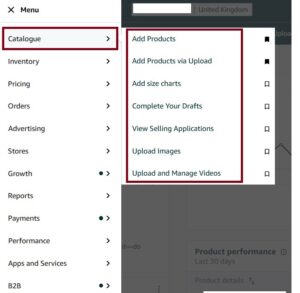
Catalogue
The Catalogue section holds all your product listings. It includes tools for adding new products, completing saved drafts, uploading large catalogues in bulk, and managing product images across your listings.
From the menu, go to Catalogue to see all available options including Add Products, Upload and Manage Inventory, and Complete Your Drafts. Review the Catalogue section snapshot to see how the Add Products search interface, category selector, and bulk upload template download appear inside the platform.
1. Add Products
When adding a product, you either match to an existing listing already in Amazon’s catalogue or create a brand new one. Matching an existing listing means adding your offer alongside other sellers on that same product page. Creating a new listing is filling out the full product detail page from scratch, including title, category, bullet points, description, images, and product identifiers like UPC or GTIN.
2. Complete Your Drafts
Listings that did not meet Amazon’s minimum data requirements at submission get saved here rather than published. This section holds incomplete or rejected listing drafts that need finishing before they can go live. Leaving drafts here too long can result in them being discarded automatically.
3. Bulk Upload
The option is useful for sellers with large catalogue. Download a category-specific spreadsheet template, fill in all required and optional data fields, and submit the file to create or update many listings at once. The same tool handles bulk price updates, quantity changes, and listing edits across hundreds of SKUs without touching each one individually.
4. Product Images
Amazon allows up to nine images per listing. The main image requires a white background with no overlaid text or graphics. Supporting images can include lifestyle photography, infographics, packaging shots, and dimension charts.
Image quality is one of the biggest drivers of click-through rate in search results. Shoppers make split-second decisions based on the main image before they ever read the title. A strong image set consistently outperforms a weak one even when everything else on the listing is identical.
Inventory
The Inventory section is where you monitor stock levels, manage FBA and FBM listings, create inbound shipments to Amazon’s fulfillment centers, and catch inventory problems before they cost you money.
From the menu, go to Inventory to access Manage All Inventory, FBA Inventory, Inventory Planning, and more.
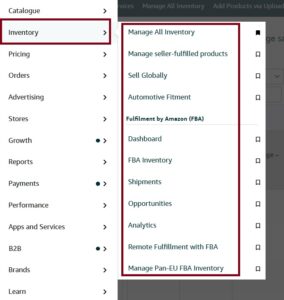
1. Manage All Inventory
Here you can see the list of every SKU you currently sell or have ever listed. Each row shows listing status, ASIN, available unit count, price, and fulfillment channel. You can edit any listing, close an active offer, or switch fulfillment method from here.
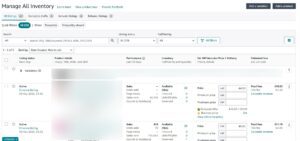
You can see the suppressed and stranded listings in this section. Suppressed listings are removed from search results due to a data issue or policy violation. Stranded inventory is stock sitting in Amazon’s warehouses that is not available for purchase because the attached listing has a problem.
2. FBA Inventory
This page shows all stock inside Amazon’s fulfillment centers. Available units, inbound units in transit, reserved units, and unfulfillable inventory are all visible here. Unfulfillable inventory is stock Amazon has flagged as unsellable due to damage or expiration. Request removal or disposal from this tab directly.
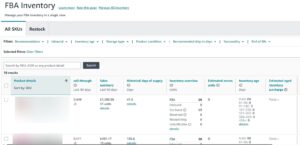
3. FBA vs. FBM
FBA means sending your inventory to Amazon’s fulfillment centers in advance. When an order comes in, Amazon picks, packs, ships, and handles customer service. Products become Prime-eligible automatically. Between 30% and 60% of Amazon shoppers filter by Prime, so this affects how often your listing appears, not just whether shoppers buy it.
FBM means you store, pack, and ship orders yourself. No Amazon fulfillment fee applies, but delivery performance, tracking, and customer service are entirely your responsibility.
FBA works best for small, light, fast-moving products. FBM is often best for oversized items, slow-moving SKUs where storage fees eat margin, or sellers who already have solid warehouse infrastructure in place.
2026 update: As of January 1, 2026, Amazon ended all FBA prep and labeling services at U.S. fulfillment centers. Every unit must arrive fully prepped, labeled with FNSKU stickers, and compliant with Amazon’s packaging requirements before it leaves your supplier or warehouse. That option is gone entirely.
4. Send to Amazon
Send to Amazon is the workflow you use every time you ship inventory to an FBA warehouse. Select products and quantities, choose a shipping carrier, generate box content labels and FNSKU product labels, and confirm shipment details. Amazon then assigns destination fulfillment center addresses.
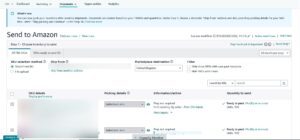
Amazon charges an Inbound Placement Service Fee based on how your shipment gets distributed across fulfillment centers. Sending to Amazon-optimized multi-location splits lowers this fee compared to sending everything to a single location.
5. Inventory Planning
Inventory tab helps you avoid the two most expensive FBA mistakes: running out of stock and holding too much. The dashboard flags overstocked products relative to current sales velocity and highlights ASINs at risk of running out based on days of supply remaining.
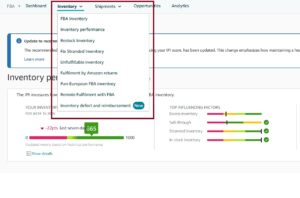 Three tabs are particularly useful. Inventory Age shows how long units have been sitting in Amazon’s warehouses. Fix Stranded Inventory shows units with no active listing attached. Manage FBA Returns shows returned customer units and their post-inspection condition. The Storage Utilization Surcharge, introduced in April 2025, activates when you hold more than 26 weeks of inventory relative to your sales velocity. Inventory Planning is where you monitor this before it becomes a fee problem.
6. Sell Globally
Sell Globally is the tool for sellers who want to expand beyond their home marketplace. It shows demand signals for your existing products in Amazon’s international markets and provides the starting point for listing those products in other countries.
From the menu, go to Inventory > Sell Globally to see international marketplace data and cross-border listing options.
Amazon operates in over 20 countries including the US, UK, Canada, Germany, France, Japan, and Australia. Each marketplace has its own Seller Central account but all can be linked under a single login. Programs like North America Remote Fulfillment allow you to fulfill Canadian and Mexican orders from existing U.S. FBA stock without maintaining separate local inventory.
Pricing
In Pricing section you can configure automated repricing rules, and monitor how your offers compare against competing sellers on the same listings. Pricing directly affects Buy Box eligibility, and the Buy Box is where over 80% of Amazon purchases happen.
From the menu, go to Pricing and choose Automate Pricing.
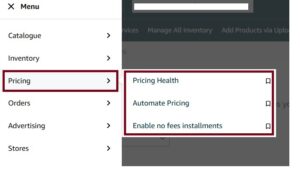
1. Automate Pricing
Amazon’s built-in repricing tool lets you create rule-based price adjustments tied to the Buy Box price or the lowest competing offer. Set a minimum and maximum price to protect your margin and the tool moves your price within those bounds automatically.
The native tool works for straightforward scenarios. For categories with constant, fast-moving price competition, third-party repricers that connect through Amazon’s Selling Partner API respond faster and offer more control over complex pricing rules.
2. The Buy Box
The Buy Box is the Add to Cart button on every Amazon product detail page. On listings with multiple sellers, only one seller wins it at a time, and that seller captures the overwhelming share of sales. FBA fulfillment, competitive pricing, strong account health, and positive seller metrics all factor into eligibility. If your Buy Box percentage on a listing you own drops below 90%, another seller is taking those purchases.
Orders
Every order placed on Amazon flows into the Orders section. For FBA sellers, most of this runs automatically, but it is still where you track order activity, manage returns, view buyer details, and export order data for accounting purposes.
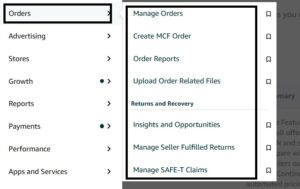
From the menu, go to Orders to access Manage Orders, Manage Returns, and Order Reports.
1. Manage Orders
Shows all pending, unshipped, and completed orders. FBM sellers use this tab to confirm shipments, enter tracking numbers, and communicate with buyers through Amazon’s messaging system. FBA orders fulfill automatically, but full transaction detail is visible here for every order. Filter by order status, fulfillment channel, or date range to find specific orders quickly.

2. Order Reports
Generates downloadable files of all orders within a selected date range. These exports are used for accounting reconciliation, tax preparation, or importing into external inventory management tools. The format includes every order detail: SKU, quantity, sale price, and shipping address.
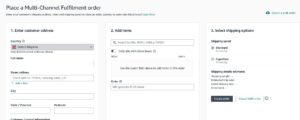
3. Create MCF Orders
Multi-Channel Fulfillment (MCF) lets you use your Amazon FBA inventory to fulfill orders from outside Amazon, including your own website, Shopify store, or any other sales channel. You create the fulfillment order directly inside Seller Central under the Orders tab, enter the customer’s shipping address, select the units to ship, and Amazon picks, packs, and delivers from the nearest fulfillment center.
Advertising
The Advertising section is where all paid campaigns, promotions, deals, and coupons are created and managed. Available on the Professional plan only. Brand-specific advertising tools require Brand Registry enrollment.
From the hamburger menu, go to Advertising to see all available options including Campaign Manager, Deals, Coupons, Promotions, and Brand Tailored Promotions.
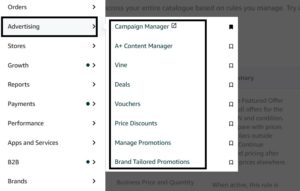
Campaign Manager
Campaign Manager is where all paid ad campaigns live. Amazon offers three main ad formats for third-party sellers.
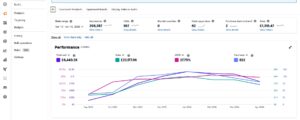
1. Sponsored Products are pay-per-click ads tied to individual ASINs. They appear in search results and on product detail pages and are the right starting point for any new seller running ads for the first time.
2. Sponsored Brands are banner ads at the top of search results featuring your brand logo, a custom headline, and multiple products. Brand Registry enrollment is required.
3. Sponsored Display retargets shoppers who viewed your product or similar products. These ads appear both on and off Amazon and are available with and without Brand Registry.
The average ACoS across Amazon sits close to 30% in 2026 in many categories. TACoS (Total Advertising Cost of Sale) is a more accurate long-term efficiency number. It divides total ad spend by total revenue including organic sales, giving you a full picture of advertising cost relative to your entire business output.
2. Deals
Lightning Deals and Deal of the Day are time-limited discount placements that appear in Amazon’s dedicated Deals section with high-visibility positioning. Amazon reviews and approves every deal before it goes live. The Deals dashboard surfaces eligible ASINs for your account based on sales history, review counts, and other criteria.

3. Coupons
Coupons display a green discount badge directly in search results before a shopper even clicks your listing. That badge measurably increases click-through rate. Select ASINs, set a discount amount or percentage, assign a budget, and submit for review. Allow a few days for approval before your intended launch date.
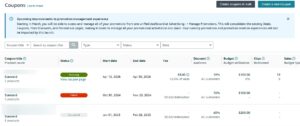
4. Promotions
Promotions support structured discount types including Percentage Off, Buy One Get One, and Social Media Promo Codes. Social Media Promo Codes generate a shareable link with a discount applied automatically when clicked, making them useful for influencer partnerships or external traffic campaigns.
5. Brand Tailored Promotions
Available to Brand Registry sellers only. Offer discounts of 10% to 50% to specific customer audiences including brand followers, repeat buyers, high-spend customers, cart abandoners, at-risk customers, and potential new customers. Each audience requires at least 1,000 members to qualify. No setup cost applies. You fund the discount itself, and eligible customers see a personalized promotional badge in search results and on the product detail page.
6. Amazon Vine
Vine is a review program where you provide units to Vine Voices, trusted reviewers selected by Amazon based on their review history. They receive the product free and post an honest review with a verified Vine badge on the listing. New sellers receive free Vine enrollment as part of the New Seller Incentives package within the first 90 days. After that, enrollment carries a per-ASIN fee. As of 2026, Amazon upgraded Vine with AI-based reviewer matching that routes products to reviewers with relevant category knowledge.
Reports
The Reports section holds the data behind every business decision you make on Amazon. Sales performance, inventory movements, payment history, return rates, and advertising results all live here. Most sellers who struggle operationally are not using this section enough.
From the hamburger menu, go to Reports to access Business Reports, Fulfillment, and Payments. Advertising reports are accessed separately through Advertising > Campaign Manager > select a campaign > Reports.
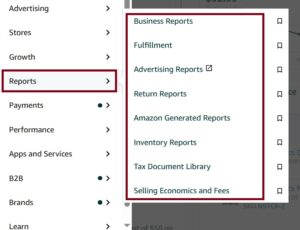
1. Business Reports
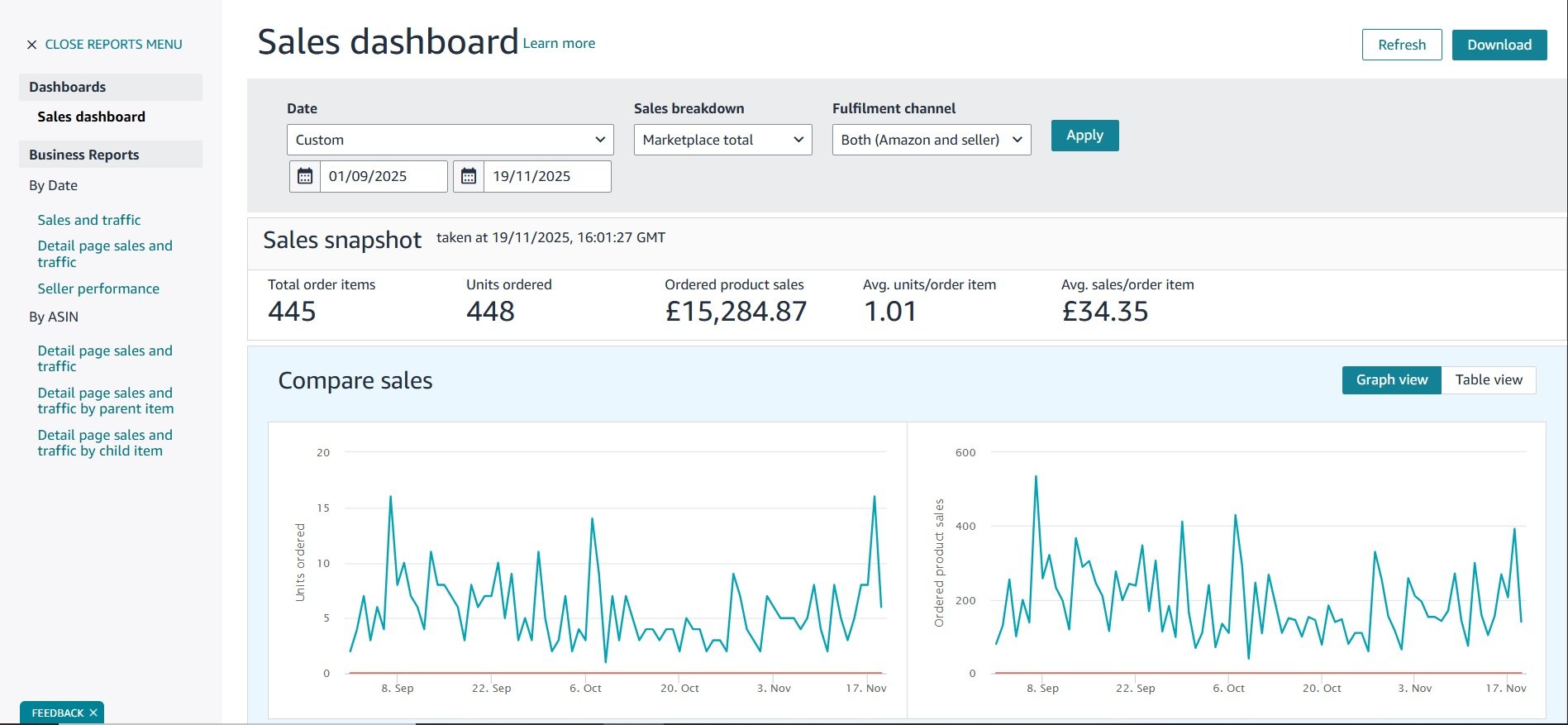
The Sales and Traffic report is the most important report in Seller Central for most sellers. It shows sessions, page views, unit session percentage (your conversion rate), Buy Box percentage, and ordered product sales broken down by ASIN.
2. Fulfillment Reports
Fulfillment Reports track every movement of your FBA inventory. The Inventory Ledger logs every unit received, sold, returned, removed, or disposed of. The Stranded Inventory report shows units in warehouses without an active listing. Reserved Inventory shows units temporarily unavailable during fulfillment center transfers. These reports are the source of truth when reconciling your actual stock counts against what Seller Central displays.
3. Payments Reports
The Payments section tracks all financial transactions on your account. Statement View summarizes each settlement period with your opening balance, sales, refunds, fees, and deposit amount. Transaction View breaks every individual charge and credit into its own line item, which is essential when investigating a specific fee or an unexplained adjustment.
2026 payout update: From March 12, 2026, Amazon holds funds for 7 days after confirmed delivery before releasing them, the new DD+7 model. This applies to both FBA and FBM orders. Adjust your cash reserves and inventory replenishment timing to account for this slower release cycle.
4. Advertising Reports
The Search Term Report is the most actionable advertising report available. It shows exactly what search phrases triggered your ad clicks alongside conversion data for each term. Add winning terms to your listing keywords and add non-converting terms as negatives so you stop paying for clicks that never result in purchases.
Performance and Account Health
The Performance section monitors whether your selling activity meets Amazon’s standards. A falling Account Health score can result in listing restrictions, category suspensions, or full account deactivation. Check this section at least once a week.
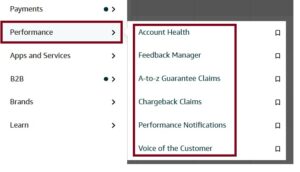
From the menu, go to Performance to access Account Health and Feedback Manager and other features.
1. Account Health Dashboard
The Account Health dashboard shows every performance metric Amazon tracks in one place, along with an Account Health Rating reflecting your overall compliance standing. Green means you are within acceptable ranges. Yellow means you are approaching a threshold. Red means Amazon has flagged a problem.
Key metrics and their thresholds:
| Metric | Threshold |
|---|---|
| Order Defect Rate (ODR) | Below 1% |
| Late Shipment Rate | Below 4% |
| On-Time Delivery Rate (OTDR) | Above 90% |
| Valid Tracking Rate (VTR) | Above 95% |
| Pre-Fulfillment Cancel Rate | Below 2.5% |
ODR includes negative feedback, A-to-Z Guarantee claims, and chargebacks. OTDR treats promise date extensions as failures, not on-time deliveries. VTR was expanded in January 2025 to cover all shipping carriers, not just Amazon-integrated ones.
2. Customer Feedback Manager
Seller feedback and product reviews are two separate systems. Seller feedback rates your service. Product reviews rate the product itself. Both affect credibility and conversion rate, but through different mechanisms.
The Request a Review button inside each Order Details page sends a single automated review request per order in the buyer’s language. Amazon controls the message entirely. You cannot customize text, send follow-ups, or offer any incentive. From August 2025, star-only reviews with no written comment are permitted and cannot be removed or appealed under any circumstances.
Payments
The Payments section tracks every dollar coming into and going out of your Seller Central account. Every sale, fee, refund, adjustment, and bank disbursement is recorded here. It is the financial record of your Amazon business.
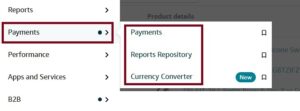
From the menu, go to Payments and choose between Statement View, Transaction View, and Date Range Reports.
The Statement View tab shows a weekly summary of your opening balance, orders, refunds, Amazon fees, and final deposit to your bank. Transaction View breaks every individual charge and credit into its own line item. Date Range Reports generates custom payment exports for any period, which is essential for monthly bookkeeping and quarterly tax preparation.
Amazon disburses payments on a 14-day cycle by default. Under the DD+7 rule effective March 12, 2026, funds from each order are held for 7 days after confirmed delivery before entering your available balance. Plan your cash flow and inventory replenishment schedule around this timeline.
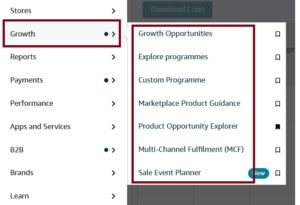
Growth
The Growth section surfaces programs Amazon recommends for your account based on your sales history, performance data, and product category. What appears here is specific to your account and changes as your selling activity evolves.
From the menu, go to Growth to access Explore Programmess, Fulfillment Programs, and Product Opportunity Explorer.
Stores
A Brand Store is a free, multi-page branded storefront inside Amazon available to Brand Registry-enrolled sellers only. It lets you organize your full product catalog, display lifestyle content, tell your brand story, and send advertising traffic directly to a curated experience rather than a single product page.
From the menu, go to Stores > Manage Stores to build or edit your storefront.
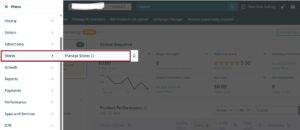
Stores are built with a drag-and-drop editor using prebuilt tiles for images, videos, product grids, and text. No technical background is required. Multiple pages can be organized by product category, collection, or use case.
As of January 2026, Amazon introduced section-level performance analytics for Brand Stores. Instead of only page-level traffic data, you can now see impressions, clicks, and click-through rates broken down by individual sections within each page. This makes it possible to test specific layouts and content placements with actual data rather than guessing what is working.
Brands
The Brands section holds the most powerful tools in Seller Central for anyone building a recognizable brand on Amazon. These tools are only available to sellers enrolled in Amazon Brand Registry.

From the menu, go to Brands to access Brand Analytics, and Manage Experiments.
1. Brand Analytics
Brand Analytics contains some of the most valuable data in Seller Central. The Search Query Performance report shows the exact search terms driving impressions, clicks, and purchases on your listings. Market Basket Analysis shows what customers buy alongside your products in the same transaction, which is directly useful for identifying bundling opportunities and cross-sell strategies.
2. Manage Experiments
Manage Experiments is Amazon’s built-in A/B testing tool. Run split tests on product titles, main images, and A+ Content. Amazon divides traffic between two versions and reports which one converts better based on real purchase data. Run tests for at least 4 to 8 weeks to get results worth acting on.
Amazon Seller Support and Opening a Case
Seller Support is your official channel for resolving account issues, listing problems, FBA discrepancies, policy questions, and enforcement actions. Knowing how it works before you need it saves significant time when something actually goes wrong.
There is no direct inbound phone number for sellers. The numbers circulating online labeled as “Amazon Seller Support” are buyer-facing customer service lines. They cannot help sellers. All seller support contact goes through Seller Central itself.
Once a case is opened, Professional plan sellers can request a phone callback, use live chat, or communicate via email through the case log. Individual plan sellers are limited to email only with no phone or chat option.
From the top right of any Seller Central page, click Help > Get Help and Resources to open the support interface. Review the Help and Case Log snapshot to see how the contact interface, issue category selector, and case tracking view appear inside the platform.
Steps to open a support case:
- Click Help in the top right corner of Seller Central
- Click Get Help and Resources
- Describe your issue in the search field and click Get Help
- Review any automated solutions Amazon surfaces for your issue type
- If none resolve the problem, scroll down and click Get Support or Contact Us
- Select the issue category that best matches your situation. If nothing fits, select My issue is not listed
- Fill in relevant details including order IDs, ASINs, shipment IDs, and a clear description of the problem
- Choose your preferred contact method: phone callback, chat, or email
- Submit and note the case ID for tracking
To track open cases, click Help > Get Help and Resources > scroll to Your Cases to view all open and closed cases with current status.
Cases show as Pending Amazon Action when the support team is working on it, or Pending Merchant Action when a response is needed from you. Check your case log regularly so cases do not expire while waiting on your reply.
A few practical points before opening a case. Open one case per issue. Duplicating the same case slows resolution because different agents pick up separate threads without shared context. If a case was closed but the issue is unresolved, reopen that existing case rather than starting a new one. Start your case description with a single clear sentence stating exactly what you need. Include what you have already tried. The more specific your submission, the faster support can act on it.
New Seller Incentives
Amazon offers a package of credits and benefits to new sellers that expires 90 days after account opening. Most new sellers miss at least one because they do not know where to find them.
The current package includes $200 in Sponsored Products advertising credits, $50 in coupon credits, free Amazon Vine enrollment for up to 30 units, FBA storage fee credits, and exemptions from the Storage Utilization Surcharge and Low-Inventory Level Fee during year one.
New sellers who actively use FBA, advertising, coupons, and Brand Registry tools within the 90-day window generate approximately 6x more first-year sales on average, according to Amazon’s own program data. The $200 advertising credit is particularly high-value early on. Ad spend drives initial sales velocity, and sales velocity feeds organic ranking.
Look for the New Seller Incentives widget on your Seller Central homepage, or go to the Growth tab and check for available benefits and credits. Review the New Seller Incentives snapshot to see where the credit tracking and enrollment status for each incentive appears on your account.
What Changed in 2026
| Change | Detail |
|---|---|
| FBA fees | Average increase of $0.08 per unit from January 15, 2026 |
| FBA prep services ended | All inventory must arrive pre-prepped. No Amazon labeling or prep at U.S. warehouses from January 1, 2026 |
| Commingling ended | Non-brand-owner resellers must use X00 barcode labels from March 31, 2026 |
| DD+7 payouts | Funds released 7 days after confirmed delivery, not after shipment. Effective March 12, 2026 |
| Long-term storage fees | Now apply at 271 days, reduced from 365 days |
| Backend search terms | Expanded to 500 bytes per field, up from 249 bytes |
| Star-only reviews | Permitted from August 2025. Cannot be removed or appealed |
| Seller Challenge | 3 dispute slots per 180-day period for Account Health Assurance members |
| Section-level Store analytics | Available in beta from January 2026 for Brand Stores |
Frequently Asked Questions
What is Amazon Seller Central?
It is the platform at sellercentral.amazon.com where third-party sellers manage their entire Amazon business including listings, orders, inventory, advertising, payments, and account health.
Is Seller Central free to use?
Access is free. You pay based on your selling plan: $0.99 per unit on Individual or $39.99 per month on Professional. Referral fees and FBA fees apply separately on every sale.
What documents are needed to open an account?
A government-issued ID or passport, a business name and address, a bank account for disbursements, a chargeable credit card, and a phone number for two-factor authentication.
What is the difference between Seller Central and Vendor Central?
Seller Central is open to anyone. You sell directly to customers with full pricing control. Vendor Central is invite-only. You sell inventory wholesale to Amazon, which then controls pricing and fulfillment.
How long does registration take?
Typically 1 to 3 business days. Applications requiring additional document review take longer. Having all documents ready before starting avoids most delays.
What is the IPI minimum to avoid storage restrictions?
400. A score of 500 or above is considered healthy. Below 350, expect meaningful storage capacity restrictions on how much you can send to FBA.
How do I contact Amazon Seller Support?
Click Help in the top right of any Seller Central page, then Get Help and Resources. Open a case from there and choose phone callback, chat, or email. There is no direct inbound phone line for sellers.
Can I sell in multiple countries from one login?
Yes. Link accounts across different marketplaces and use the Marketplace Switcher at the top left of Seller Central to toggle between them from a single login.
What is the Order Defect Rate limit?
Keep it below 1%. It covers negative feedback, A-to-Z Guarantee claims, and chargebacks. Exceeding 1% puts your selling privileges at direct risk.